Kinematic 0.5.0 is out. Modeling and sculpting in the viewport, a timeline on every graph, photo and sound editing. What's new

Free in every classroom.

One free app for the skills behind games, film, theater, music and design. Students build by pushing, pulling and painting in the viewport, and watch the node canvas fill in with every step they take.

a creature sculpted from a ball and painted, all in the viewport
Before class
  • No account to make
  • No license key to type
  • No license server to run
  • No watermark on student work
  • One file on macOS, Windows, Linux and Raspberry Pi
What they can learn · 14 courses in five departments

Courses for the jobs they want.

Kinematic covers the hands-on work behind games, film, theater, concerts, museums and music. For each course: what students make, what they do in the app, and where it can lead.

01 · Create

3D art and animation

From a ball of clay to a character walking across the screen.

Fits courses inGame art, film and animation, architecture, product design

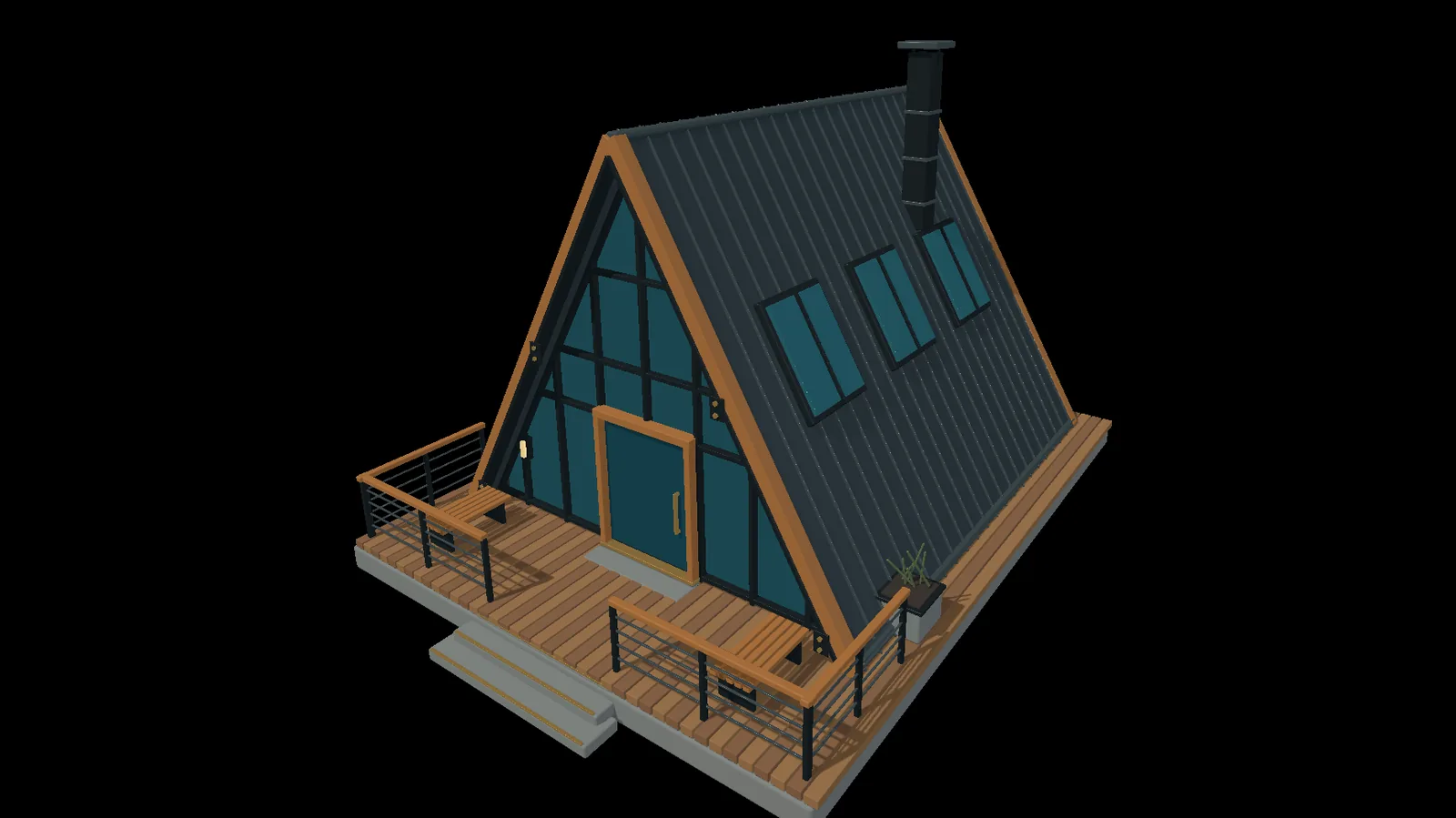
an A-frame cabin, built up from one roof plane

3D modeling

Buildings, furniture, props and whole sets for games and film.

In KinematicPick a face and pull it out, cut and bevel edges, mirror one half, and copy parts into place. Every move stays open to change.

Leads toward
  • Environment artist
  • Prop modeler
  • Set designer
See what they can make →
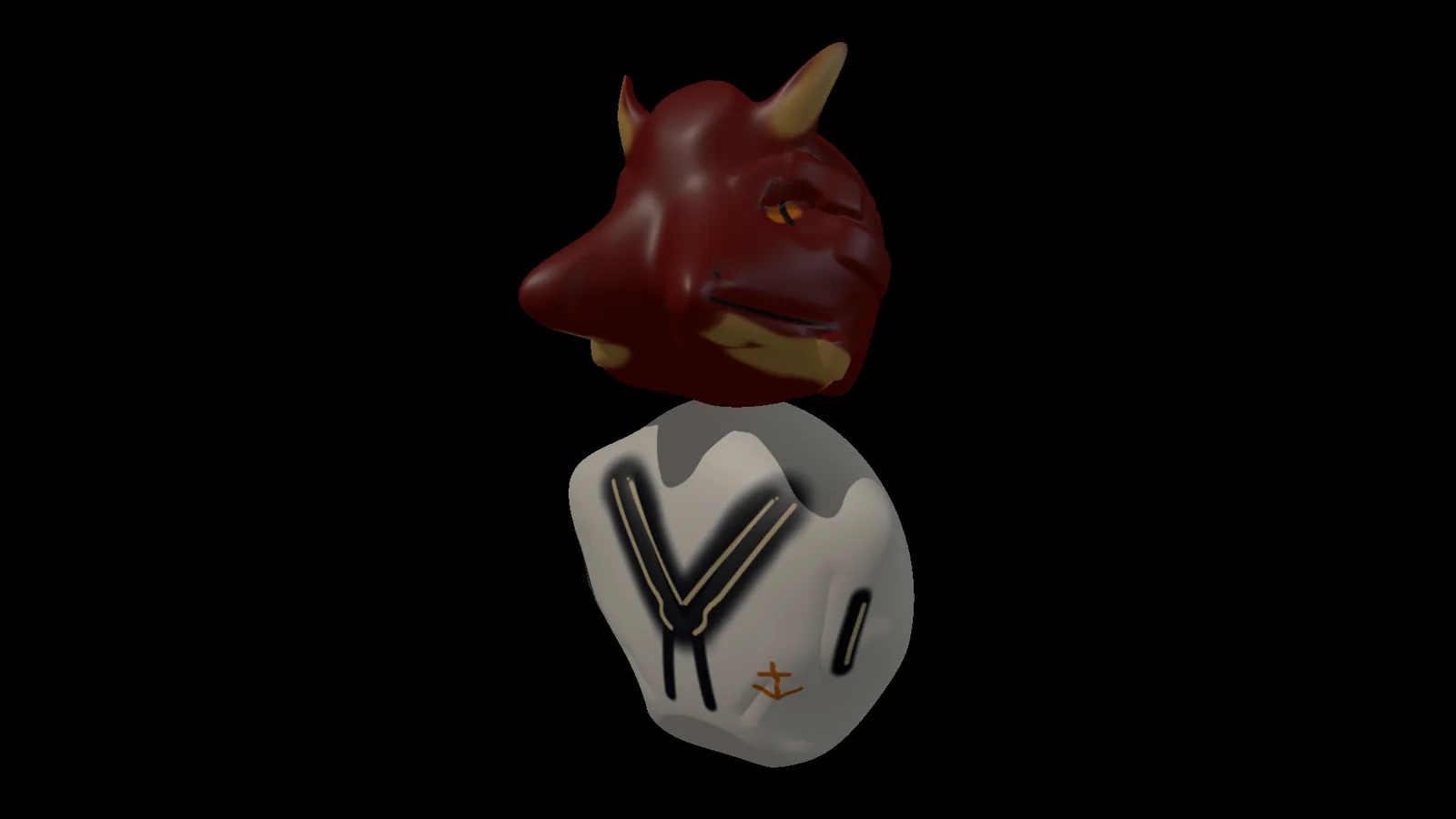
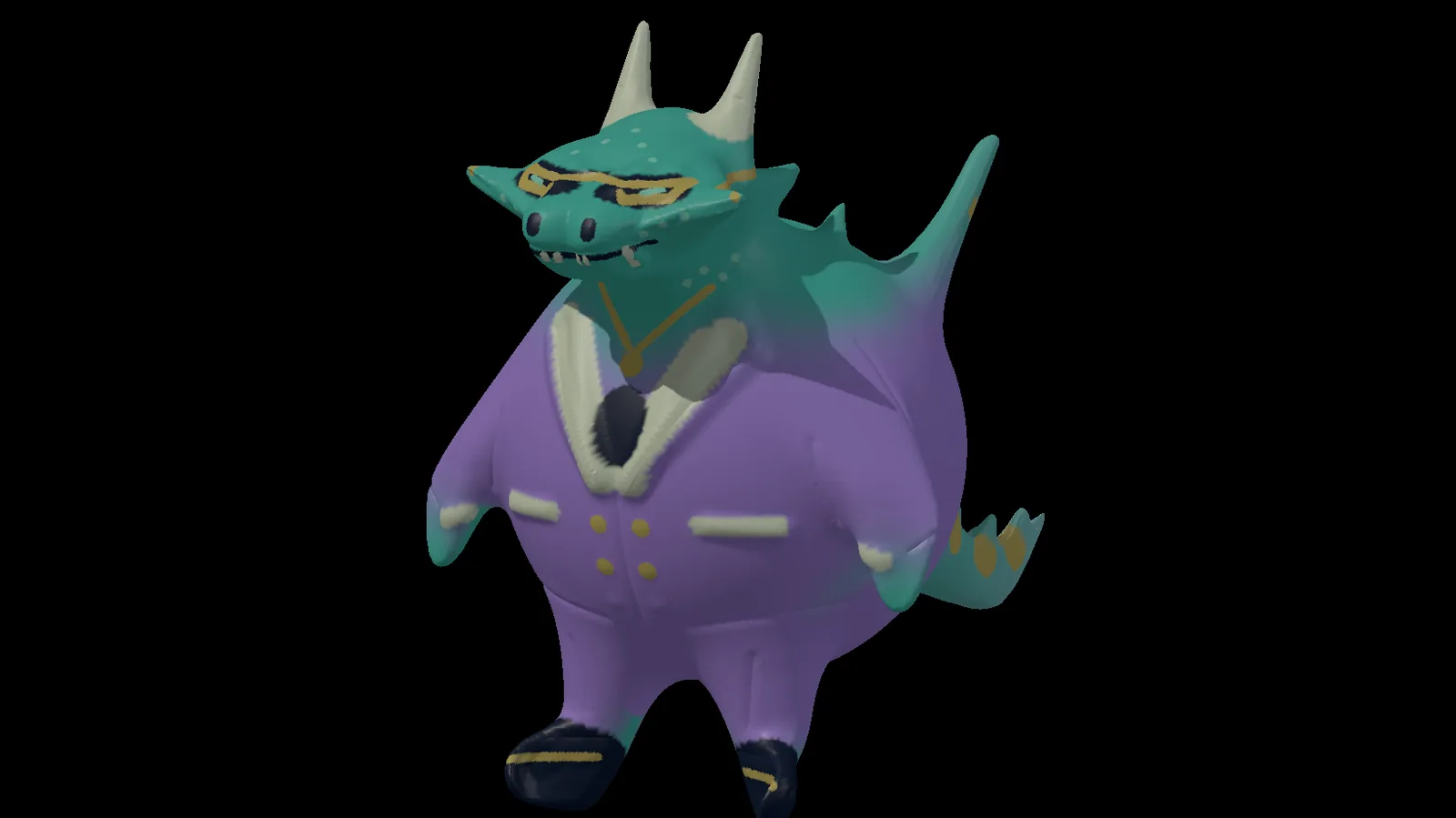
a dragon in a sailor top, sculpted and painted

Character and creature art

Creatures, heroes, busts and toys to pose, print or put in a game.

In KinematicStart from a ball and push, pull and carve it. With a pen, pressing harder digs deeper. Then paint color right onto the surface.

Leads toward
  • Character artist
  • Creature designer
  • Toy and figure sculptor
See what they can make →
a fox walking, playing live in the viewport

Animation

Walks, hops, dances and falls, from a bouncing ball to a whole character.

In KinematicDrag a character into a pose, press Key, and drag the arc of the motion until it looks right. Or act it out on a webcam and put the moves on the character.

Leads toward
  • Animator
  • Game animator
  • Previs artist
See what they can make →
an A-frame cabin with wood, glass and a metal roof

Product and architecture visualization

Product shots, turntables, and walkthroughs of buildings before they are built.

In KinematicBring a model in at its real size, put materials on it, light it with a sun and sky, and render stills, turntables and walkthrough videos.

Leads toward
  • Architectural visualizer
  • Product visualizer
  • Interior designer
See what they can make →
02 · Simulate

Effects and motion

Fire, water, cloth, and graphics that move.

Fits courses inFilm and visual effects, motion design, broadcast

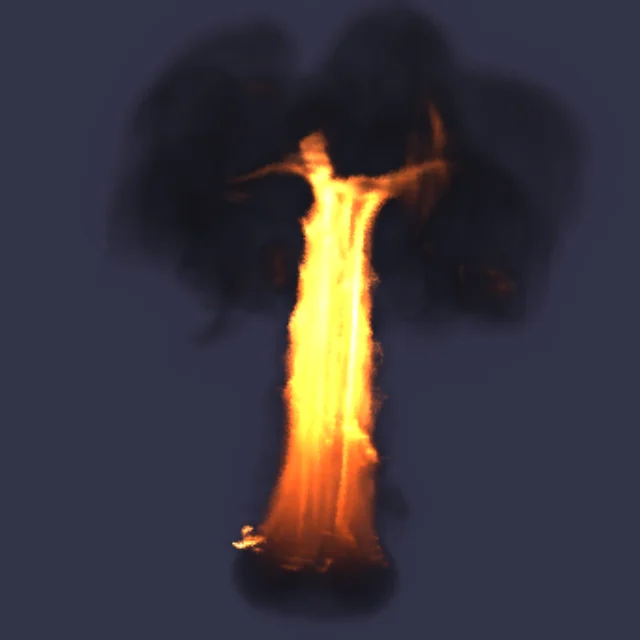
a shape on fire, its smoke mushrooming at the top

Visual effects and simulation

Fire, smoke, pouring water, cloth and things breaking apart, for film, games and ads.

In KinematicPick a shape and add fire, smoke, liquid or cloth from the Simulate menu. Press Play, then change the flame or the splash while it runs.

Leads toward
  • Effects artist
  • Simulation artist
  • Compositor
See what they can make →
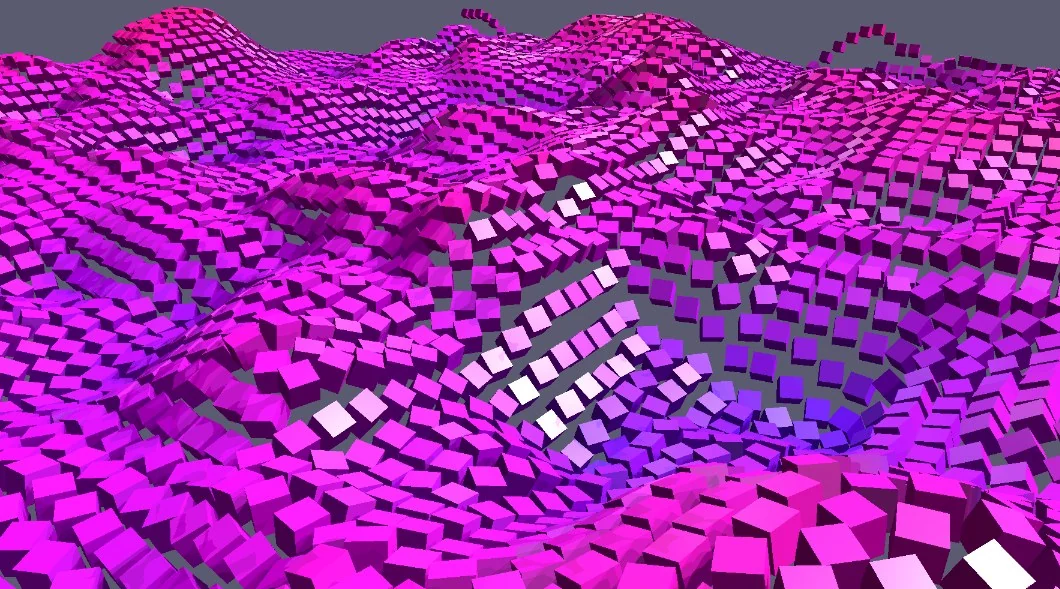
ten thousand cubes, rippled by noise

Motion graphics

Title sequences, logo animations, social clips and broadcast graphics.

In KinematicScatter thousands of copies and push them with noise, key a bounce on the timeline, and set type in their own font. It plays live, so the frame they tweak is the frame they send out.

Leads toward
  • Motion designer
  • Broadcast designer
  • Social video creator
See what they can make →
03 · Edit

Photo, video and design

The editing work every studio, newsroom and shop needs.

Fits courses inPhotography, film and media, graphic design

painting warm light into a sunset sky, right on the photo

Photo editing and retouching

Landscapes, portraits, product shots on white and real estate listings.

In KinematicDrag a box to crop, click Sky and the sky is picked for them, then warm it, heal the specks and clone out a wire, right on the picture.

Leads toward
  • Photographer
  • Retoucher
  • Product photographer
See what they can make →
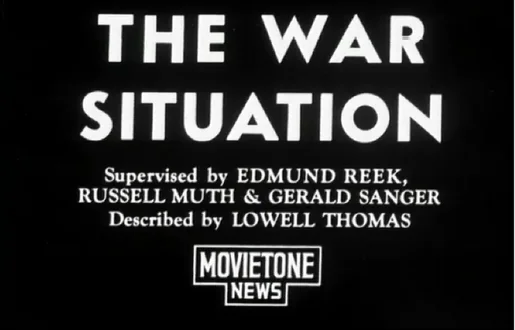
an old newsreel from the flicker example

Video editing and color grading

Short films, interviews, music videos, and a look for every shot.

In KinematicCut clips on the timeline, steady a shaky walk, paint a passing bus out of a shot, then find the look with curves, color wheels and scopes.

Leads toward
  • Video editor
  • Colorist
  • Video producer
See what they can make →
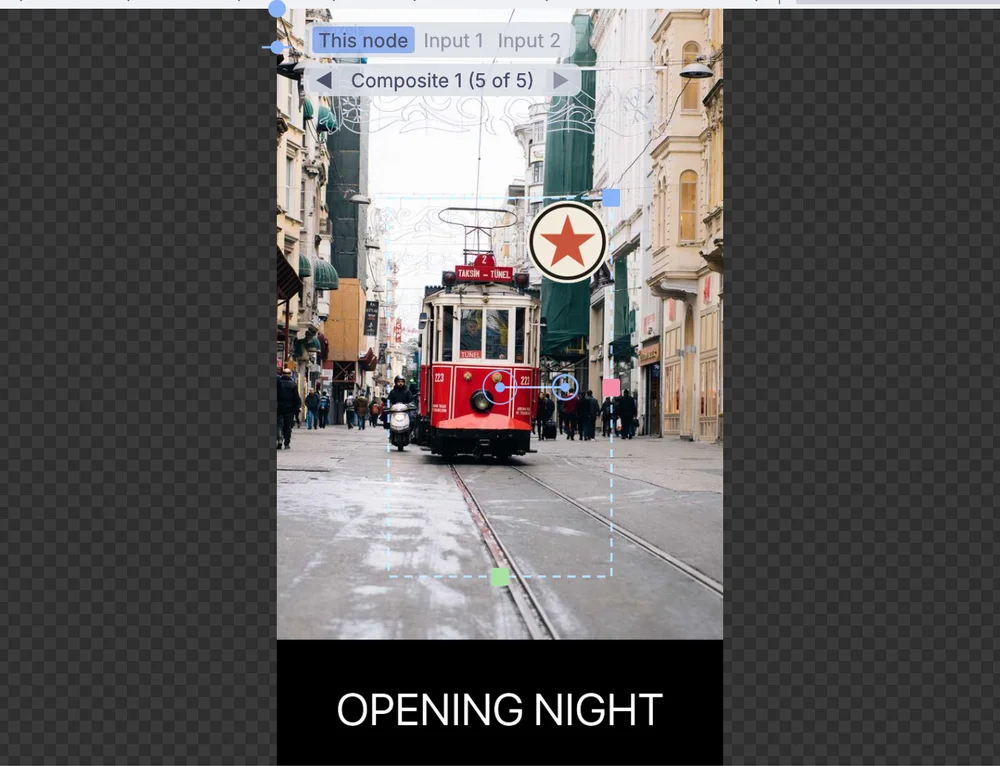
an event poster laid out over a street photo

Posters and graphic design

Posters, social sets, badges and print files.

In KinematicLay type and shapes over a photo, fill a word with a sunset, and save one design at every size for web and print.

Leads toward
  • Graphic designer
  • Social media designer
  • Print designer
See what they can make →
04 · Perform

Stage, screen and installation

The tech behind plays, concerts, museums and clubs.

Fits courses inTheater tech, live events, fine art and installation

a room of stage lights changing color, run from Kinematic

Stage lighting and theater tech

Lighting for plays, dance and concerts, with cues that run the whole show.

In KinematicPick lights from the library and give them addresses, build a look in the programmer, record it as a cue with a fade, and press GO through the show.

Leads toward
  • Lighting designer
  • Lighting programmer
  • Stage technician
See what they can make →
light mapped onto a room, a person stepping into it

Projection mapping and installation art

Pictures that wrap a building, a column or a whole room, and pieces that react to the people walking past.

In KinematicDrag the four corners of a picture onto a wall, bend it around a column, and blend two projectors into one wide picture. A webcam can make the room react.

Leads toward
  • Projection designer
  • Installation artist
  • Exhibition designer
See what they can make →
a scanned person projected on a wall, moving live

Live visuals and VJing

Visuals for concerts, clubs and video walls that move with the music.

In KinematicStack feedback, kaleidoscopes and glitches, let the kick drum push them, and play it all from the MIDI controller they already own.

Leads toward
  • VJ
  • Concert and festival visual artist
  • Video wall designer
See what they can make →
05 · Play

Sound and music

Record it, shape it, play it, and let it move the picture.

Fits courses inMusic technology, audio production, game and film sound

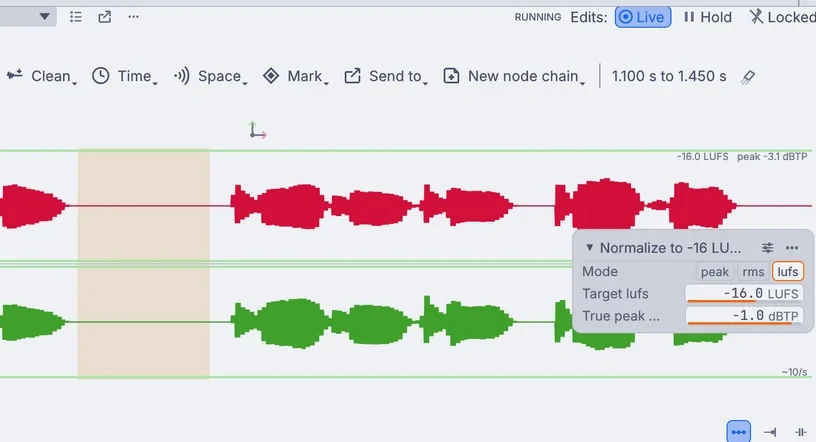
a voice take, a stretch of it picked on the waveform

Sound design

Sound effects, ambiences and voice for games, film and theater.

In KinematicRecord a take, draw a range on the waveform, and trim, cut, clean and level it. Then layer synths and grains under it, and lay it under the picture.

Leads toward
  • Sound designer
  • Audio editor
  • Game audio designer
See what they can make →
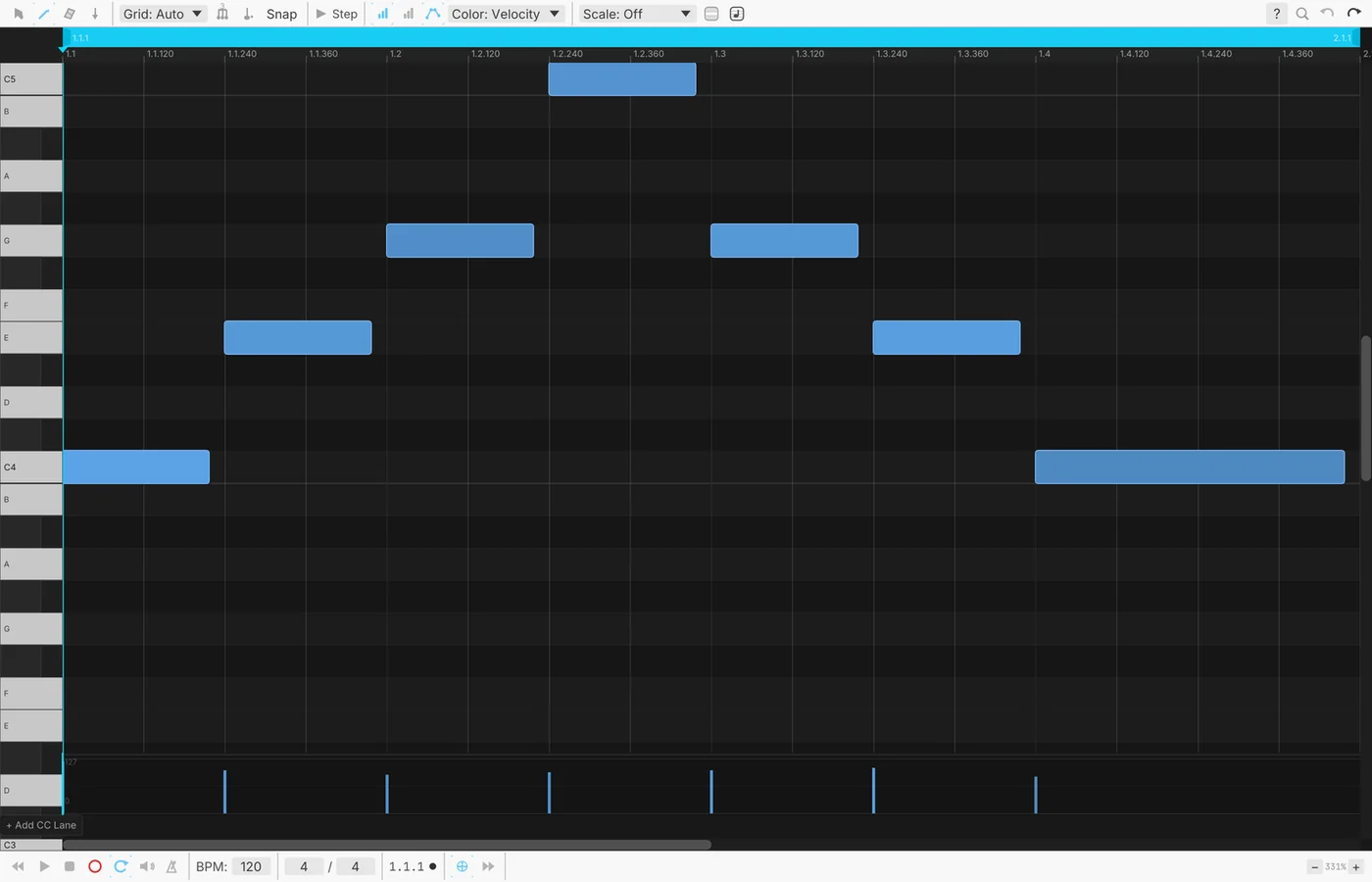
a melody written in the piano roll

Music production

Beats, songs, synth patches and scores.

In KinematicWrite notes in the piano roll, record takes from a keyboard, build a synth or a drum machine from parts, and mix with real dynamics.

Leads toward
  • Music producer
  • Composer
  • Sound engineer
See what they can make →
How a lesson works

Build in the viewport. Watch the canvas fill in.

Beginners learn fastest with their hands on the work. So they start in the viewport, right on the model or the picture. Every move lands on the node canvas as a step, and the canvas becomes the map of how their piece was made.

viewport
canvas
  1. 1Start from a box
  2. 2Squash it into a base
  3. 3Pull up a platform
  4. 4Step in, pull up again
  5. 5Raise a shrine on top
  6. 6Add a second shrine
  7. 7Run two stairs up the front
  8. 8Put roofs on the shrines
A temple modeled from one box, sped up. Beside it, a drawing of the steps the canvas keeps as it goes.
  1. Hands on the work.

    Pull out a face, paint a stroke, drag a corner. The model or the picture changes under the pointer, so each tool explains itself.

  2. Every move is a step.

    Each one lands on the canvas, in order, with a plain name. Undo takes back one step at a time.

  3. Go back to any step.

    Click a step and the viewport shows the work as it was right there. Change it, and everything after it follows.

  4. The canvas grows with them.

    Later, the same canvas lets them reuse a step, swap one out, or let a slider, a sound or a camera drive it.

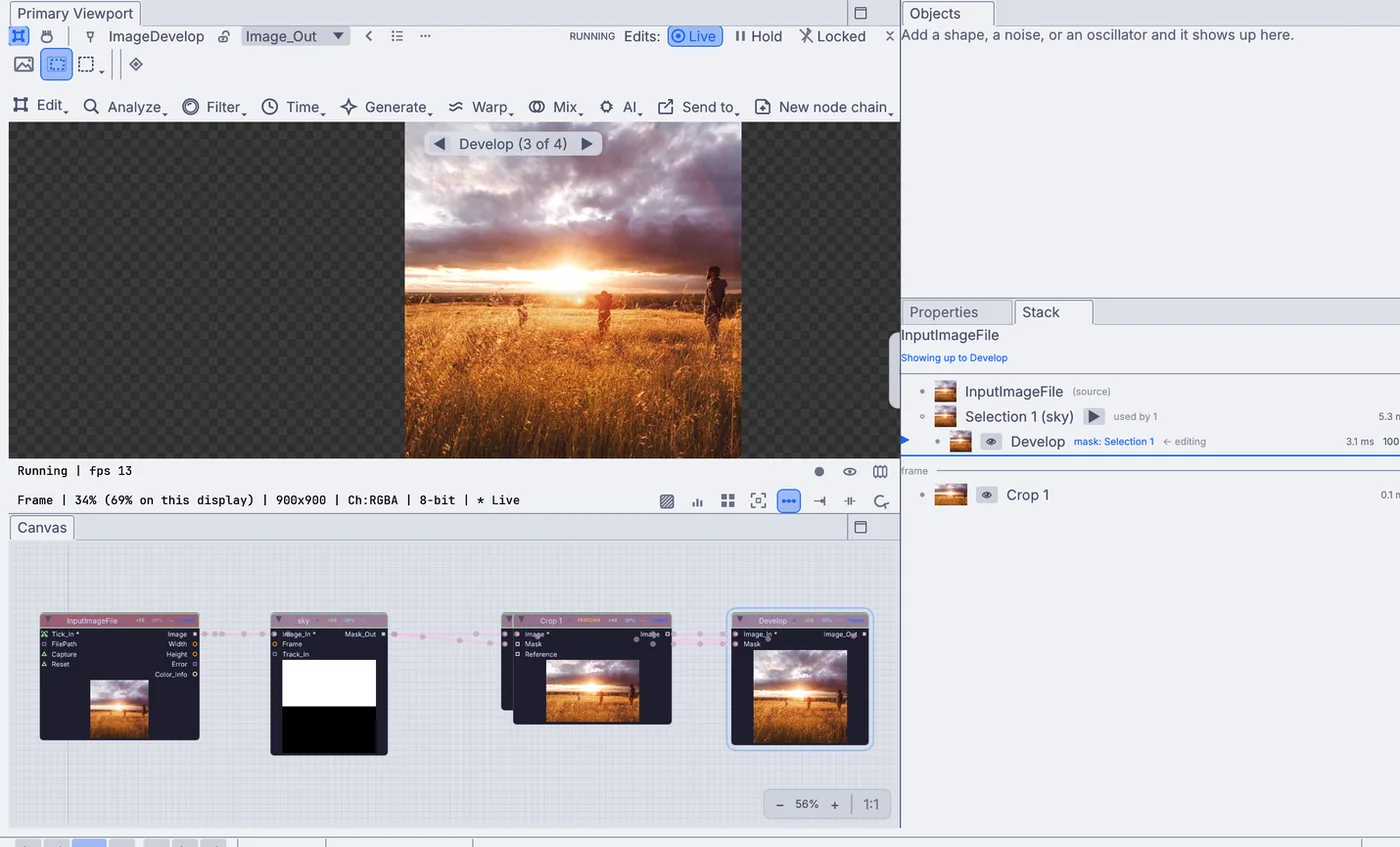
Kinematic with a sunset photo in the viewport, its edit steps on the canvas below and in the step list at the right viewportcanvasstep list
In the app: a sunset photo, its sky picked, developed and cropped. Each step shows on the canvas below and in the list at the right.
Class plans

A first class for every course.

Each plan starts in the viewport and ends with students opening the canvas to see what they made. Run one in a single session, then let them keep going in the course that hooked them.

3D art · first class

Sculpt a creature from a ball

They leave witha creature of their own, painted and ready to pose, print or share.

  1. Add a sphere, then press Sculpt on the tool row.
  2. Pull out the big shapes first: a body, a head, a tail. Turn on symmetry so both sides grow together.
  3. Switch to a small brush for horns and claws. With a pen, pressing harder digs deeper.
  4. Paint color straight onto the surface.

Then open the canvasThe ball they started from is still there as the first step, with the sculpting and the paint after it.

the creature from the clip at the top, sculpted from a ball and painted
Effects · first class

Set something on fire

They leave witha burning shape they can light, tune and render.

  1. Add a shape: a box, a ring, a word.
  2. Pick it and choose Fire from the Simulate menu.
  3. Press Play and watch it catch.
  4. While it burns, lower the lift for a lazier flame and add turbulence so it flickers.

Then open the canvasThe shape and the fire sit side by side as steps. Swap in another shape and the same fire burns it.

a ring on fire, its smoke rising
Photo · first class

Make the northern lights glow

They leave witha night sky that glows, with the hills left as they were.

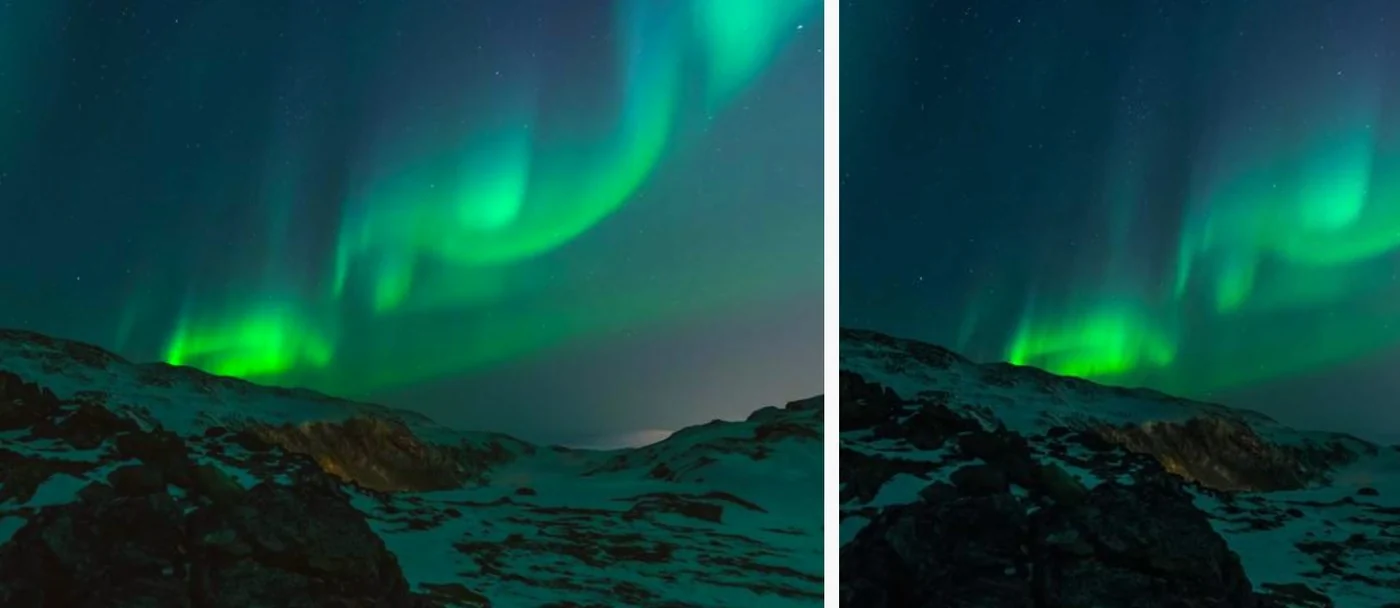
  1. Open the Sky Selection example: green lights over snowy hills.
  2. Click Sky. The sky is found for them.
  3. Push the green with Hue and saturation. Only the sky changes.
  4. Pull the highlights down with Develop so the glow keeps its color.

Then open the canvasBoth changes read the one sky selection, so a better selection improves both at once.

the northern lights, graded two ways side by side
Stage · first class

Map pictures onto the classroom wall

They leave witha projection that sits on real objects, ready for an open day.

  1. Point the classroom projector at a wall with a few boxes in front of it.
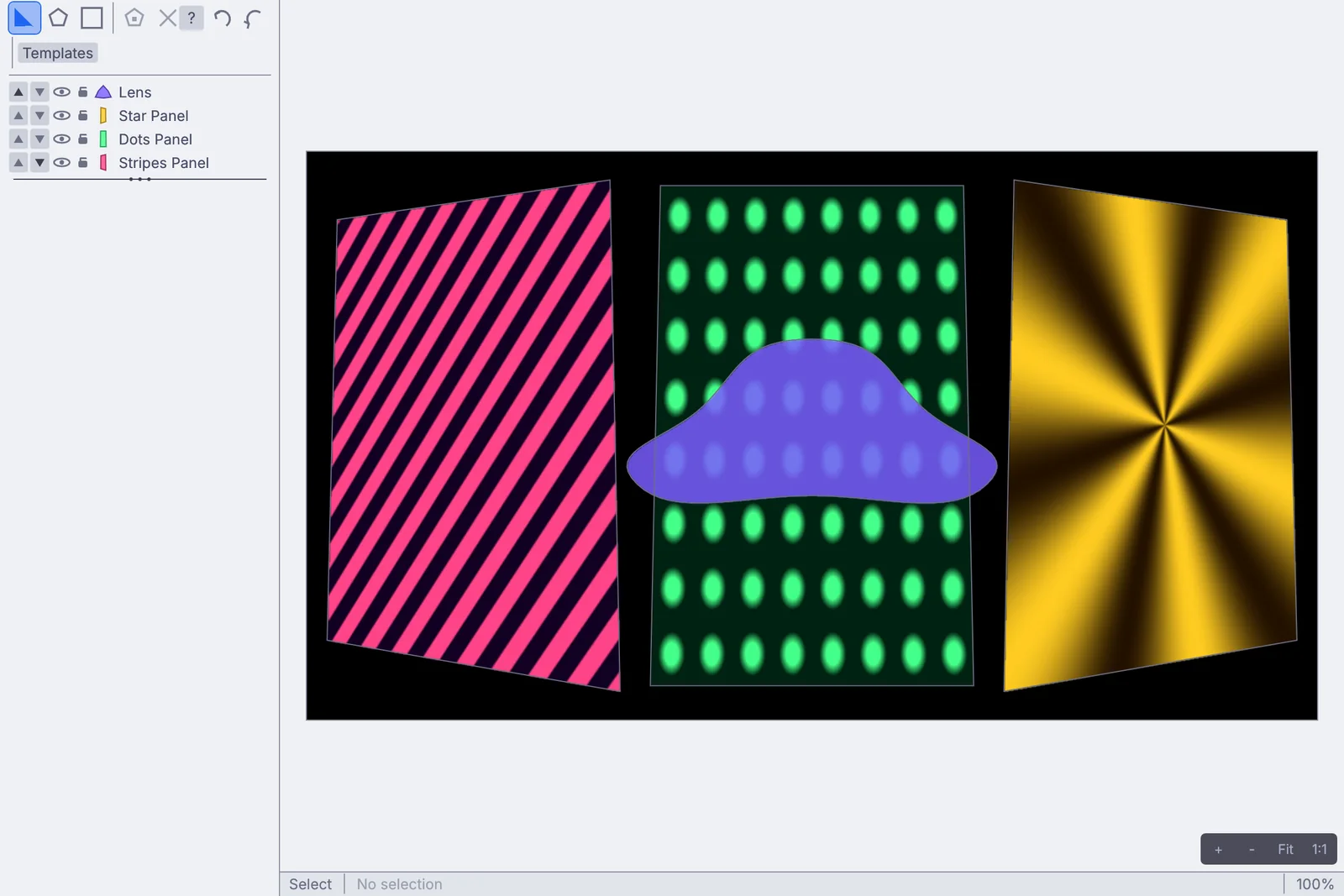
  2. Open the Projection Mapper demo, then its editor.
  3. Drag each panel by its corners until it sits on a box. Draw a curved shape for the odd one out.
  4. Send the output to the projector and dim the lights.

Then open the canvasEach picture feeding the mapper is its own step. Swap one for a video or a live camera.

the projection mapper: three panels and a curved shape, dragged into place
Sound · first class

Tidy a recording

They leave witha clean, level take, saved as a sound file.

  1. Record a take with a mic, or load one: a voice, an interview, a field recording.
  2. Drag across a pause or a cough on the waveform and pick Cut.
  3. Take out the hum, then bring the whole thing up to a steady level.
  4. Click Compare to hear what changed, then save it.

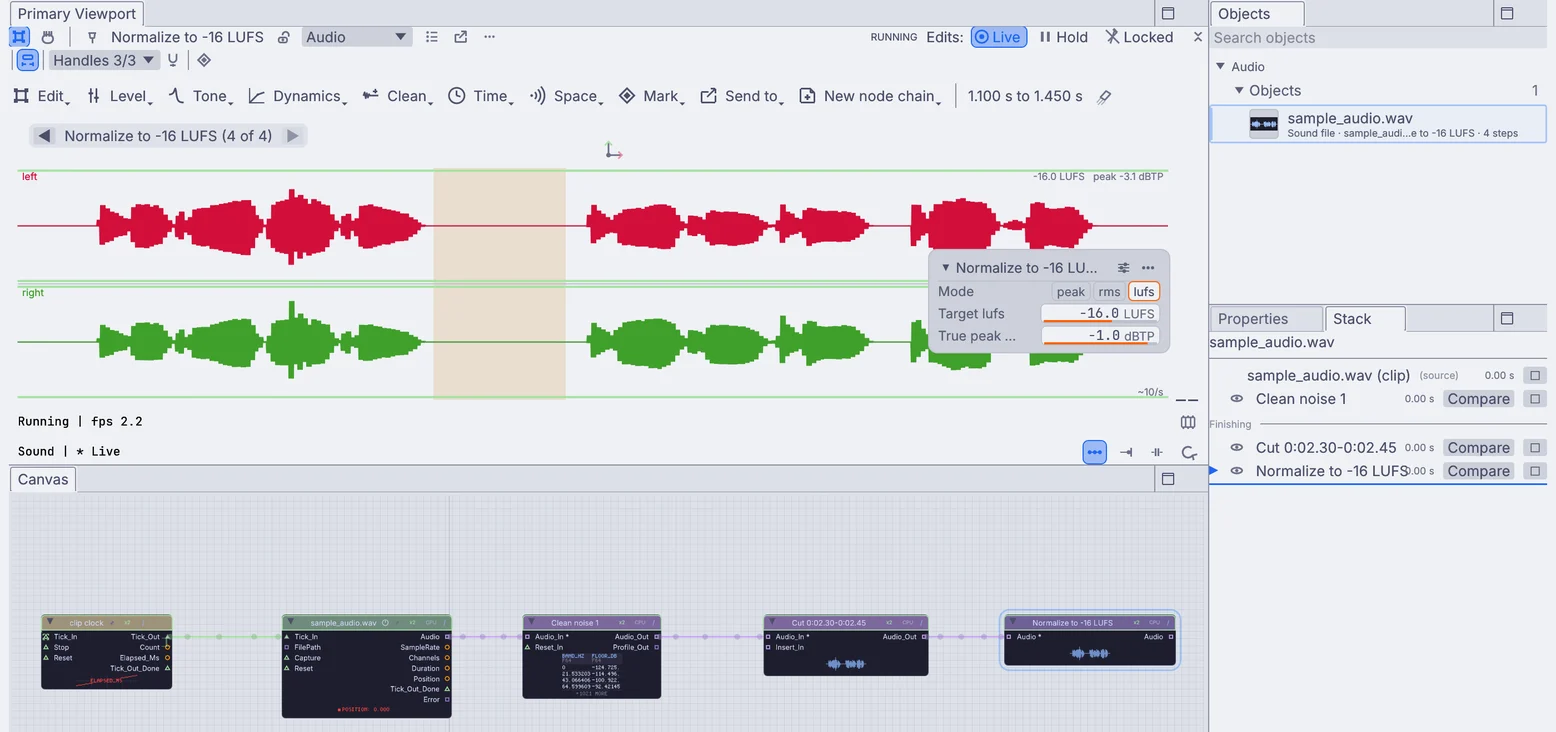
Then open the canvasThe take, the cleanup, the cut and the level sit in a row, in the order they made them.

a take cleaned, cut and leveled on the waveform, each step on the canvas below

Longer step-by-step lessons for each area are in the docs, from a first picture to lighting, particles and sound.

Read the lessons in the docs
Why schools

The tool they learn on is the tool they make real work with.

A class can be taught around it, and the skills travel with the students after they graduate, onto their own laptops and their own work.

Every seat

Free for the whole room.Every feature on every machine. No node limit, no resolution cap, no watermark on what students make.

Same file

Opens everywhere.macOS on Apple Silicon, Windows and Linux, with experimental Raspberry Pi support. A project made on a lab Mac opens on a student's Windows laptop.

Any laptop

Runs on what they have.A laptop graphics card from the last six years is enough. Most tools also run on the processor, so projects still work without a strong graphics card.

Theirs

Their work goes with them.A project is a folder on disk, in standard formats such as PNG, WAV, glTF and OBJ. The projects students build keep working after they graduate.

Demos to pull apart

Open it. See every step. Change it.

More than 400 demos come with the app. Each one is a finished piece and its recipe at once, so students can see how it was made and make it their own.

  1. Open the Demos browser and pick one.
  2. Press Play and watch it in the viewport.
  3. Change a setting while it runs.
  4. Click any step on the canvas to see the work at that point.
  5. Save a copy and make it theirs.
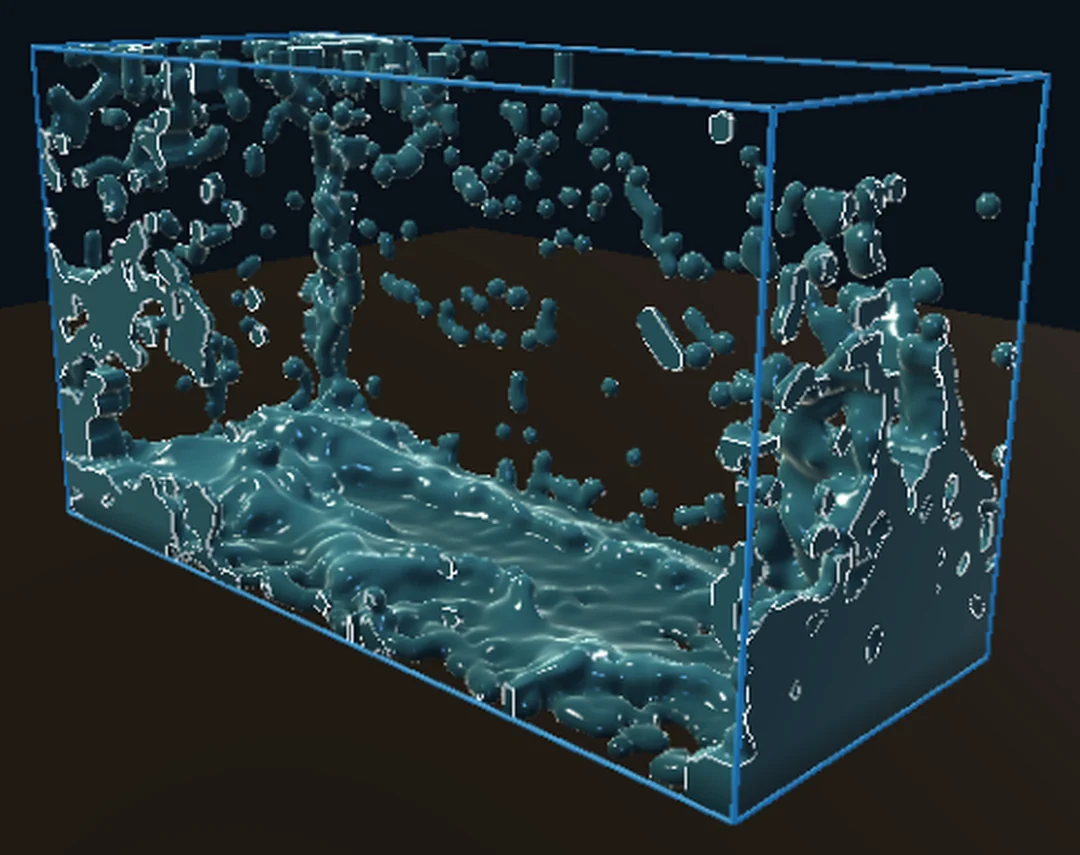
A dam breaking in a glass tank
Simulate

A column of water lets go, slams the far wall and sloshes back. One step runs the whole splash, so it is the place to start changing things.

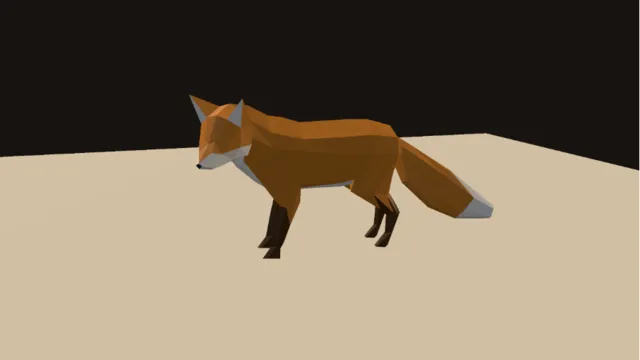
A low-poly fox on a warm floor
Create

A rigged fox comes in from a file with its skin and its animation. The clip plays on a loop while a camera circles it.

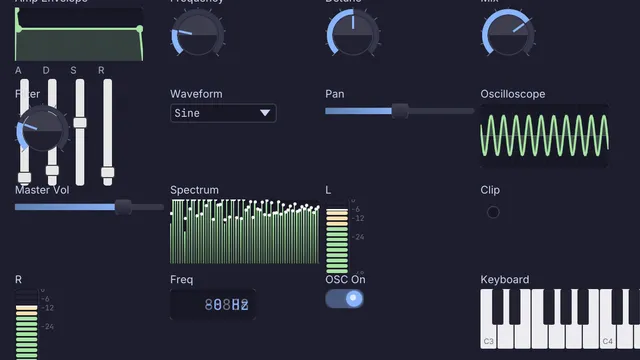
A synth front panel with dials, a scope and a keyboard
Play

A synth front panel with a keyboard, an envelope, dials, a scope and a level meter. A good start for a panel of their own.

Browse every demo
Classroom setup

One classroom, many machines.

Install it the same way everywhere. Then check, run and render class work from the command line, with no window open.

  1. Install

    Put it on every machine.

    Download, unzip, run. Do the same on each machine. There is nothing to activate and no server to set up.

  2. Once per account

    Accept the license once.

    Before the first command-line run, a person accepts the license on that account, in a terminal or by opening Kinematic once. No flag or script can do it for them, so do it while you set the machine up.

  3. No window

    Check and render class work.

    kinematic batch opens and checks every graph in a folder. kinematic render writes a piece to a video file. kinematic run runs a graph with no window and exits with its result.

  4. Open day

    Run a show for a gallery or an open day.

    --kiosk fills the screen, hides the editor, turns the editing keys off and keeps the machine and its screens awake. --display 1 picks the second screen. Ctrl+Shift+Q quits. --restart-on-panic 5 brings it back after a crash. --perform runs the same show without the lock.

  5. On boot

    Start it with the machine.

    On macOS, add Kinematic to Login Items. On Linux and Raspberry Pi, use a .desktop autostart entry.

terminal
# check every graph in a folder
$ kinematic batch class-work/

# render one piece to a video, no window
$ kinematic render piece.kin -o piece.mp4

# open day: fullscreen on the projector
$ kinematic show.kin --kiosk --display 1
Raspberry Pi

Raspberry Pi support is experimental. Try the piece on the board itself before the day.

Every flag is listed in kinematic --help.

Accessibility

Every student, every way of working.

Kinematic works with a screen reader and from the keyboard alone. Each setting is off until you turn it on, under Preferences > Appearance > Accessibility.

How it works, step by step
Screen readersVoiceOver, Narrator, NVDA and Orca read the graph, the viewport and every setting.
Keyboard aloneMove between panels and controls with no mouse at all.
Switch access and voice controlEvery control has a name and answers to Space or Enter.
High contrastStronger edges and text, and a heavier focus ring.
Reduce motionNo moving dots on wires, no camera glides.
Color-blind safe colorsWarnings and errors differ by outline, not only by color.
Larger click targetsPorts and wires that are easier to hit.
Bigger textBigger text on the canvas too, node titles included.
For teachers

Ask us. Share your course.

Setting up a lab, a lesson that went sideways, or a course you built on Kinematic. We would like to hear about it.

Reach out

Free in every classroom. Yours, forever.

No account, no license key. macOS, Windows, Linux and Raspberry Pi.

Download for macOS 0.5.0