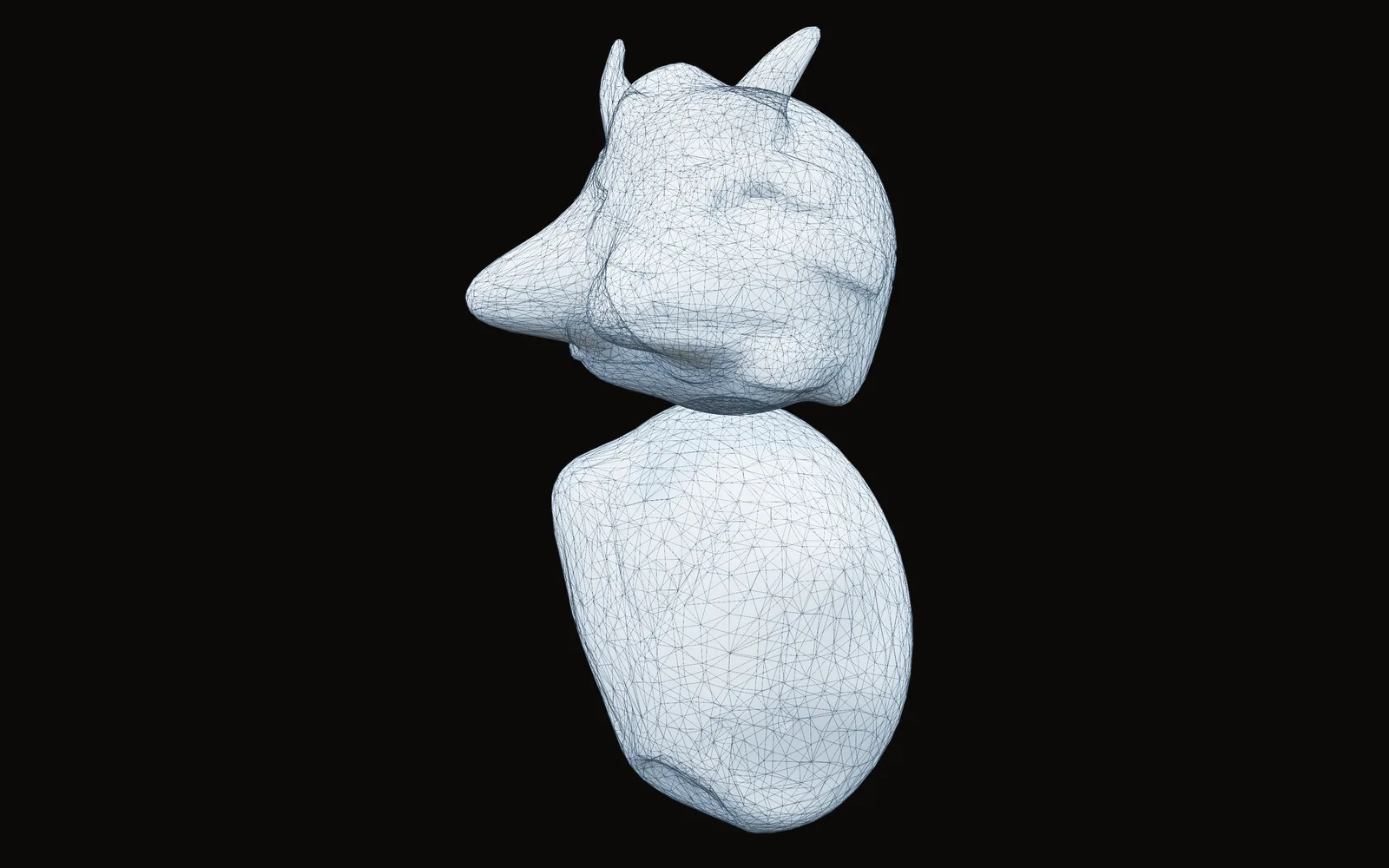
Kinematic 0.5.0 is out. Modeling and sculpting in the viewport, a timeline on every graph, photo and sound editing. What's new
Kinematic / Create / Sculpt

Sculpt characters and creatures.

Creatures, busts and props, sculpted with pen pressure and tilt. The scene keeps running while you work.

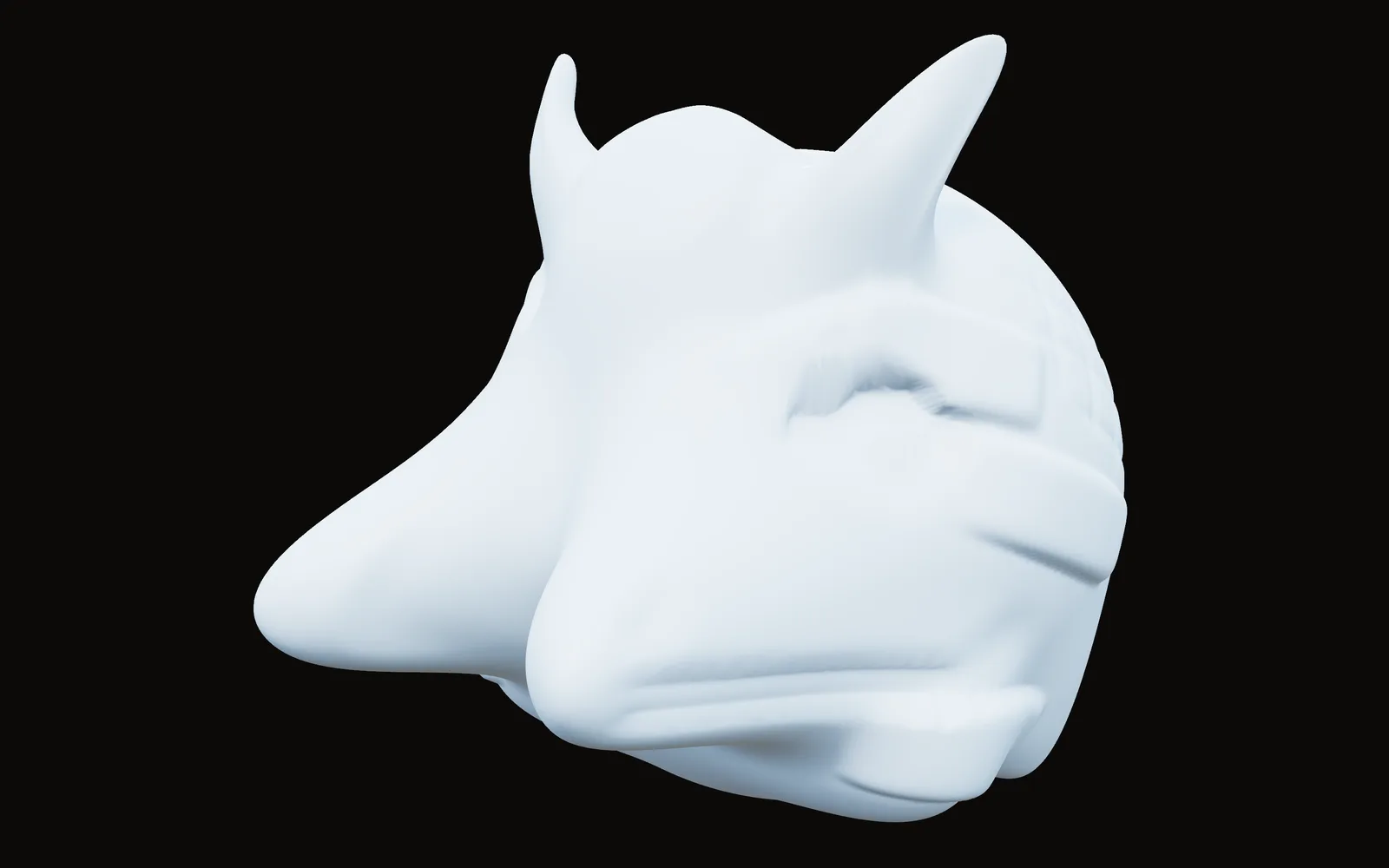
a creature taking shape in the viewport
01

Sculpt a creature from a ball

Horns and ridges, with fine detail only where you add it.

  1. Start from a sphere and pull out the big shapes.
  2. Use a small brush for horns. The mesh adds detail only under it.
  3. Even out the rest when the shape is right.
3DGeoSphere→3DGeoDynamicSculpt→3DGeoSmooth
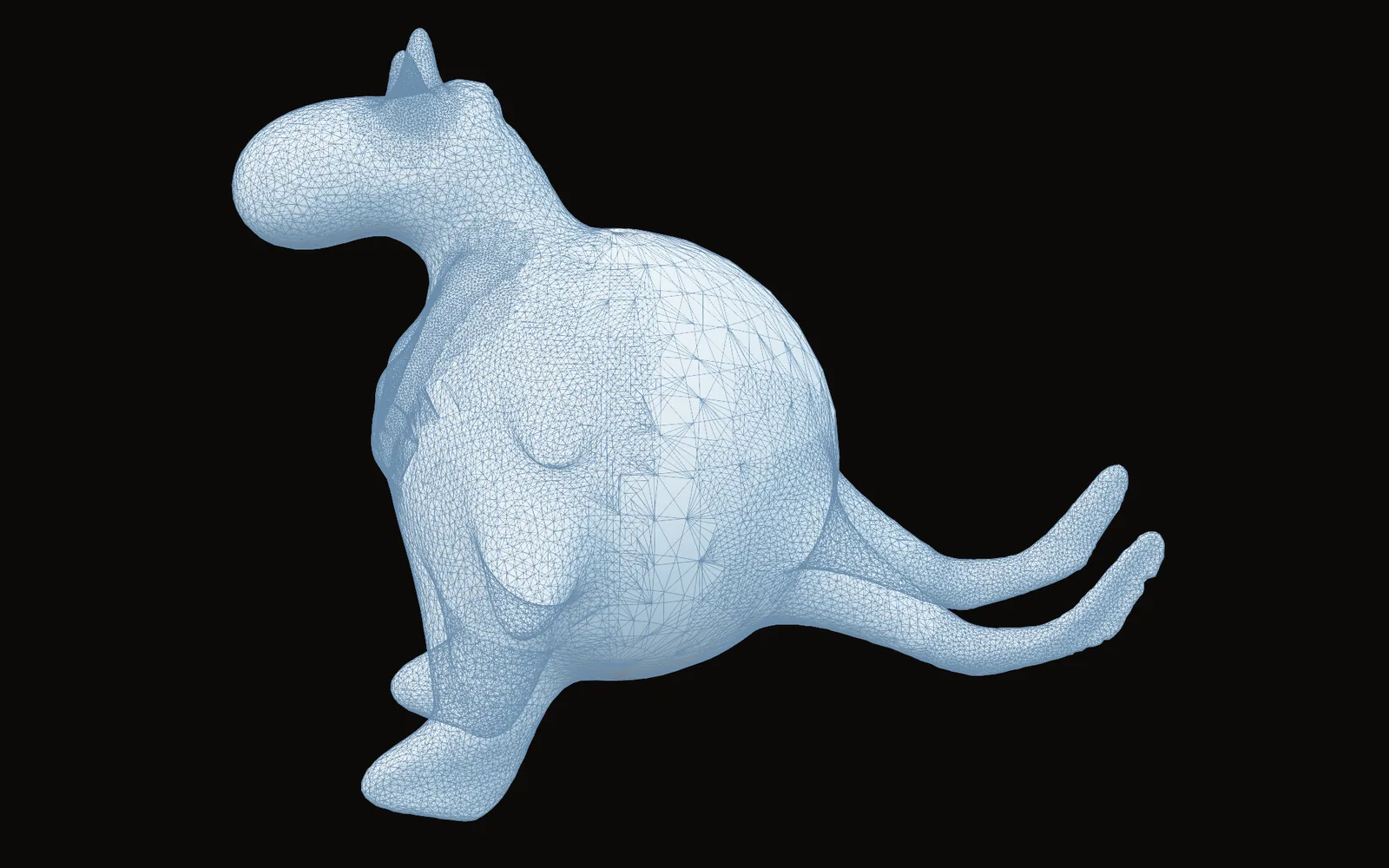
a creature pulled out of a ball, its mesh dense only where the brush added detail
03

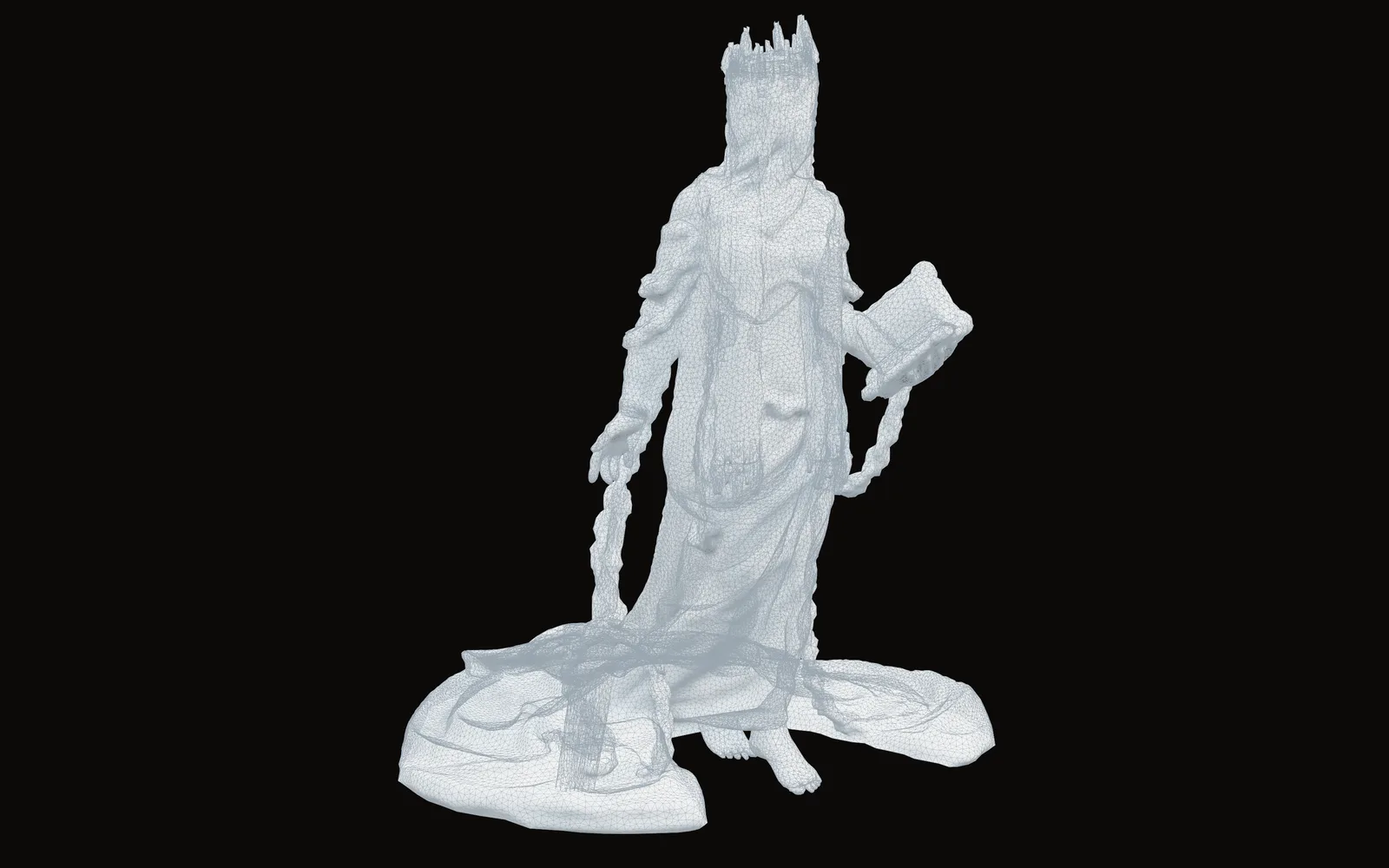
Fix a scanned statue

Smooth the noise and add back the detail the scanner missed.

  1. Import the scan.
  2. Remesh it into even triangles so the brushes behave.
  3. Sculpt the fixes and the fine detail on top.
3DGeoImportOBJ→3DGeoRemesh→3DGeoSculpt
a scanned statue remeshed into even triangles, ready for the brushes
04

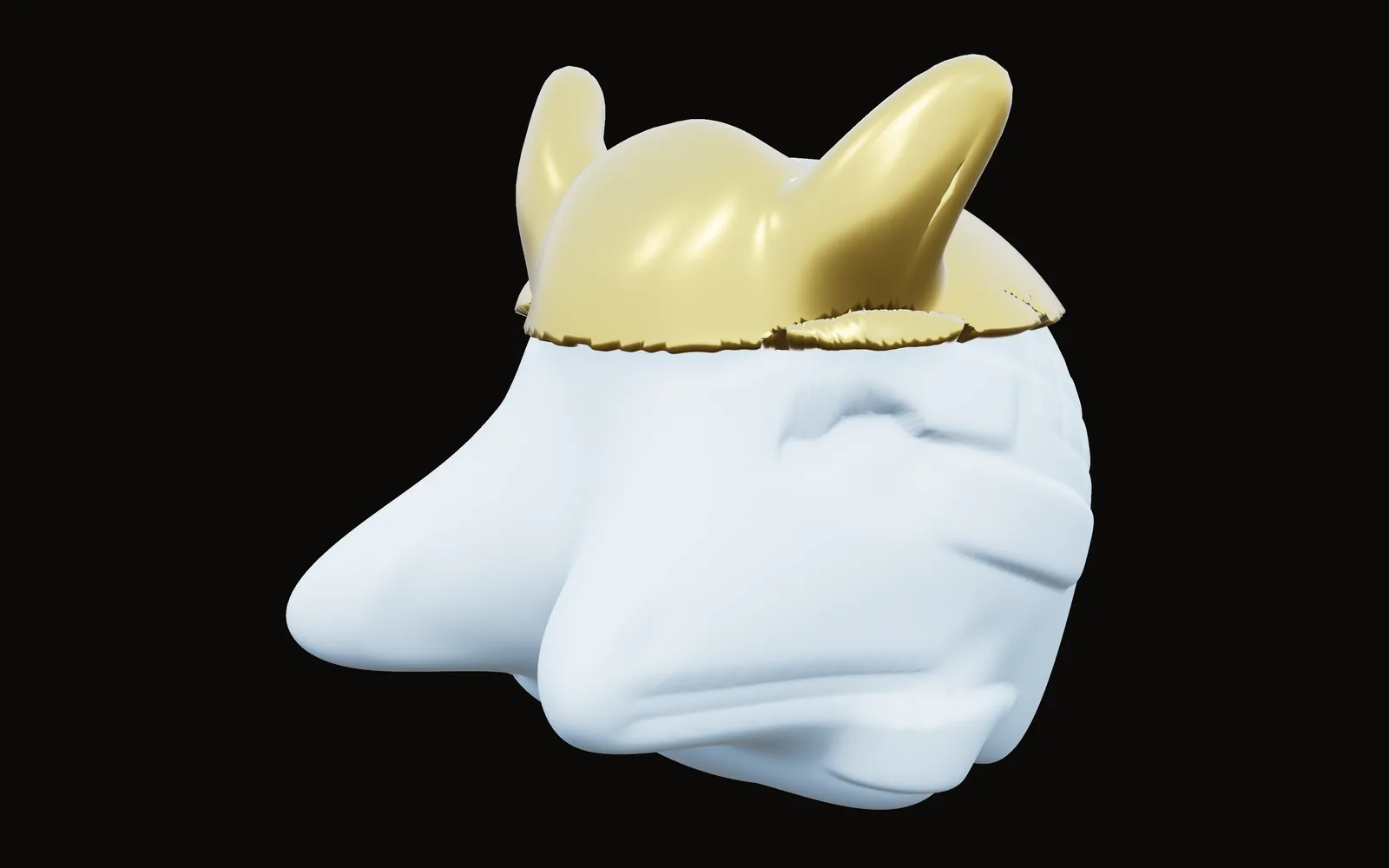
Pull a helmet off a head

Lift a thick shell from the sculpt for a mask, a helmet or armor.

  1. Select the area on the sculpt.
  2. Lift it off as its own shell.
  3. Trim the edge and give it thickness.
3DGeoSculpt→3DGeoExtractShell→3DGeoTrim→3DGeoThicken
a horned helmet lifted off a sculpted head as its own thick shell
05

Make a sculpture move to music

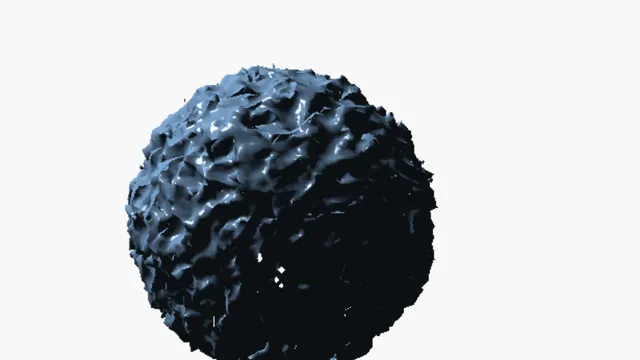
Its surface swells and roughens with the sound in the room.

  1. Finish a pass on the sculpt.
  2. Add a displace after it.
  3. Drag the mic level onto the amount and play some music.
3DGeoSculpt→3DGeoDisplaceByChannelData→3DGeoSceneRenderToImage+AudioEnvelopeFollower
a surface that roughens on every hit
06

Print what you sculpted

A clean, lighter file ready for the printer.

  1. Lower the polygon count so the printer can handle it.
  2. Check it over in the viewport.
  3. Save it as STL.
3DGeoSculpt→3DGeoPolyreduce→3DGeoExportSTL
a sculpted dragon bust cut down to a light mesh, ready to save for the printer
Take it further

It all connects.

Every part of Kinematic works with the others. Wire one into the next.

Keep going

Free and open. Yours, forever.

No account, no license key. macOS, Windows, Linux and Raspberry Pi.

Download Kinematic 0.5.0