Skip to content
Kinematic 0.5.0 is out. Modeling and sculpting in the viewport, a timeline on every graph, photo and sound editing. What's new
Kinematic Accessibility

Accessibility.

Use Kinematic with a screen reader, from the keyboard alone, with switch access or voice control, and with high contrast and larger targets for low vision. Nothing changes for the mouse, and every new setting stays off until you turn it on.

  • macOS: VoiceOver
  • Windows: Narrator and NVDA
  • Linux: Orca
A short walk from the keyboard, and what a screen reader says at each step
  1. Ctrl+Tab“Canvas”Each panel is a landmark, named by its title. Press it again for the next panel.
  2. ]A node’s name, then its stateSo you hear an error or a warning at once. Its description follows as a hint.
  3. Alt+]A port, its type in words, and what it is wired toEnter on a port lists everything it can connect to.
  4. Ctrl+Tab“Primary Viewport”Keep going until the viewport has the focus. A ring outlines the pane.
  5. ]“Sphere 1 Radius”Each handle is a slider, named by its node and its handle, read with its value.
  6. EnterA value boxType the number and press Enter. That is one step on the undo list.
What works today

What works today.

Screen readers, full keyboard control of the canvas and the viewport, high contrast and reduce motion. None of it changes how Kinematic looks or behaves with the mouse.

Screen readers

VoiceOver, Narrator, NVDA and Orca. Each panel is a landmark you can jump to. Nodes read their name and state, ports read their type in words, and every handle in the viewport is a slider with its value.

Turn it onStart your screen reader as usual. There is nothing to switch on inside Kinematic.

The keyboard alone

Walk the graph node by node and port by port, wire two nodes, add one, and move them, all from the keys. In the viewport, step through the handles, nudge them, or type an exact value.

Turn it onAlways there. The keys act while the graph or the viewport panel has the keyboard focus.

High contrast

Stronger edges and text everywhere, a heavier focus ring and selection outline, and a solid band behind node titles. Port type letters always show, and warnings get a dashed outline, errors a solid one.

Turn it onEdit, Preferences, Appearance, Accessibility, High contrast

Reduce motion

Turns off the moving dots on wires, the camera glides, pulses and smooth scrolling. Progress spinners stay, since they tell you something is still working. Your own wire animation setting comes back when you turn this off.

On this page too: if your system asks for less motion, the dot in the top wire stands still.

Turn it onEdit, Preferences, Appearance, Accessibility, Reduce motion

Switch access, voice control and larger targets

  • Switch access and voice controlEvery control the keyboard reaches has a name and answers Space or Enter. Voice Control on macOS and Voice Access on Windows can click a control when you say its name.
  • Larger click targetsPorts and wires on the canvas get easier to hit, at any zoom. Viewport handles have their own Handle size, under Preferences, Viewport, Handles.
  • Show port type lettersA short letter code beside each port, so its type never rests on color alone. Hover a port and its tooltip names the type in words.
  • Color-blind safe colorsStatus colors stop leaning on red against green. Errors turn orange, ok and running turn blue, and warnings shift toward amber.
  • Dim for dark roomsPulls the whole interface darker so the screen stops throwing light into the room. Text dims more gently, so it stays readable.
  • Bigger textUI scale runs from 75 to 200 percent and UI font size from 8 to 24 points. Node titles, port names and badges grow with it.
Turn it on

Turn it on.

A screen reader starts the way it always does. Everything else is in one section of Preferences, and every option starts off.

Start your screen reader

Start it as usual and Kinematic connects to it. There is nothing to switch on inside the app.

  • macOS
    VoiceOver

    Press Cmd+F5.

    VoiceOver uses Control+Option for its own keys while it runs. Kinematic never uses Control+Option, so the two do not collide.
  • Windows
    Narrator

    Press Ctrl+Win+Enter.

    NVDA works too. It stays in focus mode on the graph and the viewport, which is what you want there.
  • Linux
    Orca

    Start it from your desktop’s accessibility settings. On GNOME, press Super+Alt+S.

    The accessibility bus has to be running.

Then choose your settings

Open Edit, Preferences or press Ctrl+,, then go to Appearance, Accessibility.

Accessibility

  • Color-blind safe colorsErrors turn orange, ok turns blue, warnings lean amber.
  • Dim the whole interface for dark roomsDarker surfaces for dark venues. Text dims more gently.
  • High contrastStronger edges and text, and a solid band behind node titles.
  • Reduce motionTurns off moving dots on wires, pulses and camera glides.
  • Show port type lettersAdds a short letter code beside each port, so the type does not rely on color.
  • Larger click targetsMakes ports and wires easier to hit. Handle size is under Viewport.
The six settings under Appearance, Accessibility. Drawn for this page.
  • Type a word such as motion in the Preferences search field to find a setting.
  • You see each change straight away, before you save.
  • For bigger text, go to Appearance, Text and size. Cmd+=, Cmd+- and Cmd+0 zoom the whole interface (Ctrl on Windows and Linux).
Keyboard basics

Keyboard shortcuts.

The graph and viewport keys act only while the focus is on that panel itself, not on a control inside it, and never while you type in a field. With the mouse, every key does what it always did.

On a Mac Alt is Option. For Ctrl+Tab press Control, not Cmd, since Cmd+Tab switches apps.

Getting around
KeysWhat it does
Ctrl+TabNext panel.
Ctrl+Shift+TabPrevious panel.
Alt+1 to Alt+9Jump straight to a panel, counting across the layout.
Tab or Shift+TabMove between the controls in a panel, and on out of it.
Space or EnterPress the button in focus.
EscClose what is open. The focus stays where it was.
Shift+F10Open the right-click menu of the node, port, handle or setting in focus.
Ctrl+Shift+PCommand palette. It reads how many commands match as you type.
Ctrl+Z or Ctrl+YUndo and redo.
On the graph
KeysWhat it does
] or [Next or previous node, left to right and top to bottom. The canvas follows.
Alt+] or Alt+[Next or previous port on that node.
EnterOn a node, select it. On a port, list everything it can connect to.
Shift+EnterAdd the node to the selection.
Arrow keysMove the selected nodes one grid step. With Shift, ten steps.
SpaceOpen the node browser. The new node lands beside the one you are on.
DeleteDelete the selection.
In the viewport
KeysWhat it does
] or [Next or previous handle.
Arrow keysNudge the handle. Shift moves ten times as far.
EnterType an exact value for the handle. On an on/off handle, Enter flips it.
Alt+] or Alt+[Walk the objects in view. Enter selects the one you are on.
EscCancel a nudge in progress, then clear the focus.
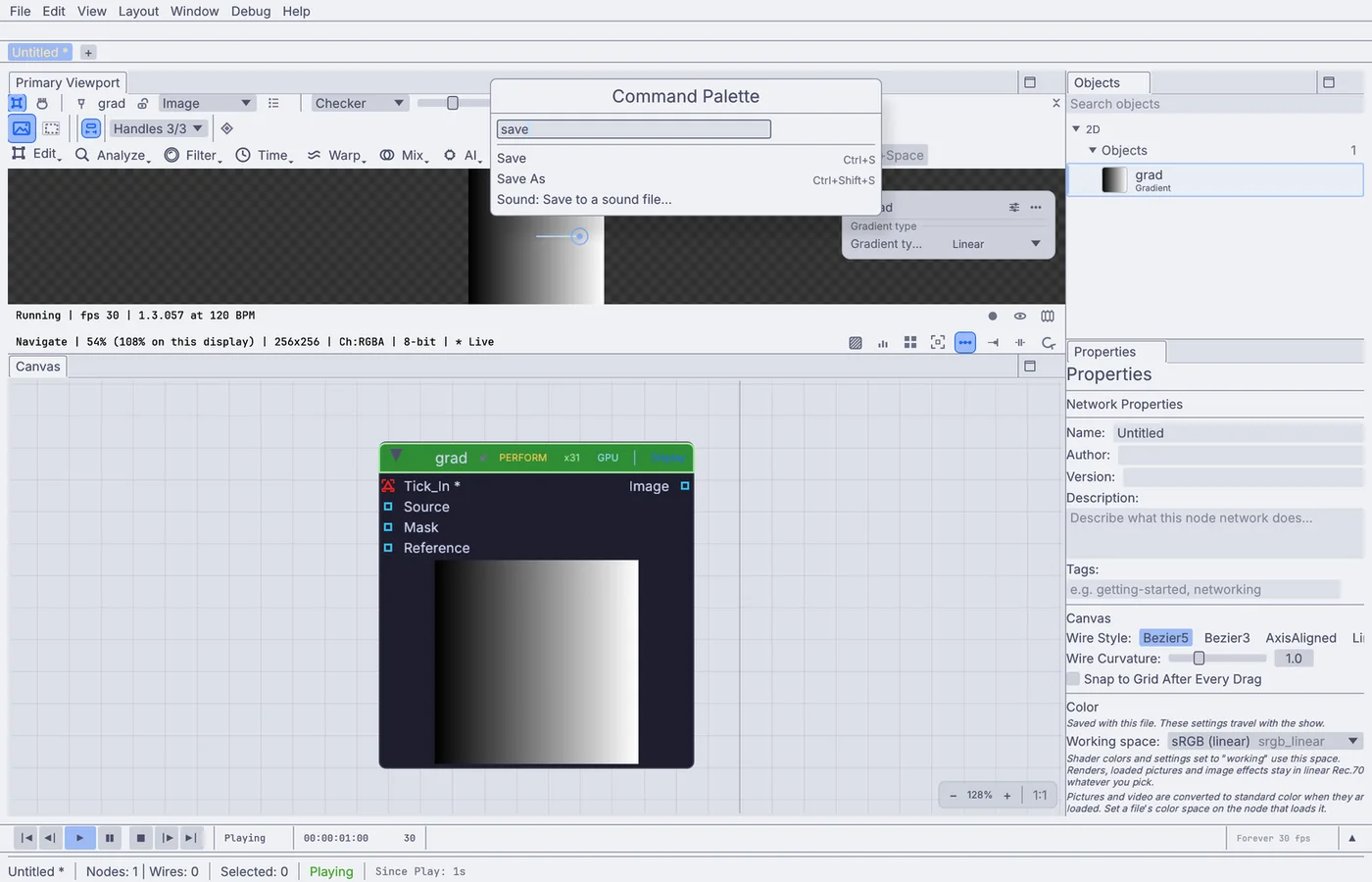
The command palette open over a graph, with save typed in and three matching commands listed with their keys.
The command palette, Ctrl+Shift+P

Run any shortcut from the command palette.

Each graph and viewport key above is also a command in the command palette, so you can run it by name instead. Two more have no key yet: adding a node beside the one you are on, from the graph or from the viewport.

Give any of them the key you want under Preferences, Shortcuts, where they are listed apart from the everyday keys. Help, Keyboard Shortcuts lists every key Kinematic answers to.

Moving nodes with the arrows works like a drag: a quick run of presses is one step on the undo list. Moving the focus, walking ports and selecting add nothing to it.

Read the docs
Without the mouse

Everyday tasks from the keyboard.

Nothing in Kinematic needs a key combination: every action is also a menu item or a command. Here are the everyday jobs, step by step.

Connect two nodes

  1. Walk to the node with ].
  2. Press Alt+] until you reach the input, then Enter.
  3. A list of the outputs that fit opens with a filter. Type part of a name, pick it with Down, press Enter.
  4. The focus comes back to the port, which now reads what it is wired to.

Disconnect a wire

  1. Go to the port with ] and Alt+].
  2. Press Shift+F10 to open its menu.
  3. Choose Disconnect.

Add a node

  1. On the graph, press Space.
  2. Type a name, pick it with Down and press Enter.
  3. It lands one grid step to the right of the node you were on, and the focus moves to it. Esc closes the browser and adds nothing.

Change a setting

  1. Select the node with Enter.
  2. Press Ctrl+Tab to reach Properties, then Tab to the setting.
  3. Up and Down step a number, or select the text and type a value.
  4. Shift+F10 on a setting opens its menu, which can drive the setting from a port without a drag.

Set a handle exactly

  1. In the viewport, press ] until you reach the handle.
  2. Press Enter to open the value box.
  3. Type the value and press Enter. Esc closes the box and writes nothing.

Undo

  1. Ctrl+Z and Ctrl+Y, as always.
  2. Each change you make from the keyboard is one step on the undo list, the same as the mouse would make.
  3. Closing a list or a menu without choosing anything adds nothing.
What you hear

What your screen reader hears.

Each part of Kinematic tells your screen reader what it is, what it holds and what changed. Here is what you hear.

Screen readers and tools we cover

  • VoiceOvermacOS
  • NarratorWindows
  • NVDAWindows
  • OrcaLinux
  • Voice ControlmacOS
  • Voice AccessWindows

Switch software that scans with Tab and Enter gets what it needs: every stop has a name and does something when you press Space or Enter.

The graph
A group named after the graph, with how many nodes there are and how many are selected. Each node reads its display name, then its state, then its description as a hint. A port reads its name, its type in words, and whether it is wired, and to what.
The viewport
The tool row and the tool settings strip are toolbars, and every button has a name. The picture is named after what it shows, such as “Teddy view”. Each handle is a slider such as “Sphere 1 Radius”, with its value, and a position is a group of three sliders named X, Y and Z. Switching tools is announced, and so is a refused change, with the reason.
Properties
Each setting is one stop, read with its label, its value and its kind: a number, a checkbox, a choice. Its help and its default are read as the hint. Folding sections say whether they are open.
Menus
Every item says whether it is a command, a checkbox and whether it is ticked, or a submenu and whether it is open, and reads its key once.
Dialogs and the palette
A dialog’s title is read when it opens, and the focus lands on its first control or its safest answer. When it closes, the focus goes back to where it was.
The Sound pane
Reads as the sound’s name, such as “interview sound”, then whether it is playing, its length, Mono or Stereo, the sample rate and the loudness. Walk the range, the playhead and each marker with ] and [, nudge by 0.01 s with the arrows, and hear each finished edit by name, such as “Cut 0:44-0:51”.
While you work
Running, stopping, a node that cannot run and a failed save are read out. Messages that need you now are read straight away. The rest wait for a pause.
Reach out

Report an accessibility problem.

A control that stays silent, a spot the keyboard cannot reach, something too faint to see or a motion that will not stop. Say which screen reader or tool you use, which system you are on, and what you were trying to do.

Download Kinematic.

Free. No account, no license key. macOS, Windows, Linux and Raspberry Pi.

Download Kinematic 0.5.0