Kinematic 0.5.0 is out. Modeling and sculpting in the viewport, a timeline on every graph, photo and sound editing. What's new
Kinematic / Edit / Selections & masks

Select and mask anything.

Subject, sky, a color, a brightness or one moving object, found for you or drawn by hand, with edges that hold up.

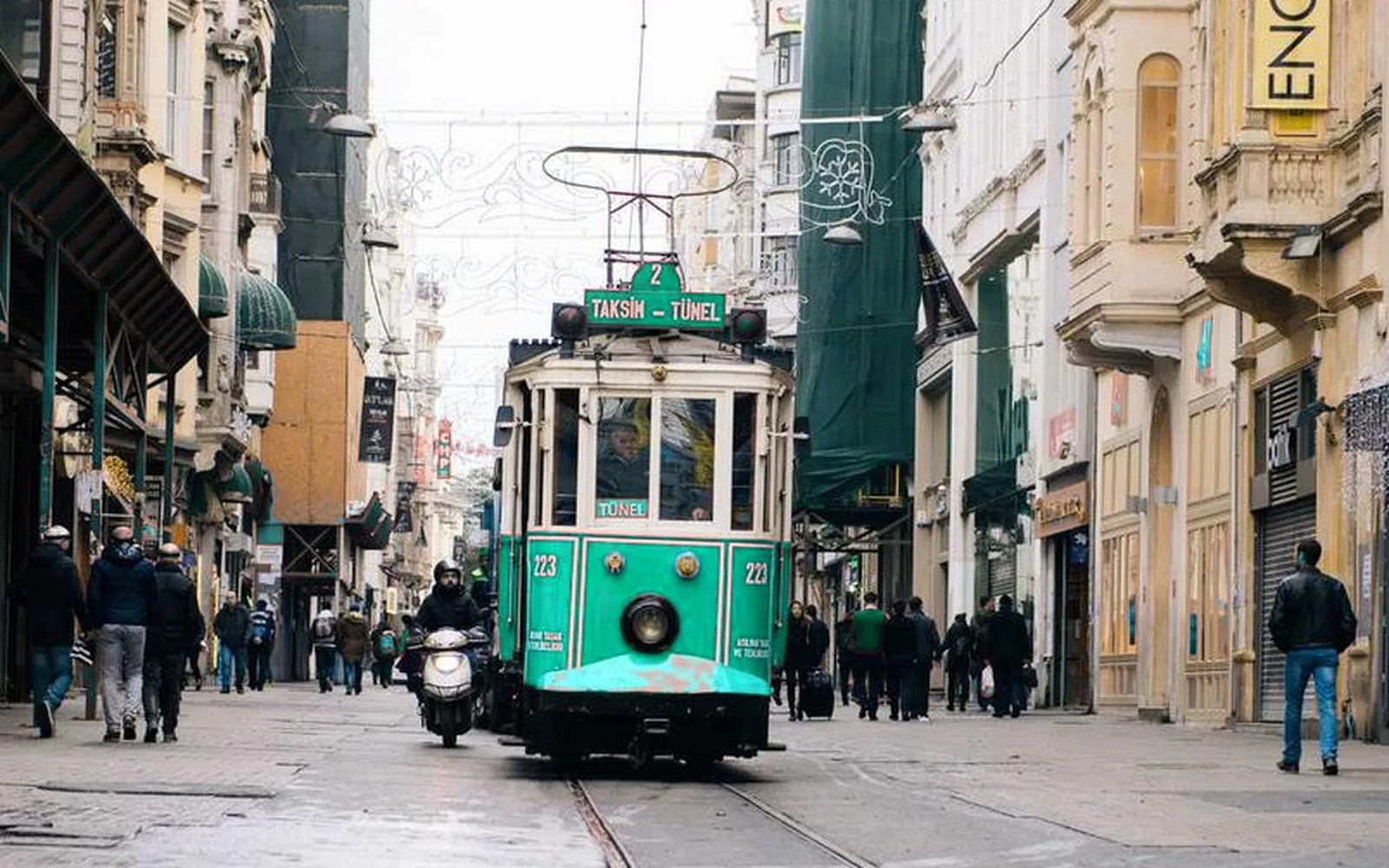
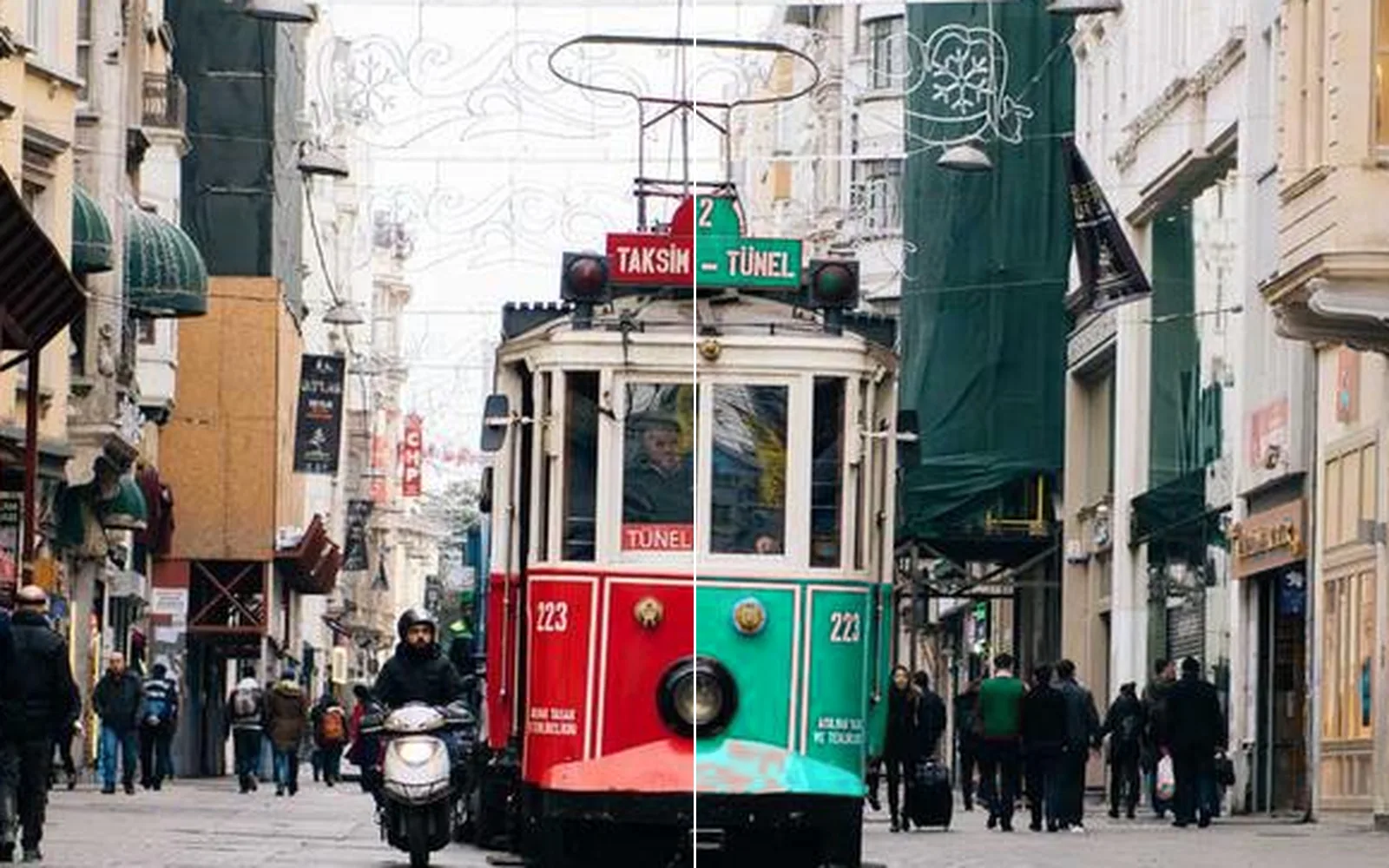
one red tram turned teal, the busy street around it left as it was
01

Lift a bear and her cubs off a hillside

A clean cut-out with no colored halo, ready for any background.

  1. Click Subject. The bears are found for you.
  2. Pick Cut out to keep only them.
  3. Clean edges swaps the misty backdrop color in the soft edge for the color of the fur.
InputImageFile→ImageMaskRefine→ImageMask→ImageEdgeDecontaminate+LocalAIImageRemoveBackground
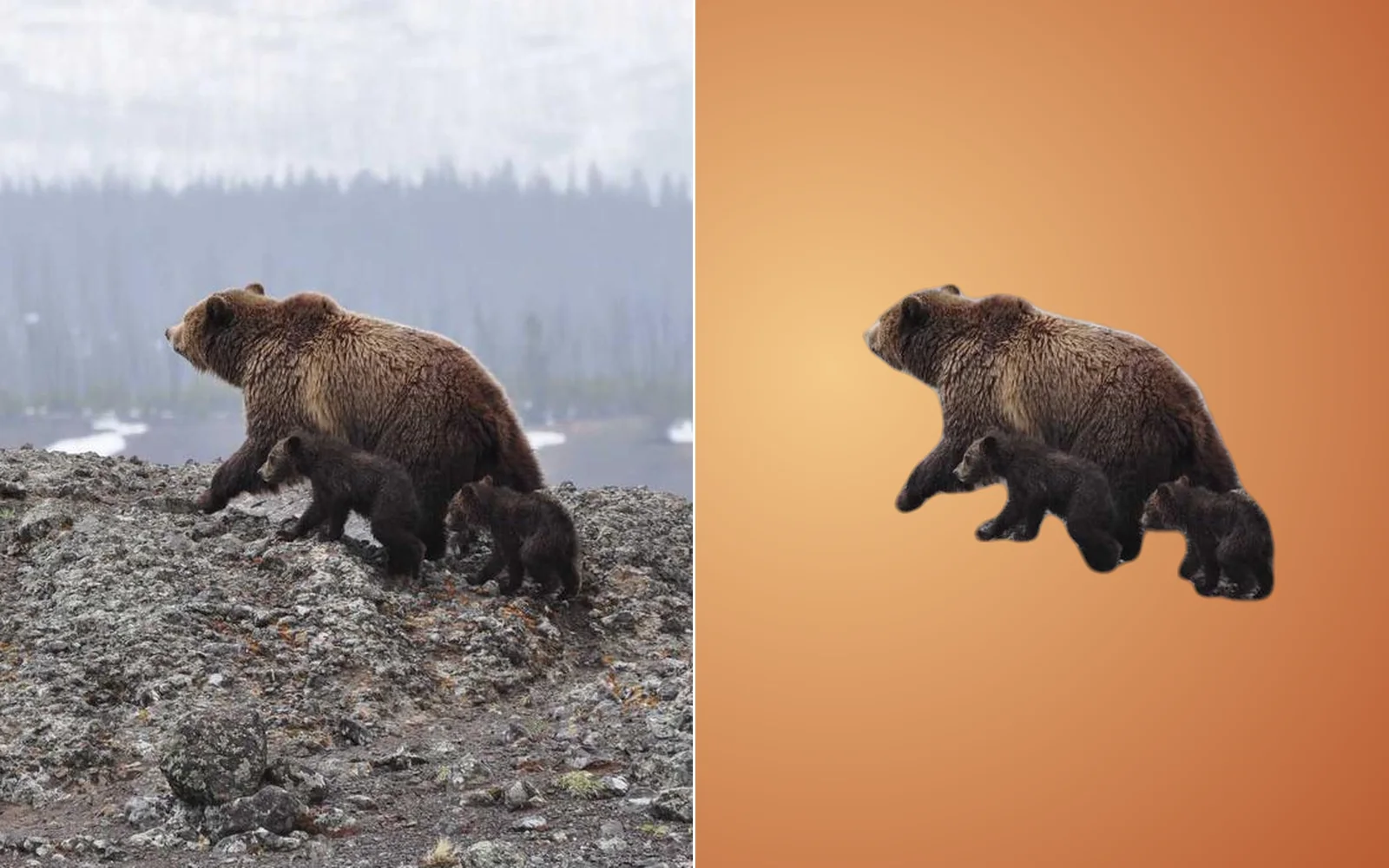
a bear and her cubs lifted off a misty hillside and set on a warm backdrop
02

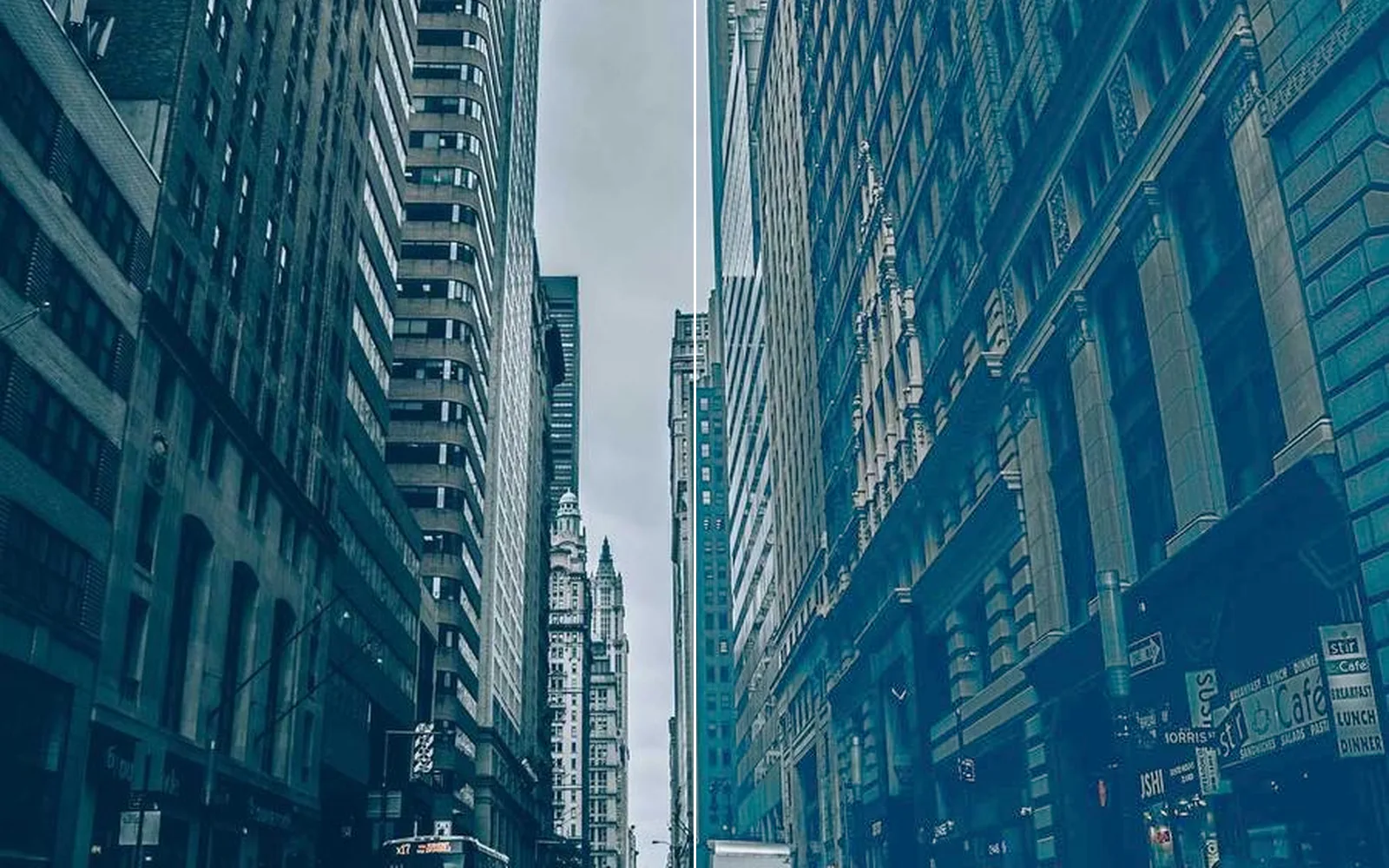
Open up a night street

Only the shadows lift. The street lights stay where they were.

  1. Pick Select > Brightness.
  2. Drag the band handle onto the dark parts. The edge stays soft.
  3. Raise them with Curves.
InputImageFile→ImageThreshold→ImageMaskRefine→ImageRGBCurves
a dark street canyon: only the shadows lift, the bright sky stays put
03

Keep a performer sharp, blur the rest

One box starts a selection that follows him. The room behind him blurs in and out.

  1. Drag a box around the performer with Select > Object. It follows him through the clip.
  2. Pick Select inverse to get the background.
  3. Add Blur and drag an LFO onto its size.
InputVideoFile→ImageMaskRefine→ImageMaskRefine→ImageBlur+LocalAIImageToTrackedMask+ChannelDataLFO
one click grows into a mask that follows a person
04

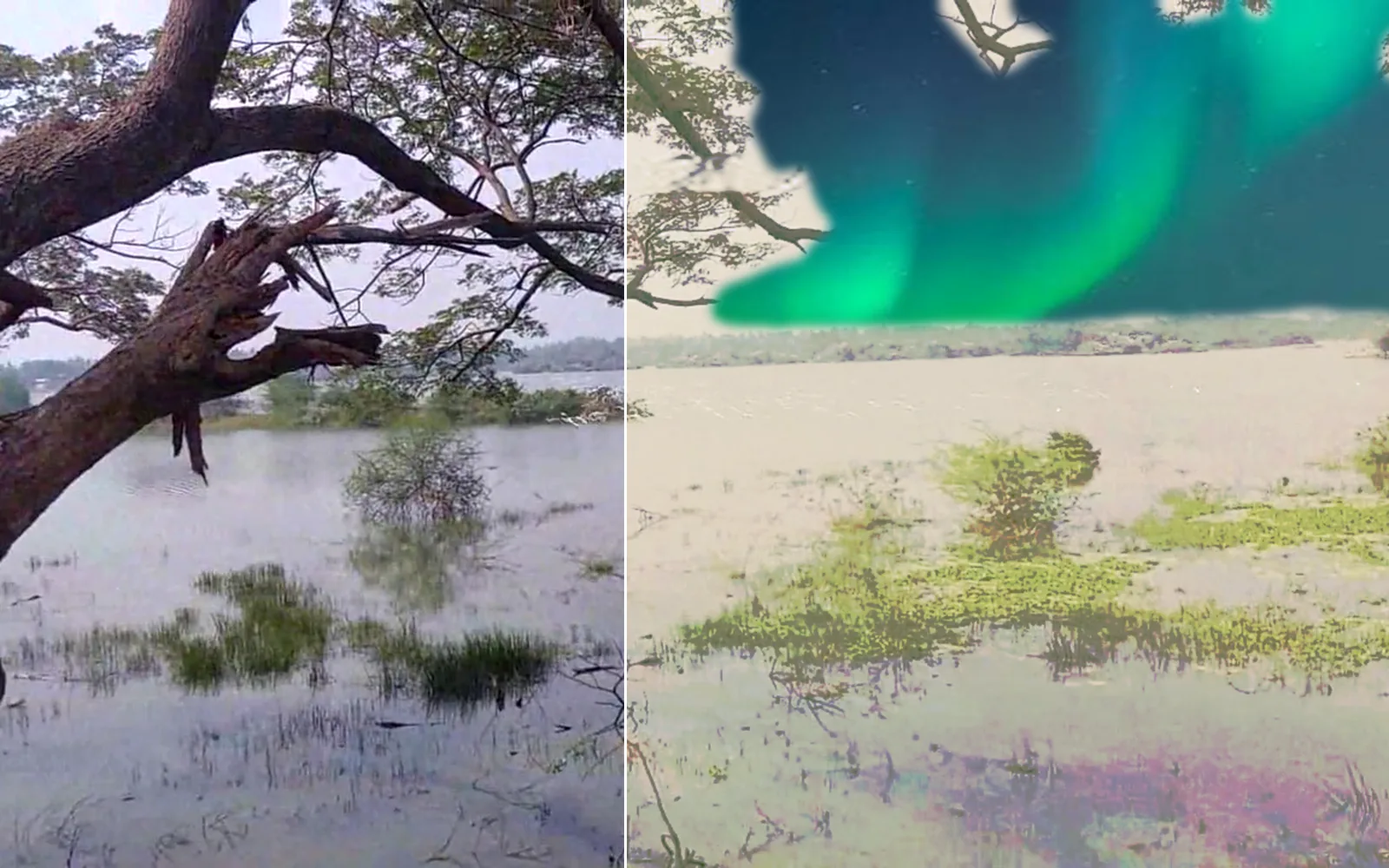
Make a matte painting from a lake photo

A line wiped out of the sky, colors taken from an old painting, and a new sky placed inside the old one.

  1. Paint out the line across the sky with Remove.
  2. Match the colors to an old painting.
  3. Select the sky, with its edge along the tree line, and place the new sky inside it.
InputImageFile→LocalAIImageInfill→ImageMaskRefine→ImageHistogramMatch→ImageComposite+LocalAIImageToSceneParsing
the hazy lake as a matte painting: an old painting's colors and a new sky inside the old one
05

Turn one red tram teal

Only the tram changes color. The busy street around it stays as it was.

  1. Pick Select > Color range and click the tram's red paint.
  2. Press Include a color and click the shaded side too.
  3. Turn the hue with Hue and saturation.
InputImageFile→ImageChromaKey→ImageMaskRefine→ImageHueSaturation
only the tram turns teal, the street around it stays as it was
06

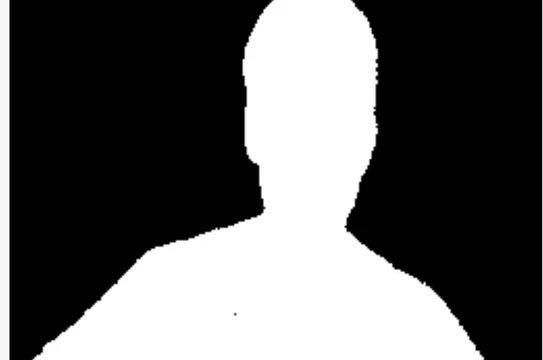
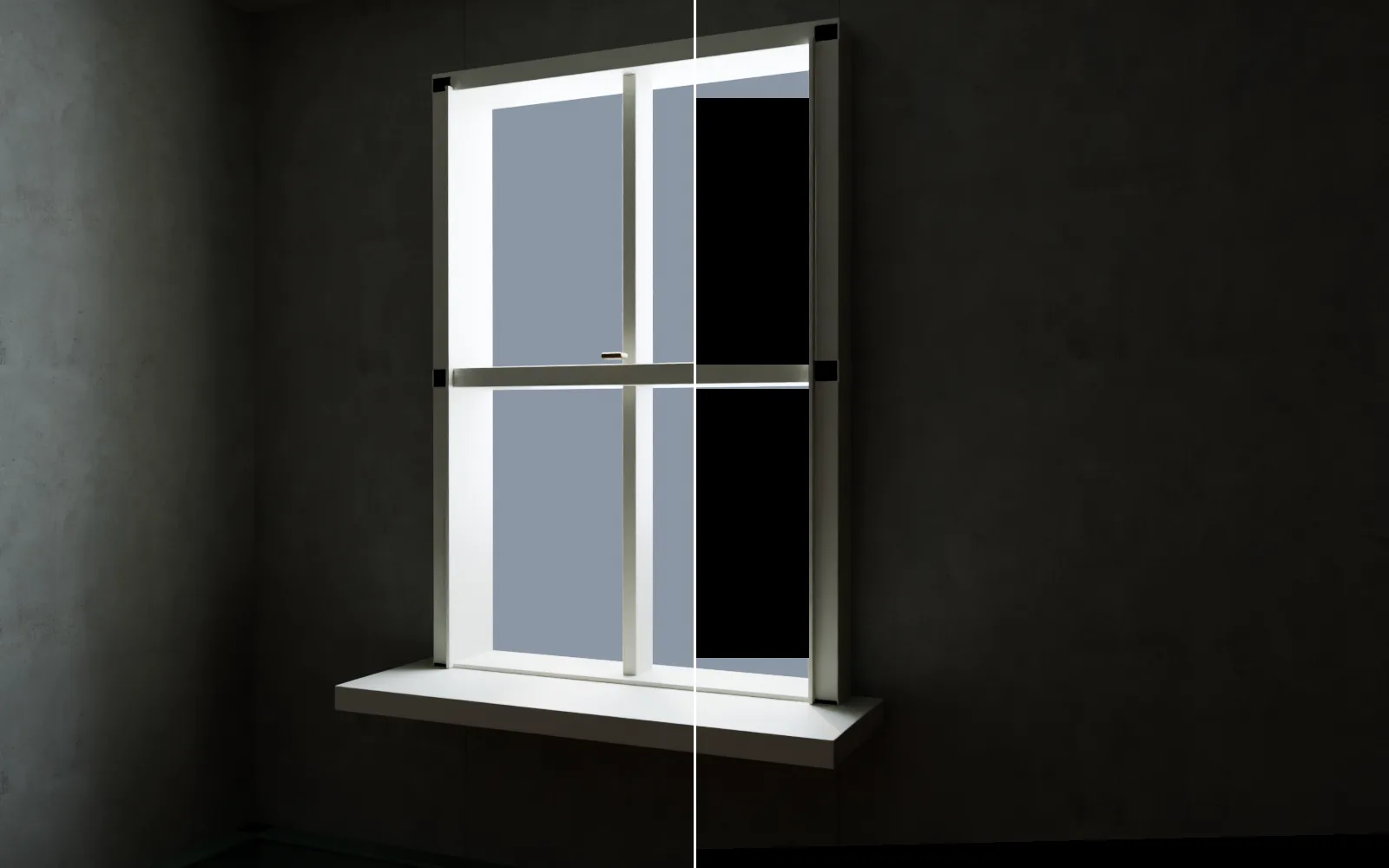
Mask a building for a projection show

Light lands on the wall. The window panes and everything around it stay black.

  1. Outline the wall with a polygon. Hold Ctrl and carve out the two panes.
  2. Pick Select inverse and fill it black.
  3. Bend it onto the curve with Grid warp and square it for the projector with Keystone.
InputImageFile→ImageSelectShape→ImageMaskCombine→ImageMaskRefine→ImageFill→ImageGridWarp→ImageCornerPin
a wall masked for projection, before and after: the window panes go black
Take it further

It all connects.

Every part of Kinematic works with the others. Wire one into the next.

Keep going

Free and open. Yours, forever.

No account, no license key. macOS, Windows, Linux and Raspberry Pi.

Download Kinematic 0.5.0