Kinematic 0.5.0 is out. Modeling and sculpting in the viewport, a timeline on every graph, photo and sound editing. What's new
Kinematic / Edit / Restore & enlarge

Restore and enlarge old photos.

Old prints, dusty scans, dark night shots and tiny pictures, cleaned, mended and made bigger.

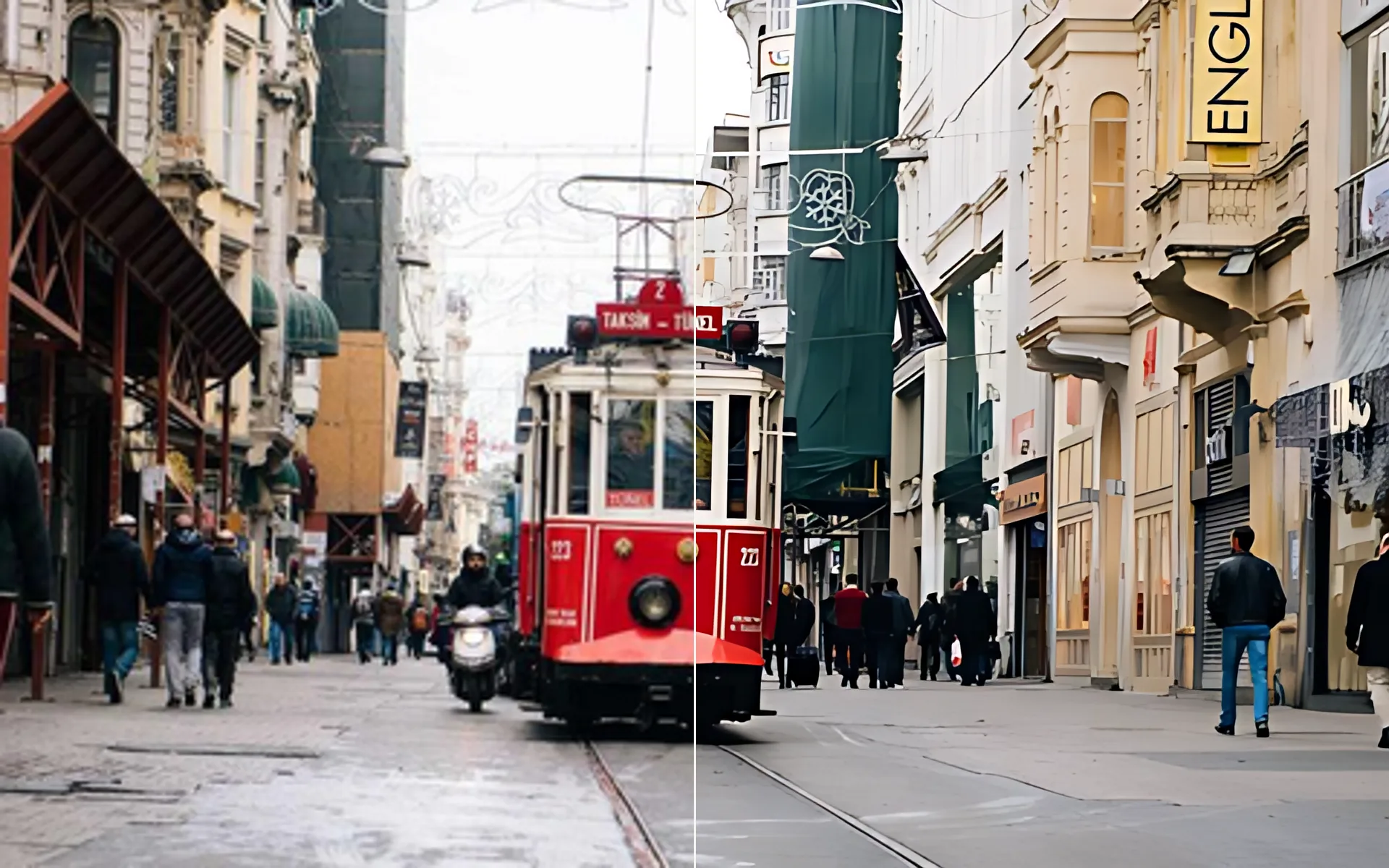
a small street photo made four times bigger, plain enlargement on the left
01

Clear the haze from a lake photo

Grain and haze taken out in one pass, at full size.

  1. Pick Filter > Photo restore.
  2. Grain, haze, rain and blur come out in one pass. The photo stays the same size.
  3. Set the strength in the sidebar.
InputImageFile→LocalAIImageRestore
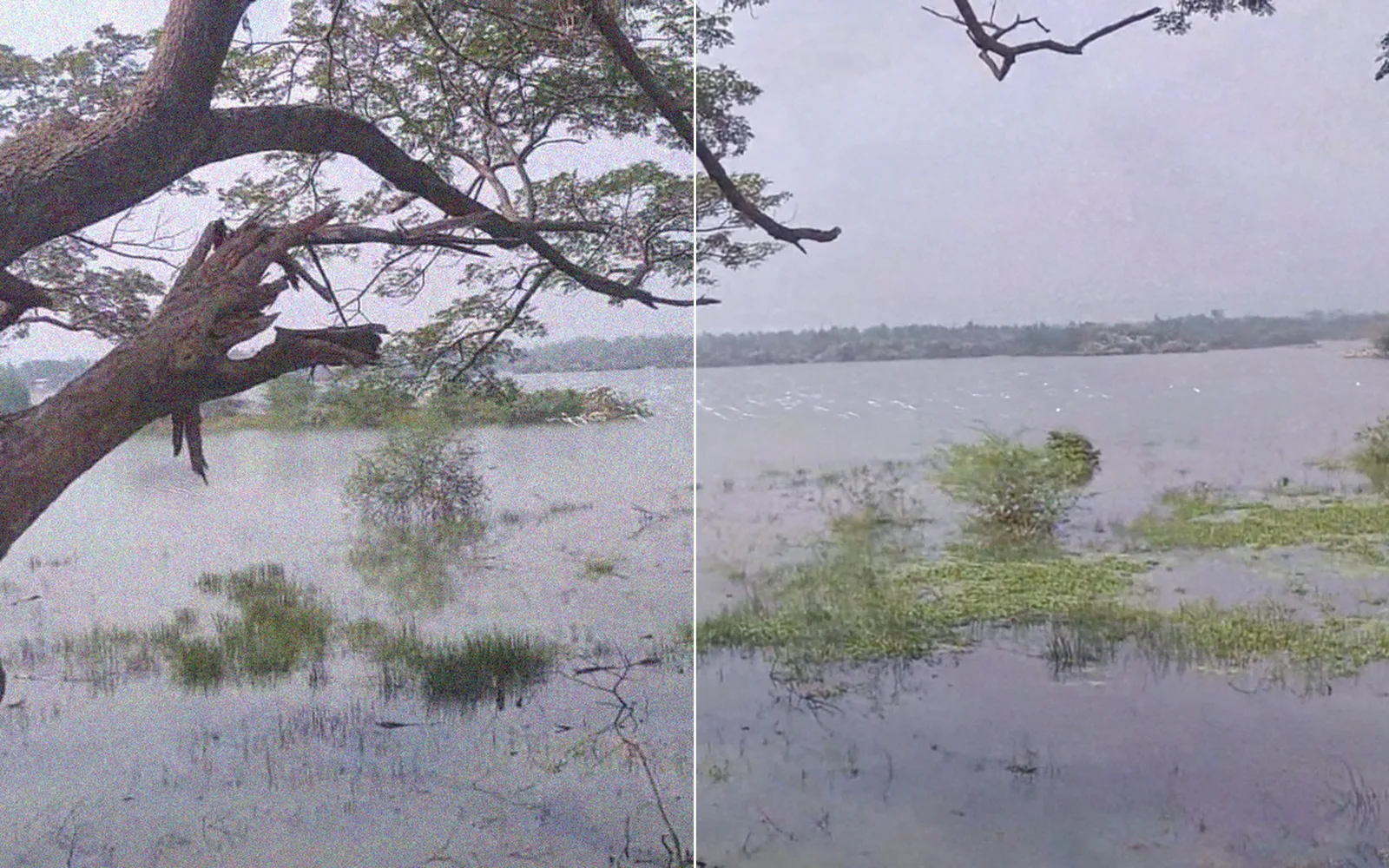
the grainy, hazy lake on the left, cleaned in one pass on the right
02

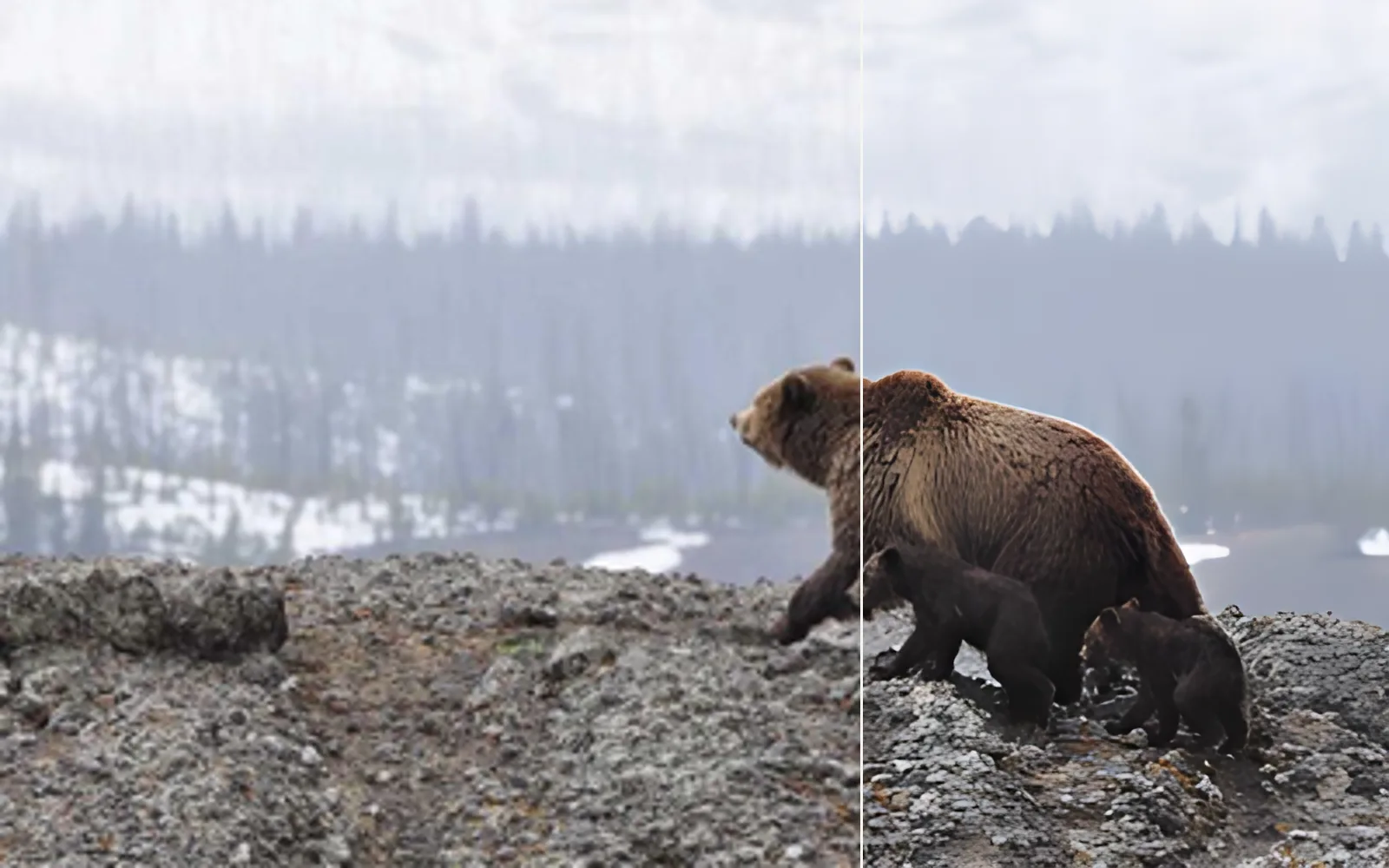
Blow up a small picture for print

Four times bigger, with crisp detail.

  1. Pick Framing > Upscale.
  2. It comes out four times bigger. The model downloads the first time.
  3. Save it at full size.
InputImageFile→LocalAIImageUpscale→OutputImageFile
a tiny bear photo blown up four times, plain enlargement on the left
03

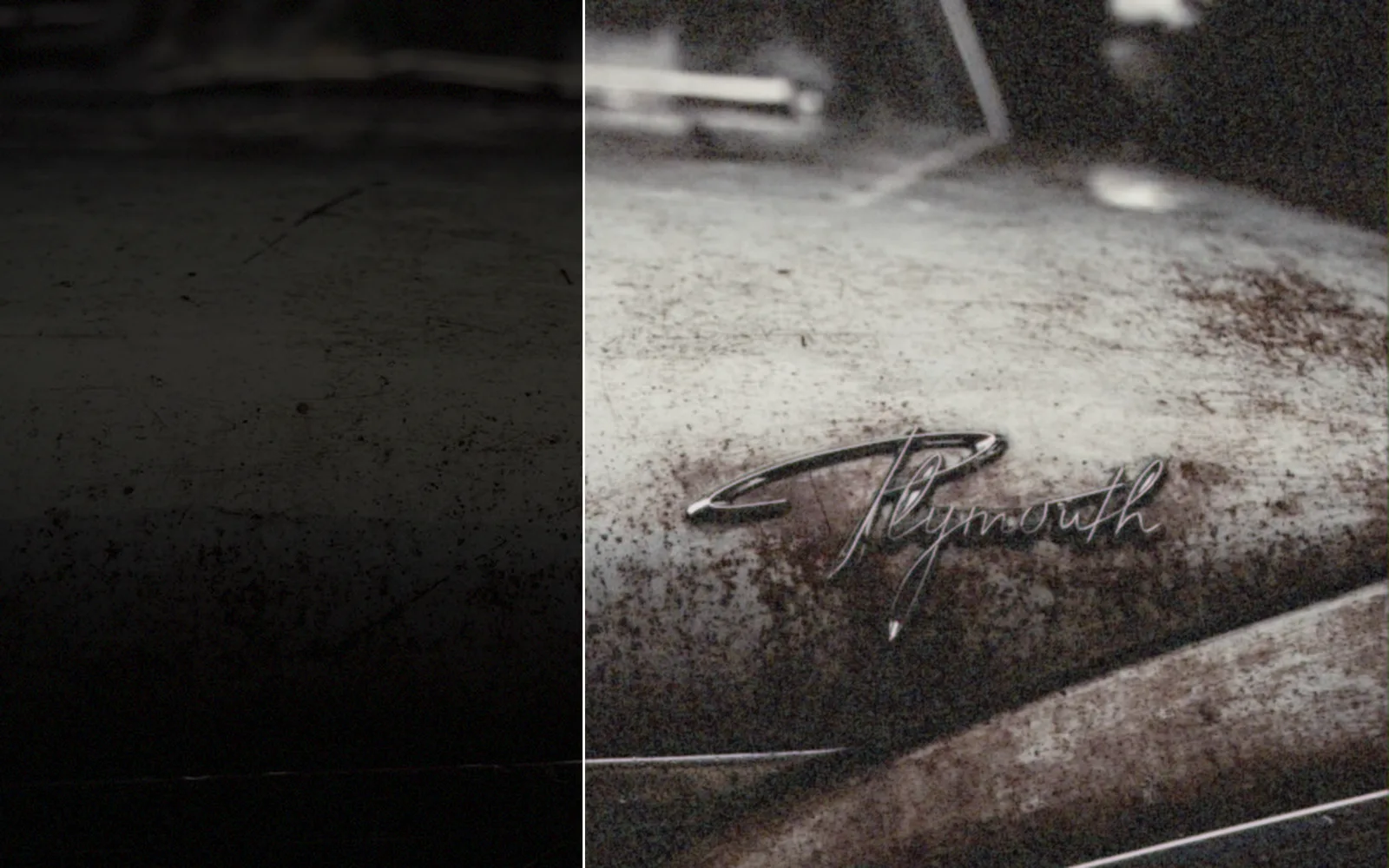
Rescue a photo shot in the dark

A dark, murky frame brought up, with its colors kept natural.

  1. Open the dark photo.
  2. Brighten it with the low-light model on the Adjust menu. It runs on this machine.
  3. Keep grading with Develop.
InputImageFile→LocalAIImageLowLight→ImageDevelop
an old car shot in near darkness on the left, brightened by the low-light model on the right
04

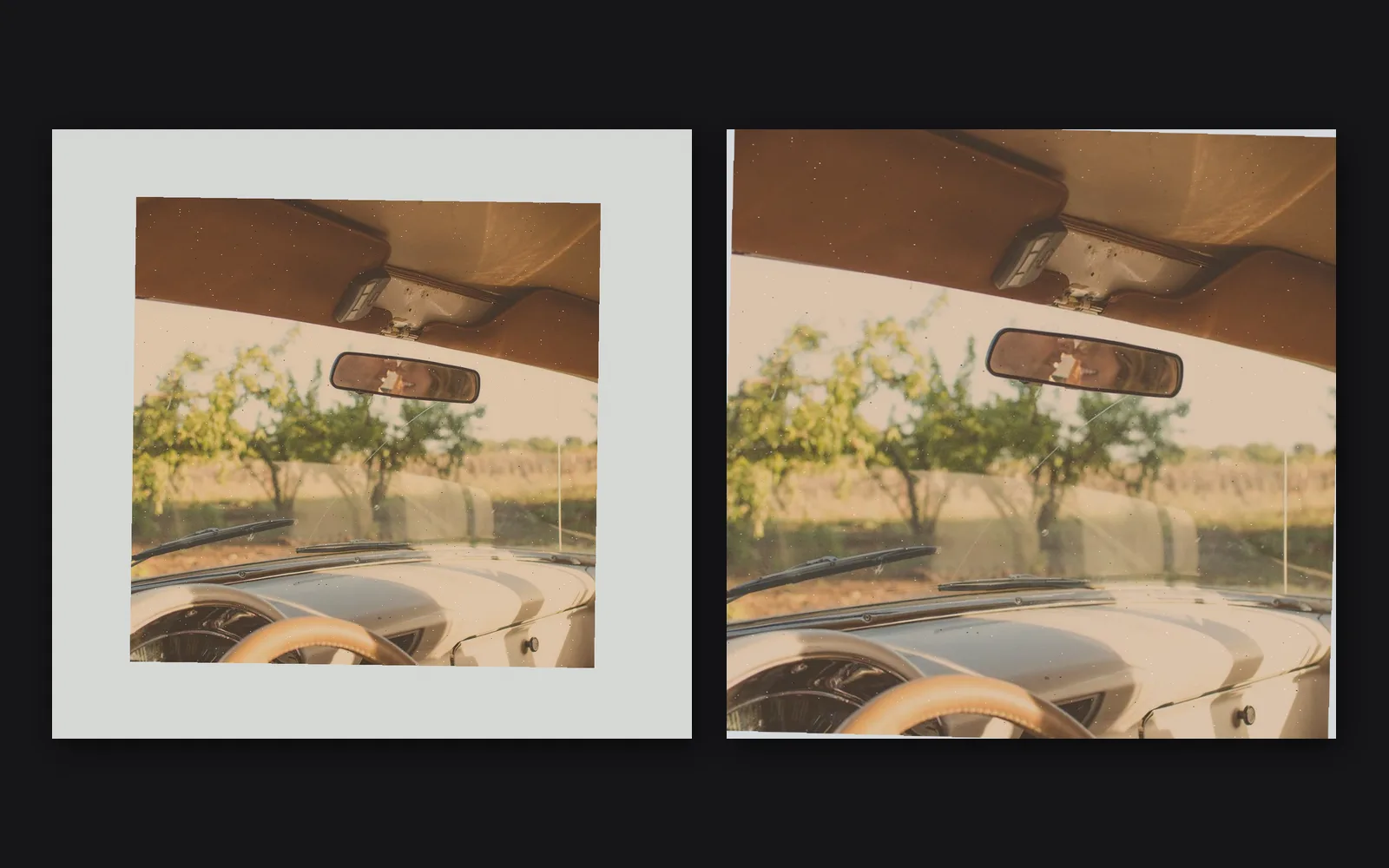
Restore a scanned family print

Scanner bed cropped, color fixed, dust gone, saved as a 16-bit master.

  1. Auto crop trims the scanner bed. Auto levels stretches each color.
  2. Set the white balance from the gray card and clear the dust with Despeckle.
  3. Straighten it a touch and save a 16-bit TIFF.
InputImageFile→ImageAutoCrop→ImageNormalize→ImageDevelop→ImageDespeckle→ImageRotate→OutputImageFile
a faded, dusty scan on its bed, then cropped, straightened and cleaned
05

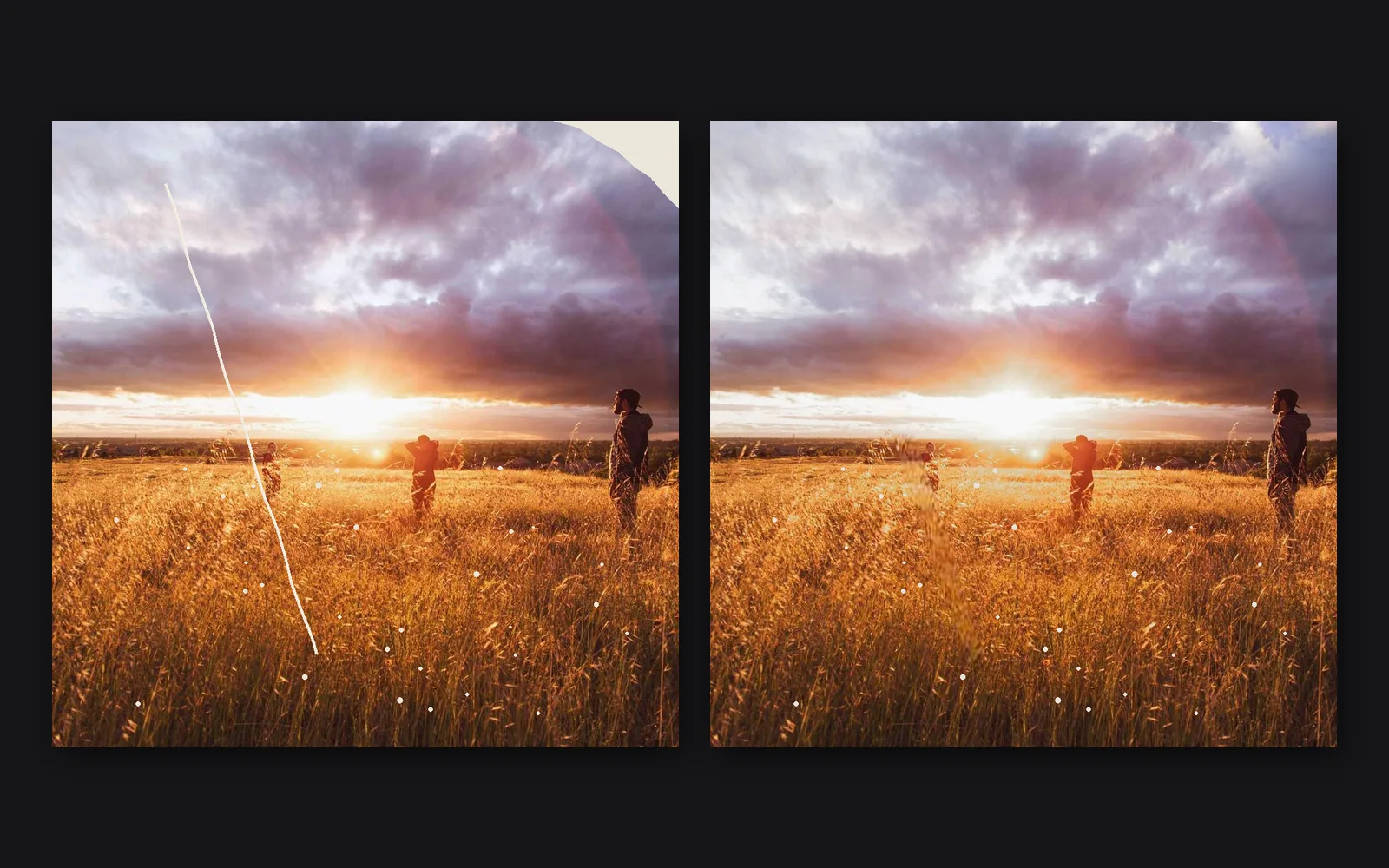
Mend a torn, scratched print

One repair, saved twice: a 16-bit master and a copy for the web.

  1. Brush Remove along the scratch. Start a new Remove for the torn corner.
  2. Select the pale spots by brightness and take half their color away.
  3. Save the master, then branch a 2000 pixel web copy.
InputImageFile→LocalAIImageInfill→LocalAIImageInfill→ImageMaskRefine→ImageHueSaturation→OutputImageFile+ImageThreshold
the scratched print with a torn corner, then mended
06

Bring a tiny clip up to HD

A 320 by 180 clip made four times bigger, with detail that holds steady from frame to frame.

  1. Open the small clip.
  2. Add Video upscale. Every frame comes out four times bigger.
  3. Write it out at 1280 by 720.
InputVideoFile→LocalAIVideoUpscale→OutputVideoFile
a 320 by 180 clip of a lovebird made four times bigger, plain enlargement on the left
Take it further

It all connects.

Every part of Kinematic works with the others. Wire one into the next.

Keep going

Free and open. Yours, forever.

No account, no license key. macOS, Windows, Linux and Raspberry Pi.

Download Kinematic 0.5.0