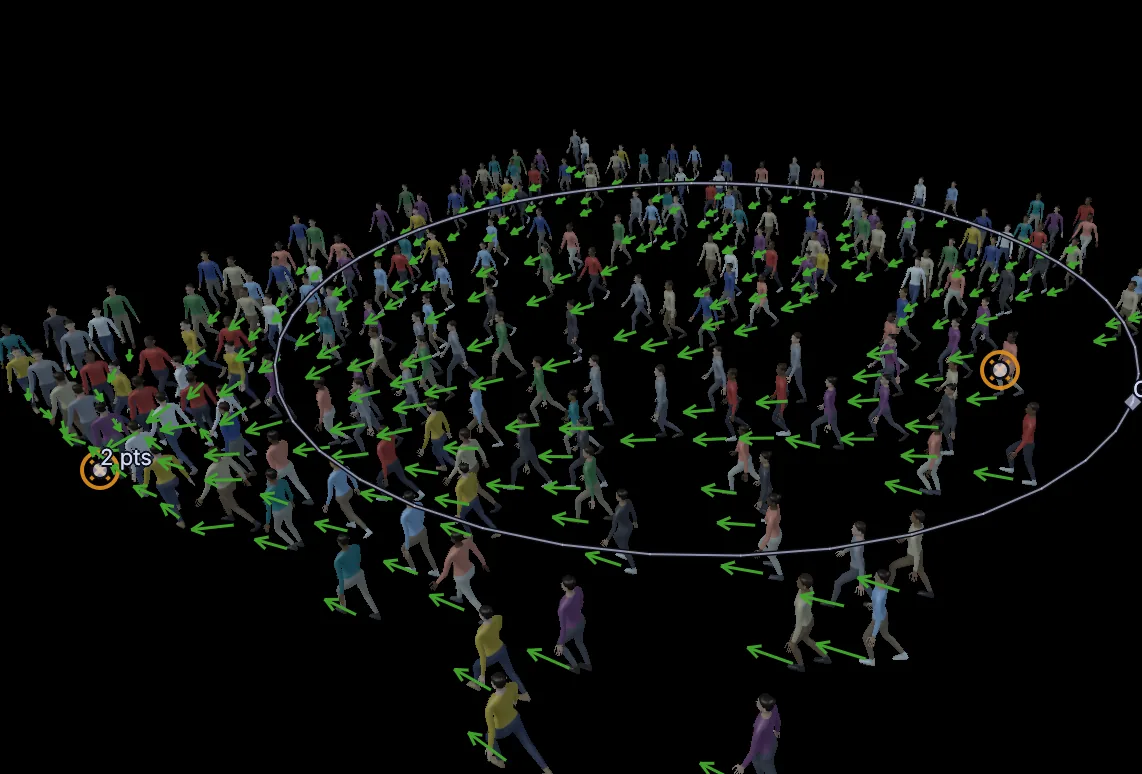
A crowd is one node. You give it a ground and somewhere to go, and each person finds their own way there without walking through anyone.
Steps
On the start screen, click New Project. On the viewport's start card, under 3D, click Start with a shape and pick Grid. A flat square appears in the view with handles.
Make it the size of a plaza. In Properties on the right, set Size x to
30and Size z to30. Hover over the viewport and pressHometo fit it in the view, then8to look at it from the front right corner.With the grid picked, open the Simulate menu along the top of the viewport and choose Crowd. Your project is already playing, so people appear on the grid at once and wander about, keeping clear of each other. A green arrow on each one shows which way it faces.
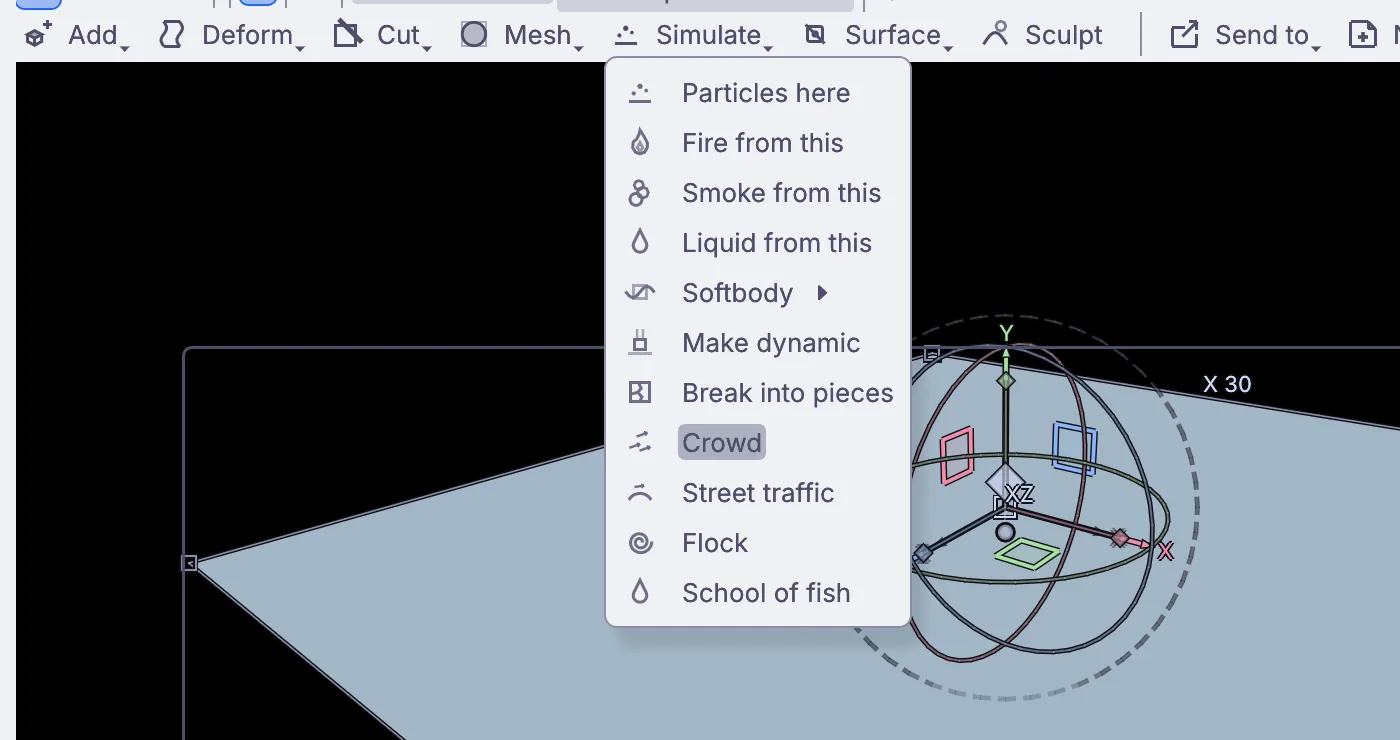
The Simulate menu over the grid, with Crowd below the liquid and break apart choices, and Street traffic, Flock and School of fish under it. A card on the right of the view holds the crowd's everyday settings: Count, Speed, Speed variation, Avoidance and Radius. Count says Auto, which gives you two hundred people.
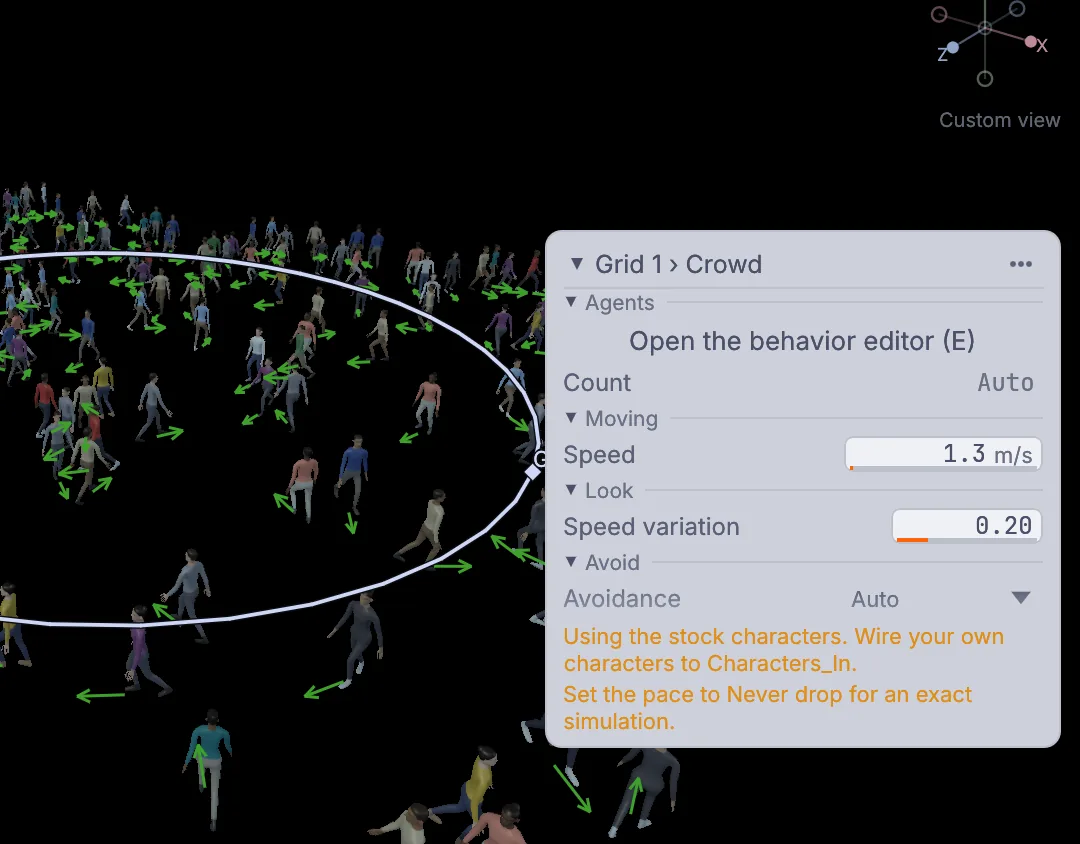
Two hundred people wandering the grid, with the crowd's card on the right and its note asking for Never drop. The note at the bottom of the card asks for an exact simulation. Click the frame rate at the right end of the timeline (it reads Forever 30 fps). In Rate, tempo and pace, set Pace to Never drop and close the window. Now the crowd works out each frame in turn, even when playback runs a little slow.
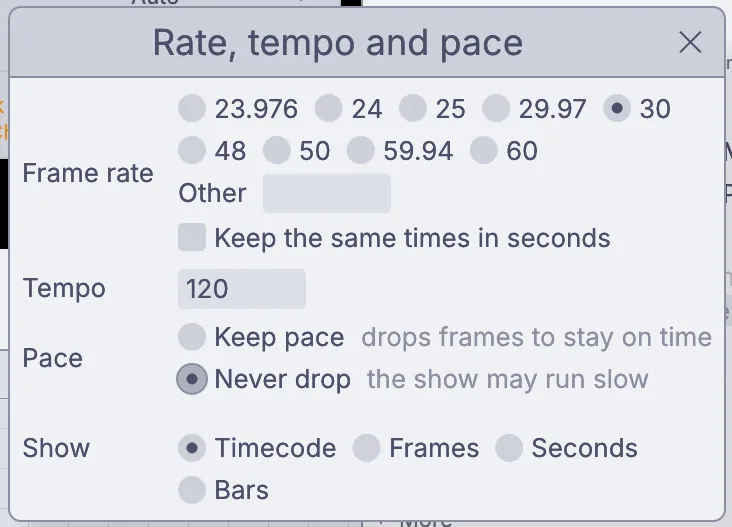
The Rate, tempo and pace window with Pace set to Never drop. Give them somewhere to go. Open the Simulate menu again: with the crowd in the view it now holds the crowd tools. Choose Target, then click the grid once near the left side and once near the right. Each click adds a target ring, Goal switches to Targets, and the crowd turns toward them.
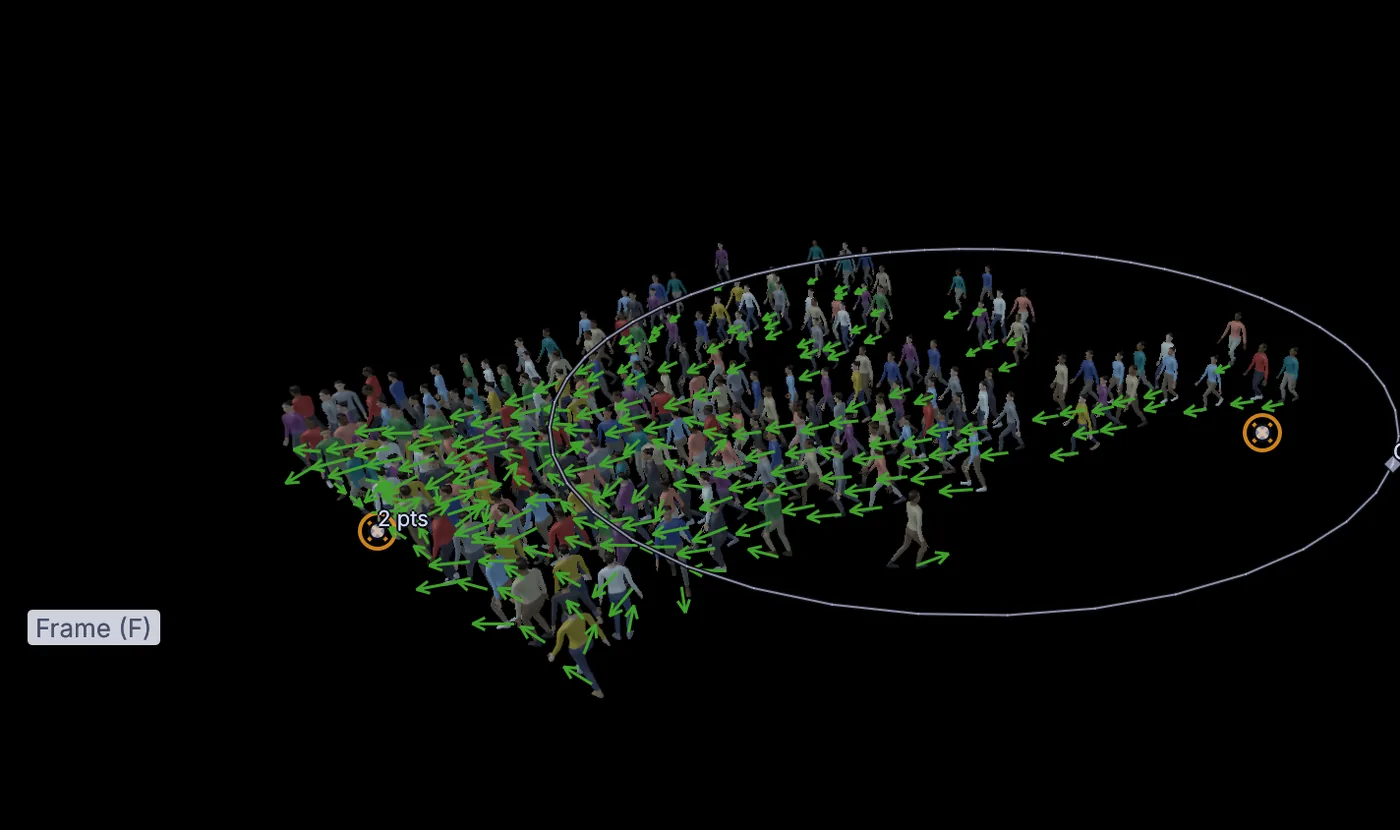
The crowd streaming toward the two orange target rings you clicked. Send them back and forth. In Properties, click the Behavior tab. Set Pick target to In order and On arrival to Wait. Shortest wait and Longest wait appear, at
2 sand6 s: each person walks to the first target, stands a few seconds, walks to the second, and goes round again.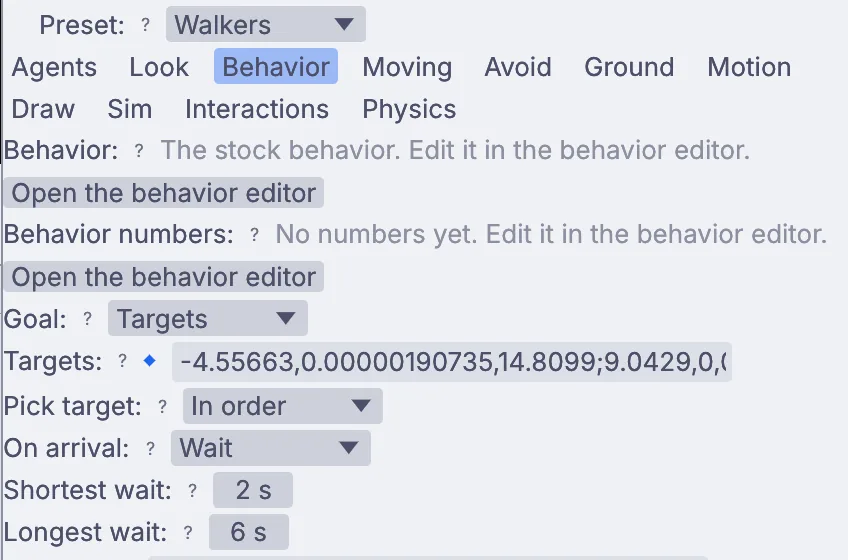
The Behavior tab in Properties with Goal on Targets, Pick target on In order, On arrival on Wait, and the two waits at 2 s and 6 s. The two streams now meet in the middle. On the card, set Avoidance to Look ahead. People watch further ahead and weave through the oncoming stream instead of bunching up.
Drag the playhead on the timeline back a few seconds. The crowd shows the frames it already ran, exactly as they were. Press play and it carries on from there.
Choose File > Save As... and give your plaza a name.
On the canvas
Crowd added one 3DGeoCrowd, named Crowd 1, and wired your 3DGeoGrid into it as the ground people walk on. With no characters wired in, it uses the stock people. The targets you clicked and every setting you changed sit on that one node.
Make it yours
- On the Agents tab, set Count to Number and type
400. New people join at the frame you are on. - Raise Speed on the card to
2.5and they hurry across. - Set Avoidance to Push for a pushy crowd that shoulders its way through.
- Choose Target again and click a third spot: with In order they walk a triangle.
- Change Seed on the Agents tab for a different crowd from the same settings.
- Click Open the behavior editor on the card to see the one Walk state the Walkers preset runs.