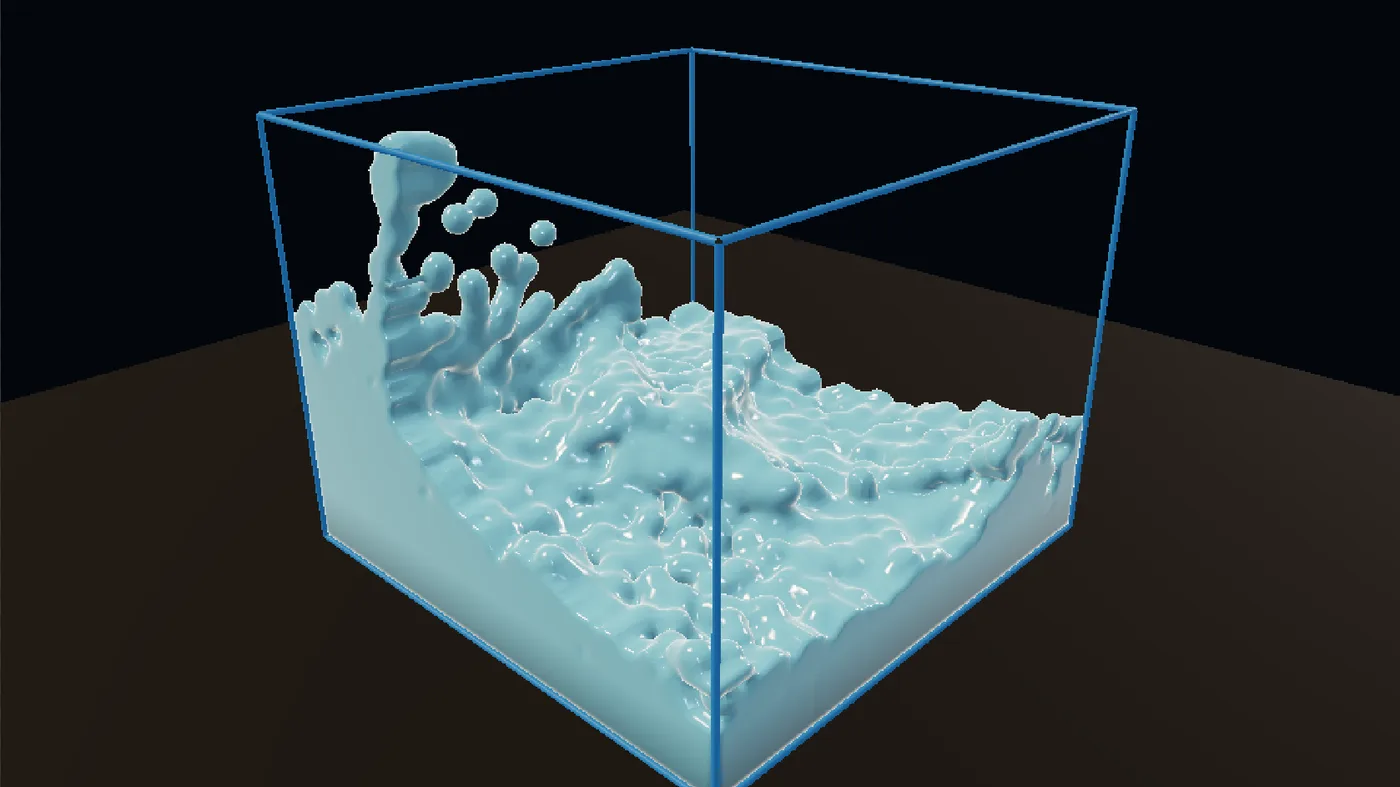
The way you tilt a cup to swirl your coffee, this demo tilts gravity. Two settings decide how fast and how hard.
Steps
Choose Help > Browse Demos..., type
vortexin the search box and open Liquid Mixer Vortex. It plays at once: the water rocks, then banks into a spin. It is a heavy sim, so expect a few frames a second on most computers.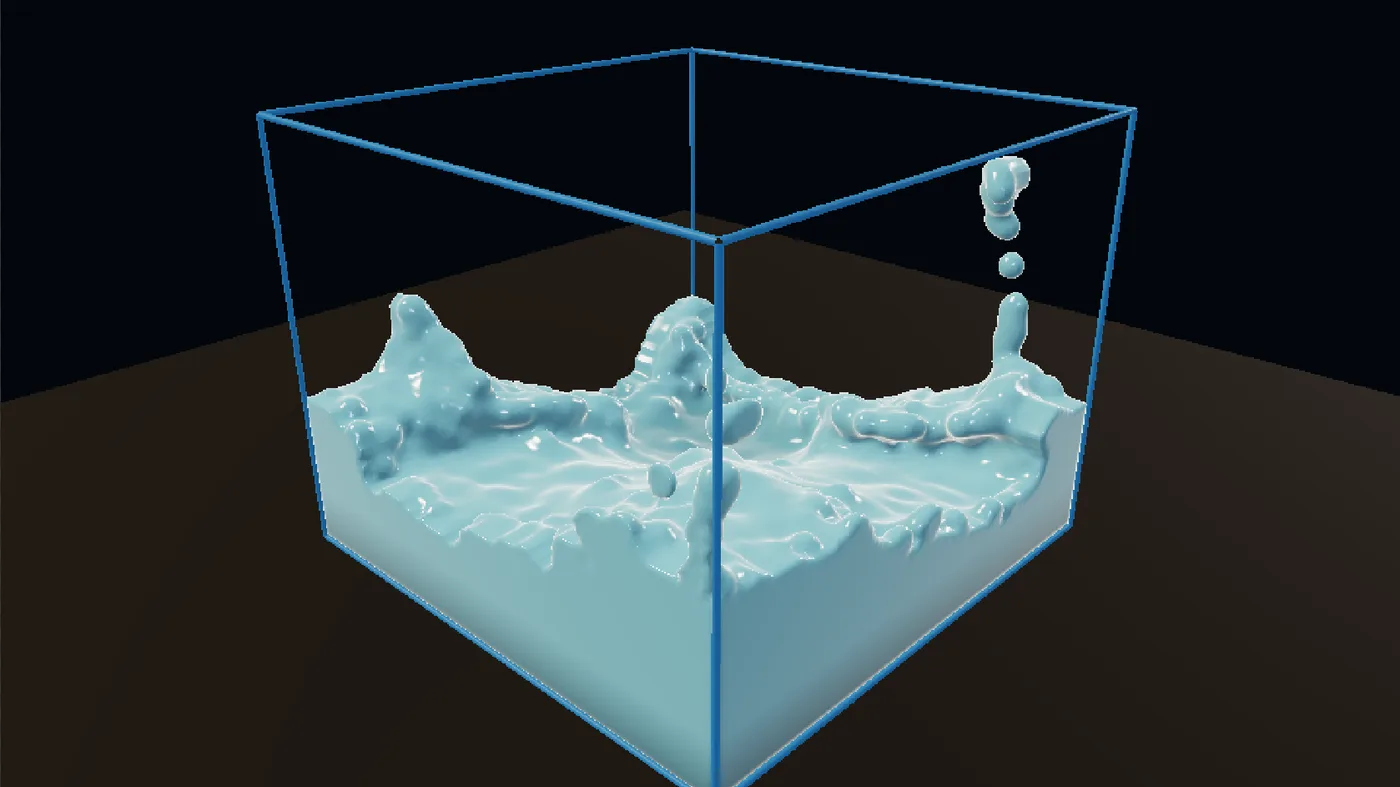
The pool a few seconds in, the water starting to bank up the walls of the tank. In the Objects panel, under Simulations, click flip. The viewport switches to the liquid in its box, with a card on the right for Cell size, Friction, Bounce, Time scale and Viscosity enable.
In Properties, type
gravityin the filter box. Gravity dir x and Gravity dir z are amber because each one follows a driver:sin(time*1.6)*0.45andcos(time*1.6)*0.45. Together they lean gravity around a circle about every four seconds.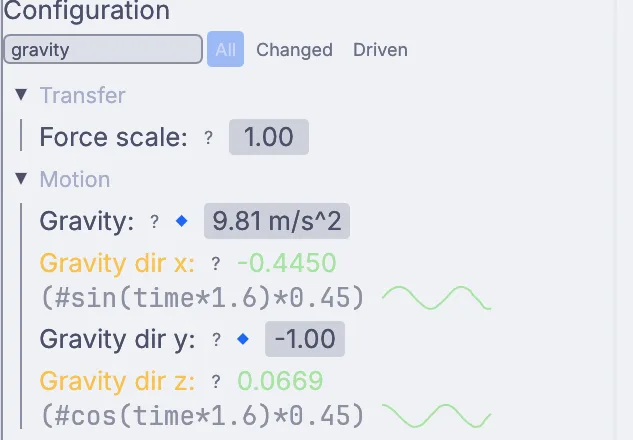
The gravity settings filtered in Properties, with Gravity dir x and Gravity dir z in amber, each showing its driver and a small wave. Stir faster. Double-click the label Gravity dir x. The value turns into a text box holding the driver. Change
1.6to3and pressEnter.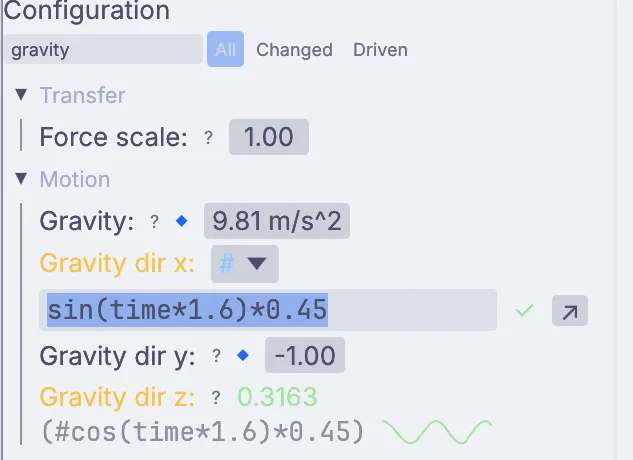
Gravity dir x open for editing, its driver sin(time*1.6)*0.45 in a text box with a green check beside it. Do the same on Gravity dir z. The tilt now goes around almost twice as fast.
Lean harder. Edit both drivers again and change
0.45to0.6. The water climbs higher up the walls and throws drops into the air.Click the back arrow in the viewport's header (its tip reads Back to what you were looking at) until you see the shaded tank again, and watch your whirlpool.
On the canvas
The demo's 3DGeoBox named water is the starting pool, and one 3DGeoFlipSimpleSolver named flip runs the liquid on its swirly preset. Your drivers live on flip, so no wire carries them.
Make it yours
- Right-click Gravity dir z and pick Set Constant Value: the tilt now rocks back and forth instead of going around, and the water sloshes.
- Turn on Viscosity enable on the card for a thick, slow swirl.
- Set Time scale on the card to
0.5to watch the splash in slow motion. - Click water in the Objects panel and raise Size y in Properties for a deeper pool.