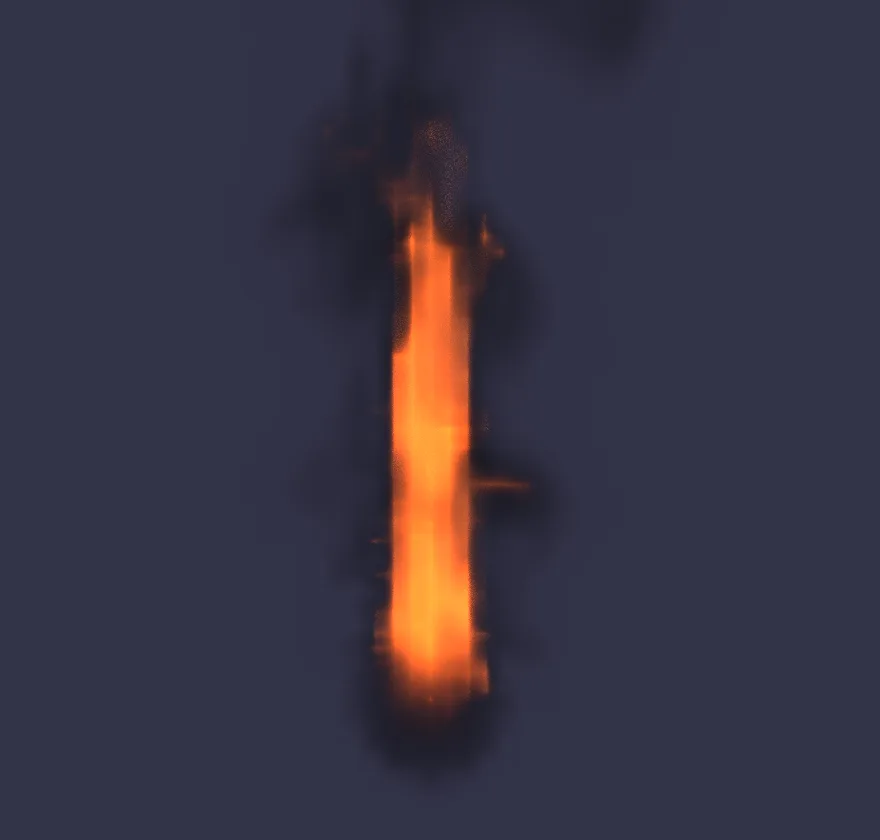
A real fire sim from a single menu pick. You start with a plain ball, set it on fire in the viewport, then shape the flame with a few settings while it burns.
Steps
On the start screen, click New Project. The viewport shows a card. Under 3D, click Add a shape and pick Sphere. A ball appears in the middle of the view with handles you can drag. This ball is the torch head: the fire burns off its surface.
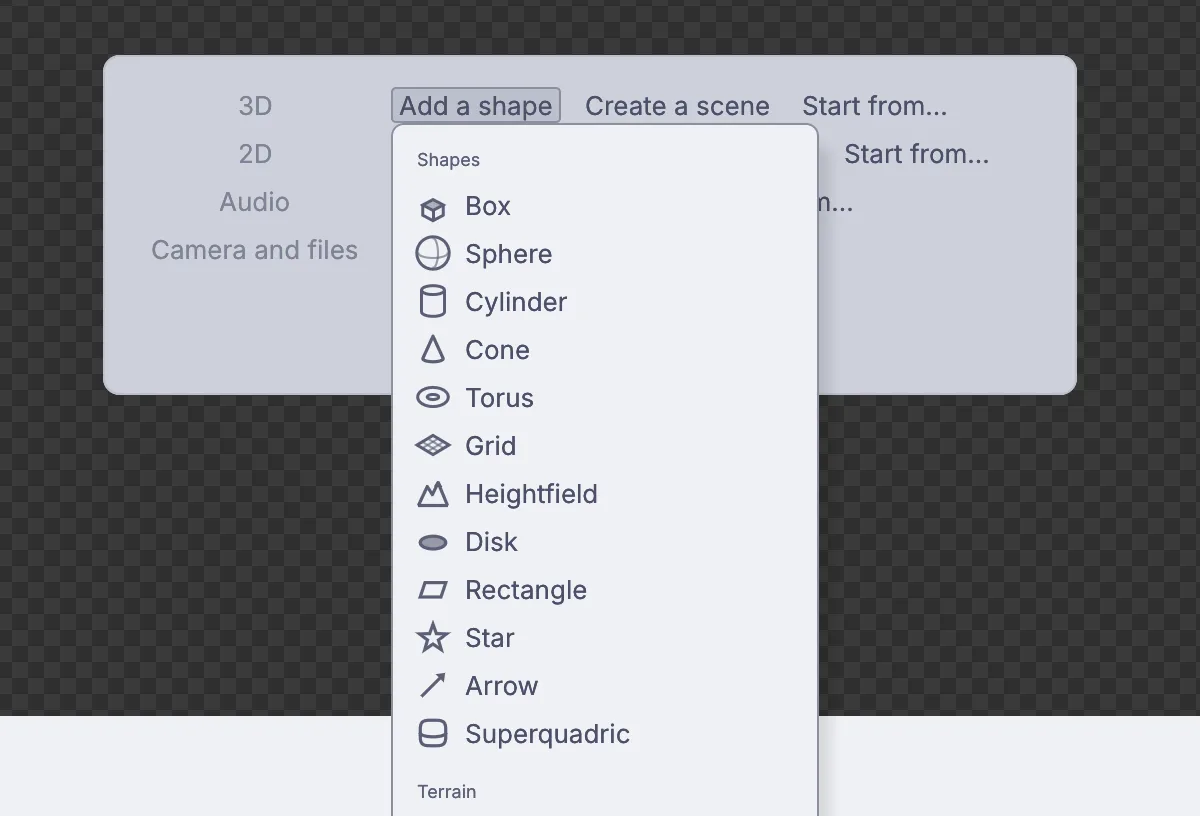
The Add a shape menu on the empty viewport, with Box, Sphere, Cylinder and the other shapes. With the ball picked, open the Simulate menu along the top of the viewport and choose Fire from this. If you like the keyboard better, hover over the viewport, press
Space, typefireand pressEnter.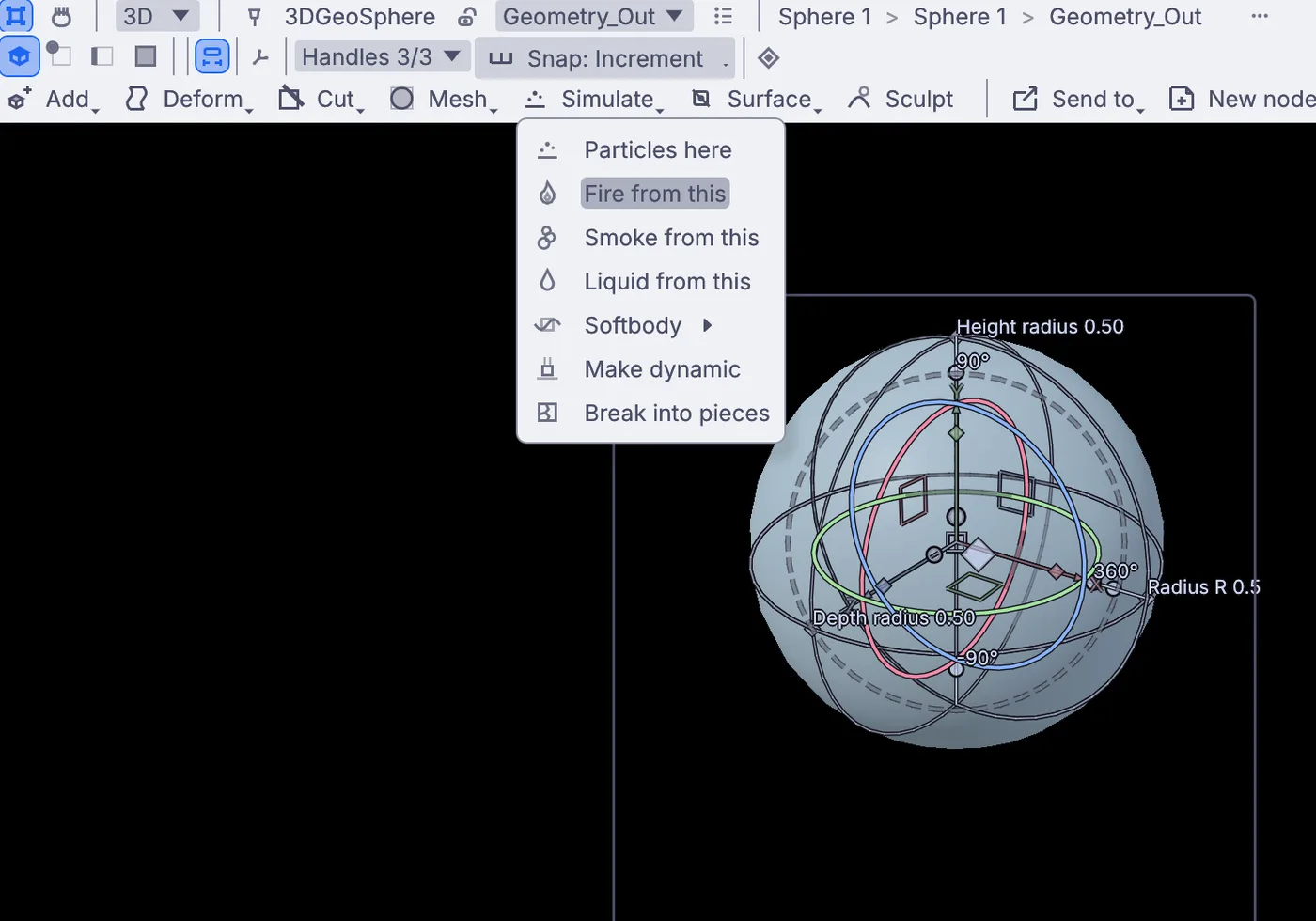
The Simulate menu over the ball: Particles here, Fire from this, Smoke from this, Liquid from this, Softbody, Make dynamic and Break into pieces. Your project is already playing, so the fire starts at once. The viewport switches to the fire, glowing in the view, with a Fire label at the top left. The fire lives in a box sized from the ball, tall enough for the flame to rise.
Look at the card on the right of the view. It holds the settings you will reach for most: Turbulence, Buoyancy, Cooling rate, Heat release and a few more. Each one changes the fire while it burns.
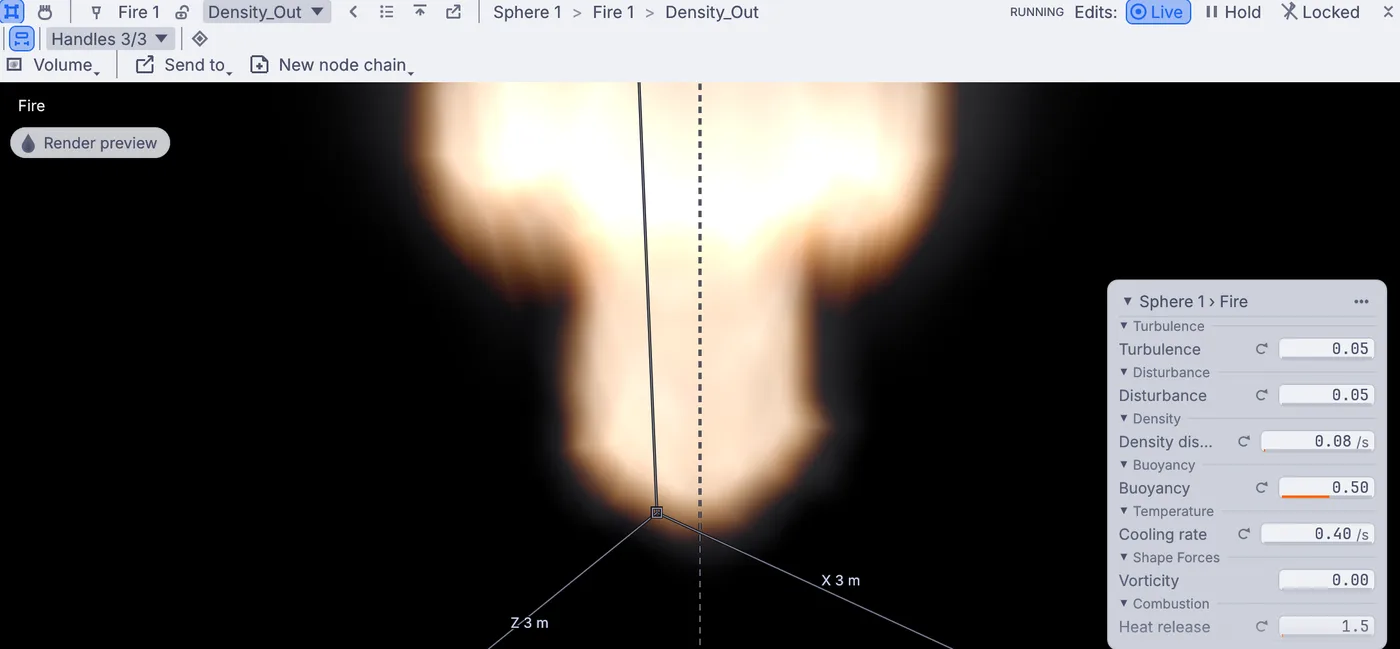
The fire glowing in the viewport above the ball, with the settings card on the right. Click Render preview at the top left of the viewport. A window opens over the view and draws the fire the way a final render will, with light, shadow and smoke. At the bottom of that window, pick Render camera to see the whole flame, and Full for a sharper picture.
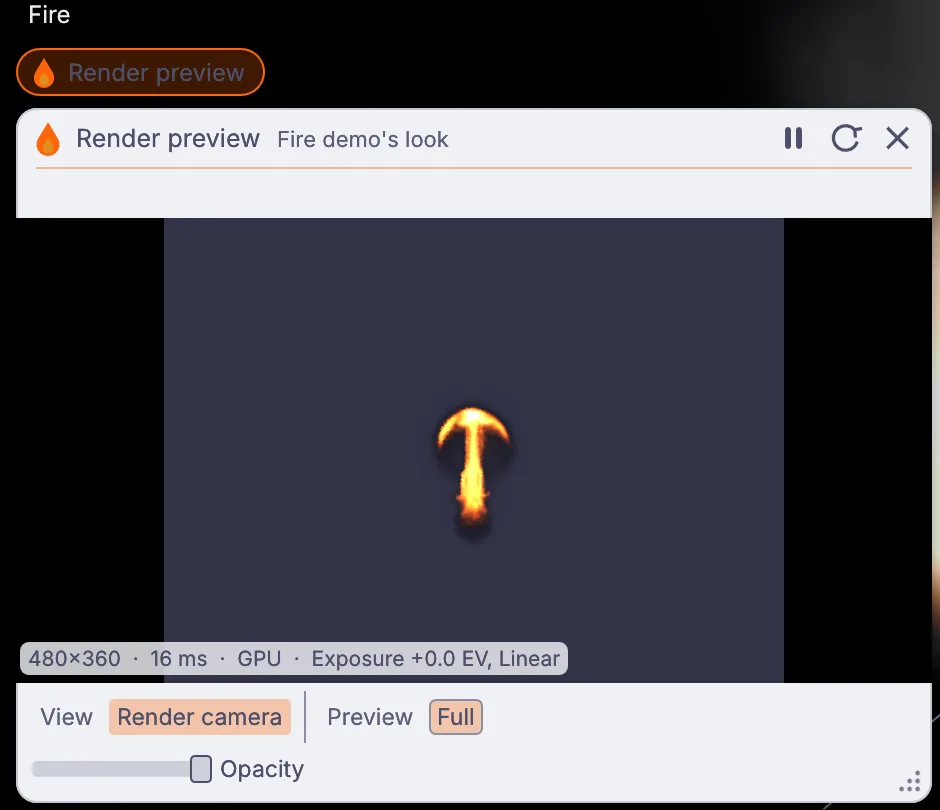
The Render preview window set to Render camera and Full, showing the whole flame lit as a render draws it. Make the flame taller. On the card, set Cooling rate to
0.15. Heat now fades more slowly, so the flame climbs higher before it turns into smoke.Make it warmer. In Properties on the right side of the window, type
flamein the filter box at the top of the settings and set Max flame kelvin to2500. A cooler top temperature turns a white hot core into a deep orange torch.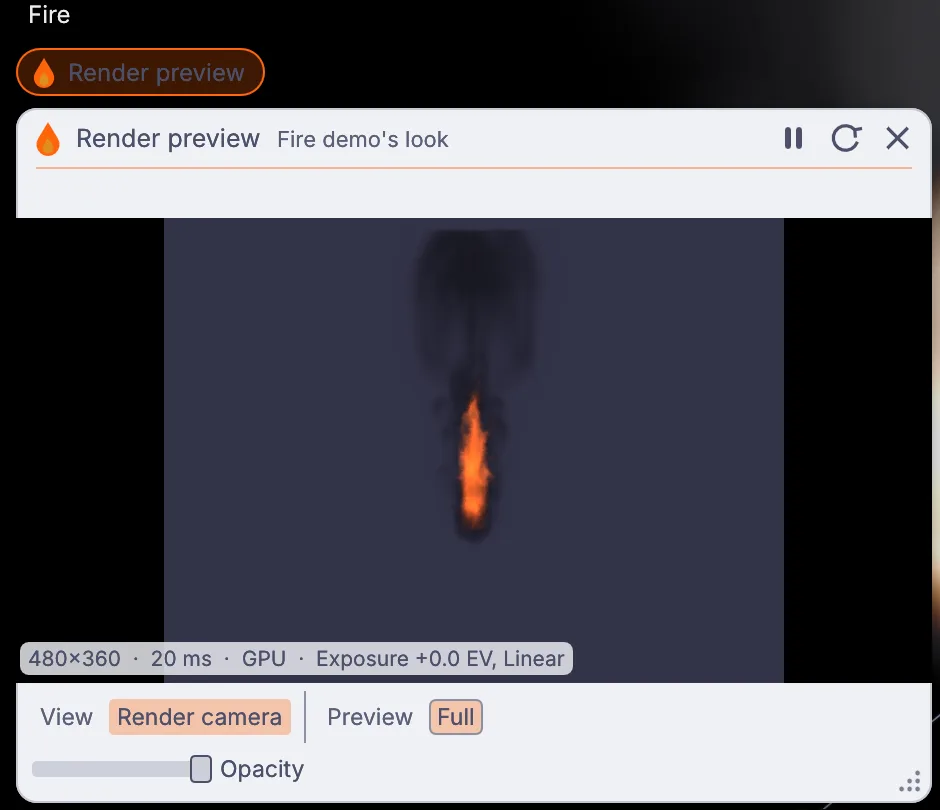
After both changes the flame in the preview stands taller in deep orange and trails dark smoke. Choose File > Save As... and give your torch a name.
On the canvas
Fire from this added one 3DGeoFluidSimpleSolver, named Fire 1, and wired your 3DGeoSphere into it as the place where fuel and heat pour in. The whole fire lives in that one node, so every setting you changed sits in its Properties.
Make it yours
- Let it lean in the wind: type
windin the filter, set Wind speed to0.6, Wind dir x to1and Wind mode toblend. Stay under about 1 for a torch; more and the flame streams sideways like a flag. - Set Heat release to
3on the card for a brighter, angrier flame. - Raise Turbulence to
0.3for a wilder flicker. - Start from Add a shape > Torus instead and choose Fire from this for a ring of fire.