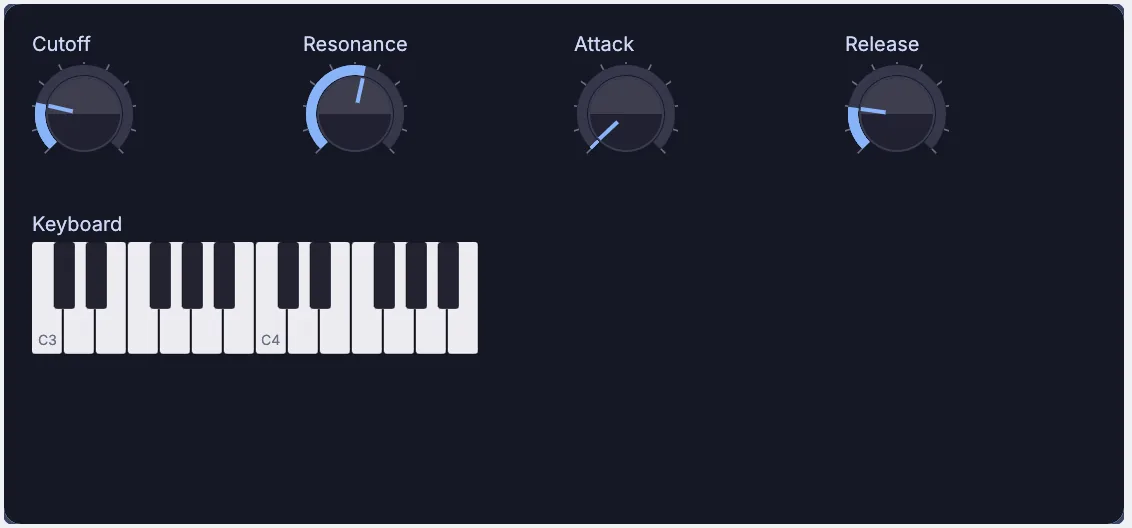
The sound part happens in the viewport. The keys and the envelope are a little patching on the canvas: a few wires and two drags.
Steps
Start the sound. Click New Project. On the empty viewport's start card, under Audio, click Start from... and pick Oscillator. The viewport shows the sound with a card of settings. Set Waveform to
saw.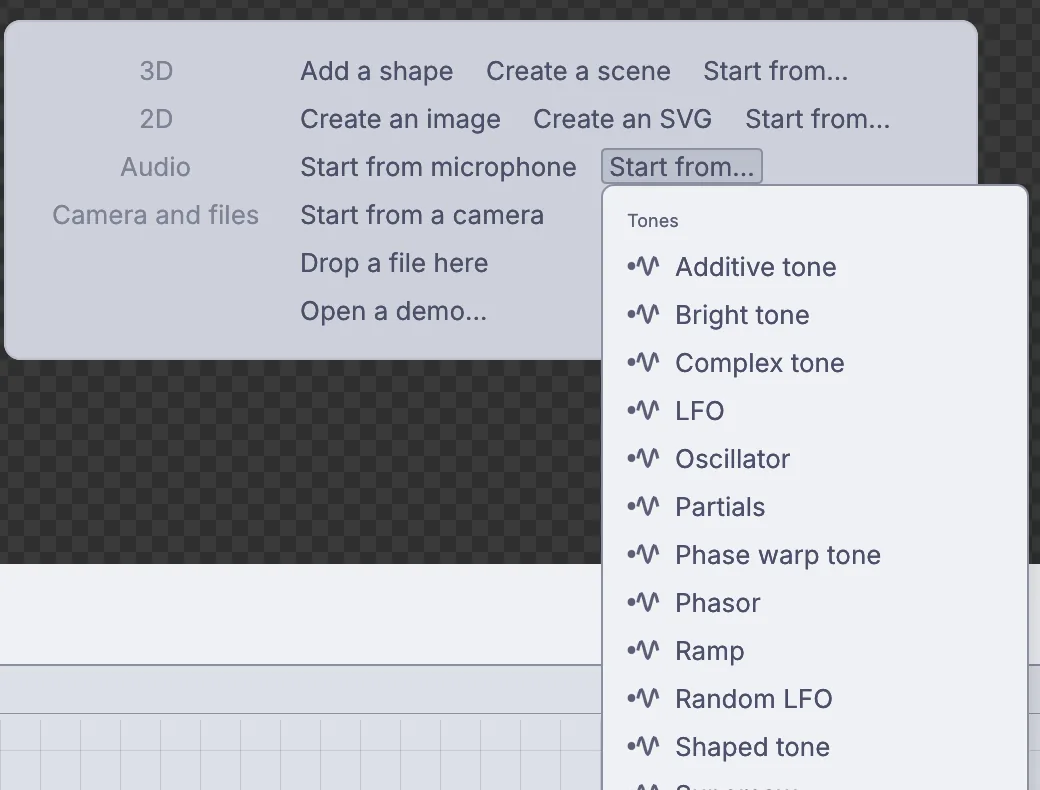
Start from... under Audio lists tones to start from, Oscillator among them. Add a filter. Choose Tone > Ladder filter from the viewport's toolbar. Its curve fills the view, and the bump is the resonance. In the Properties panel set Cutoff hz to about
900and Resonance to0.6.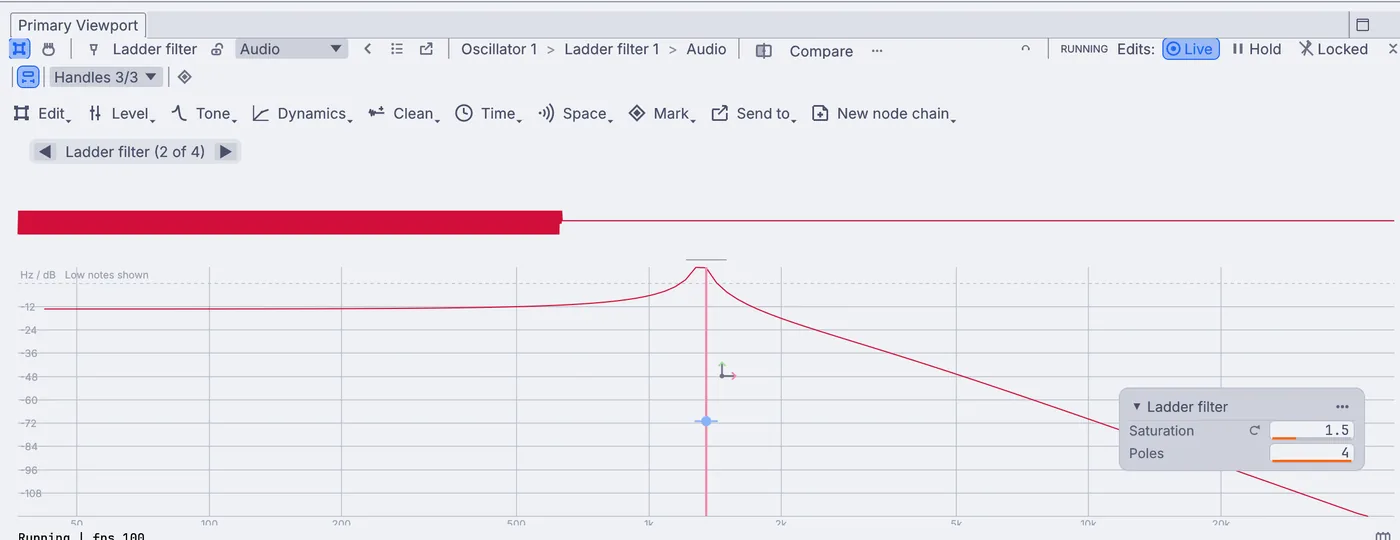
The ladder filter's curve, with the resonance bump at the cutoff. Add a volume stage and speakers. Choose Level > Gain and fades > Gain, then Send to > Play on speakers. Turn your speakers down, then press Play on the transport bar at the bottom. You hear a steady buzz.
Add keys. Right-click the canvas, the lower half of the window, choose Add Node, type
Keyboardand pick Keyboard. Add a Note to frequency node the same way. Drag from the Keyboard's Note output to the Note input of Note to frequency.Let the keys set the pitch. Click the Oscillator node so the Properties panel shows it. Drag the Frequency output of Note to frequency onto the Oscillator's Frequency setting. The pitch now follows the key you press.
Make notes start and stop. Add an ADSR node and wire the Keyboard's Gate output to the ADSR's Gate input. Click the Gain node, then drag the ADSR's Envelope output onto the Gain's Gain setting. The buzz stops: from now on a key press opens the sound and letting go fades it out.
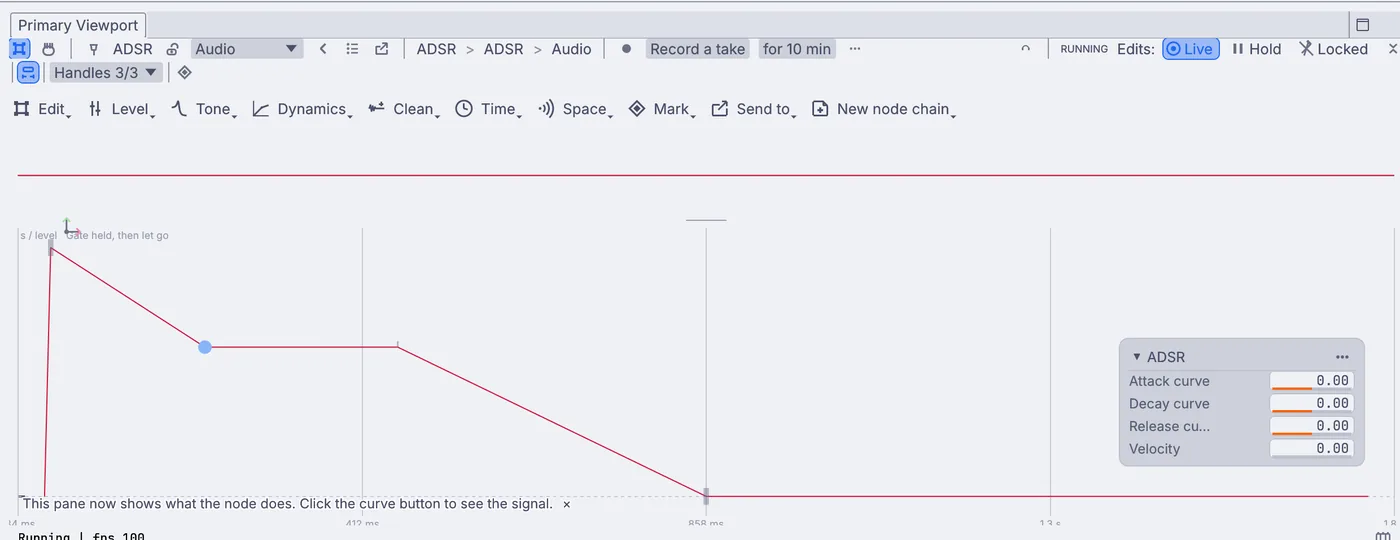
The ADSR's shape: a quick rise, a fall to the sustain level, and the release. Knobs. Click the Ladder filter node. In the Properties panel, right-click Cutoff hz and choose Link UI control with panel and OSC.... Type
Cutoffas the Label, set Range from100to8000, pick New panel and click Link. Do the same for Resonance, then on the ADSR for Attack ms and Release ms, picking the panel you made each time.Put the keyboard on the panel. Click the new Panel node (the Objects panel lists it under Panels) and press
E. The Panel Editor opens. Check Keyboard in the Controls list, pick a Layout, and close the editor.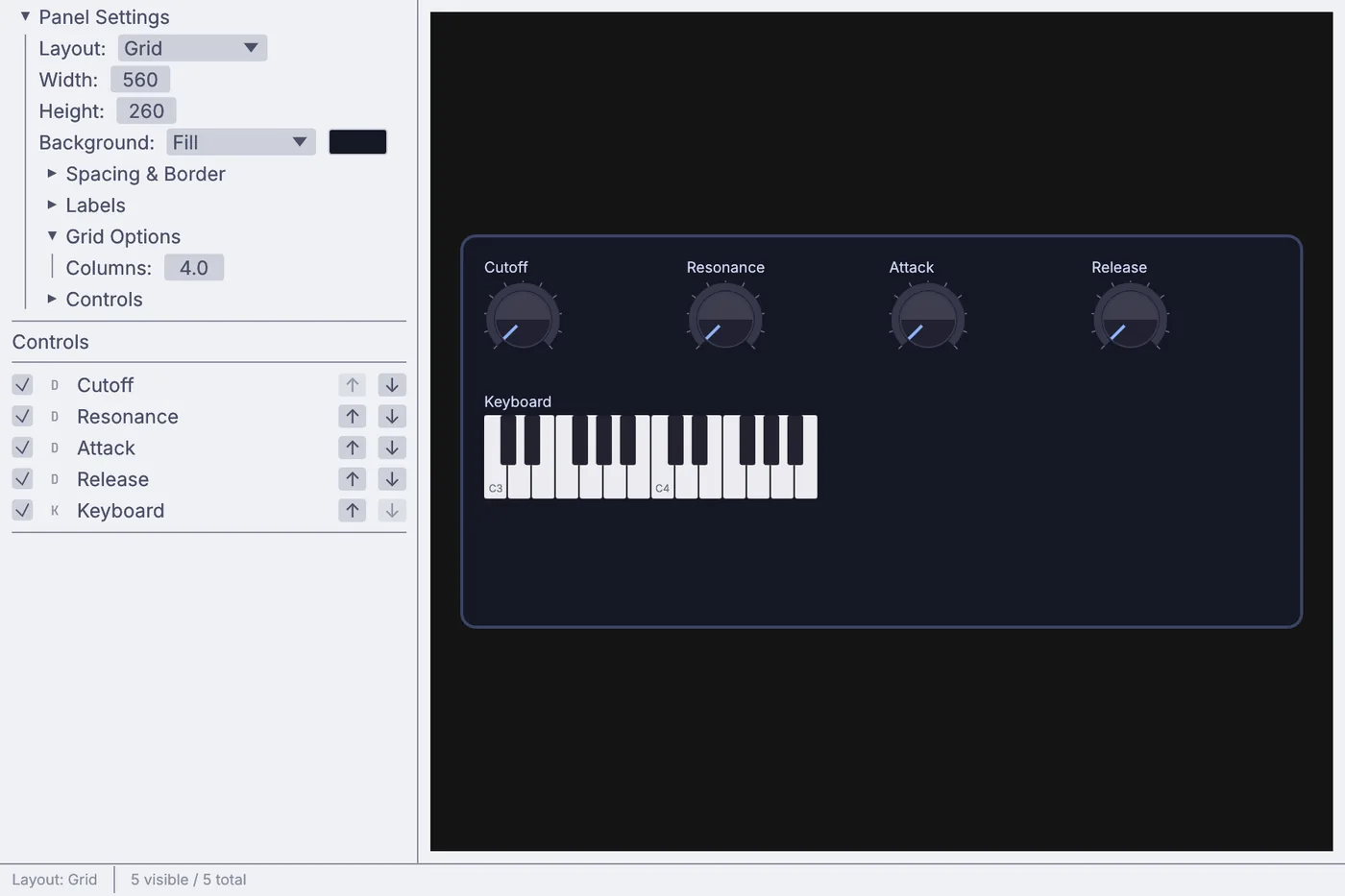
The Panel Editor: the controls list on the left and the panel laid out on a grid. Play it. With the Panel selected, the viewport shows it live. Click the keys and turn the knobs while you play. Click Open in New Window in the Properties panel to give the panel a window of its own.
On the canvas
The viewport steps added AudioOscillator, AudioLadderFilter, AudioGain and the speaker pair AudioPlaybackOperation and AudioPlaybackInterface. The keys are a UIKeyboard into MidiToFreq, the envelope is an AudioADSR, and each knob is a UIDial on the UIPanel.
Make it yours
- Pick Supersaw from Start from... instead of Oscillator for a thick pad.
- Raise Sustain level on the ADSR for notes that hold while you keep a key down.
- Link Saturation on the ladder filter for a dirtier sound.
- Set the Keyboard's Octave count to
3for more keys.
If it goes wrong
- Silence after step 6 is right: the sound only plays while a key is down.
- No sound at all: press Play on the transport bar, and check that Gain on the Gain node is driven by the ADSR.