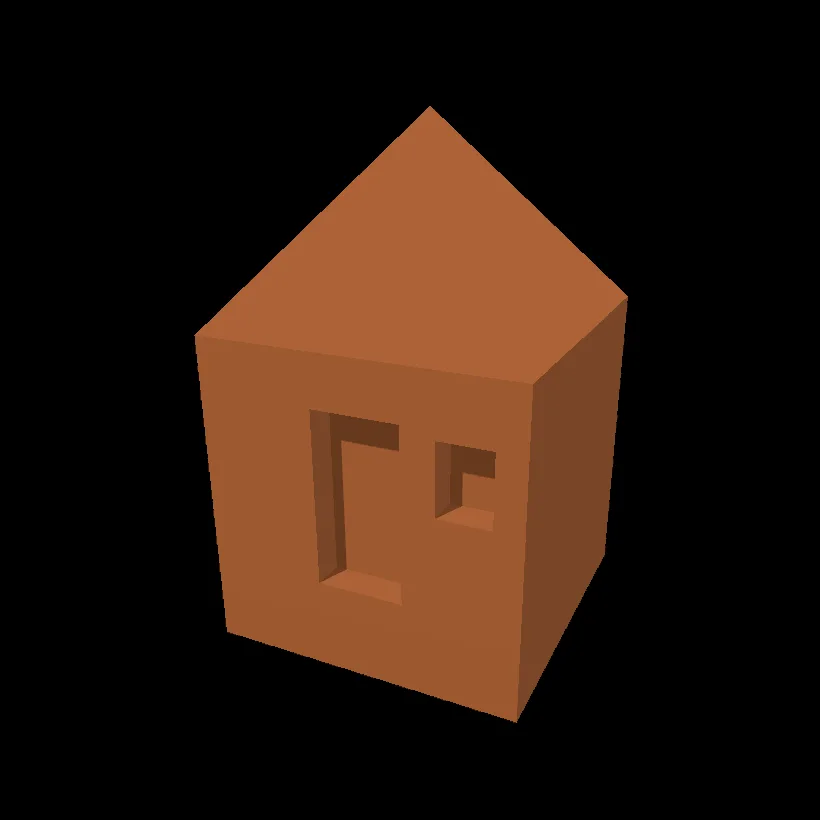
One box becomes a hut in four moves: pick the top, raise it into a roof, cut a door and a window, then give it a color.
Steps
Click New Project on the start screen. On the viewport's start card, click Add a shape and pick Box.
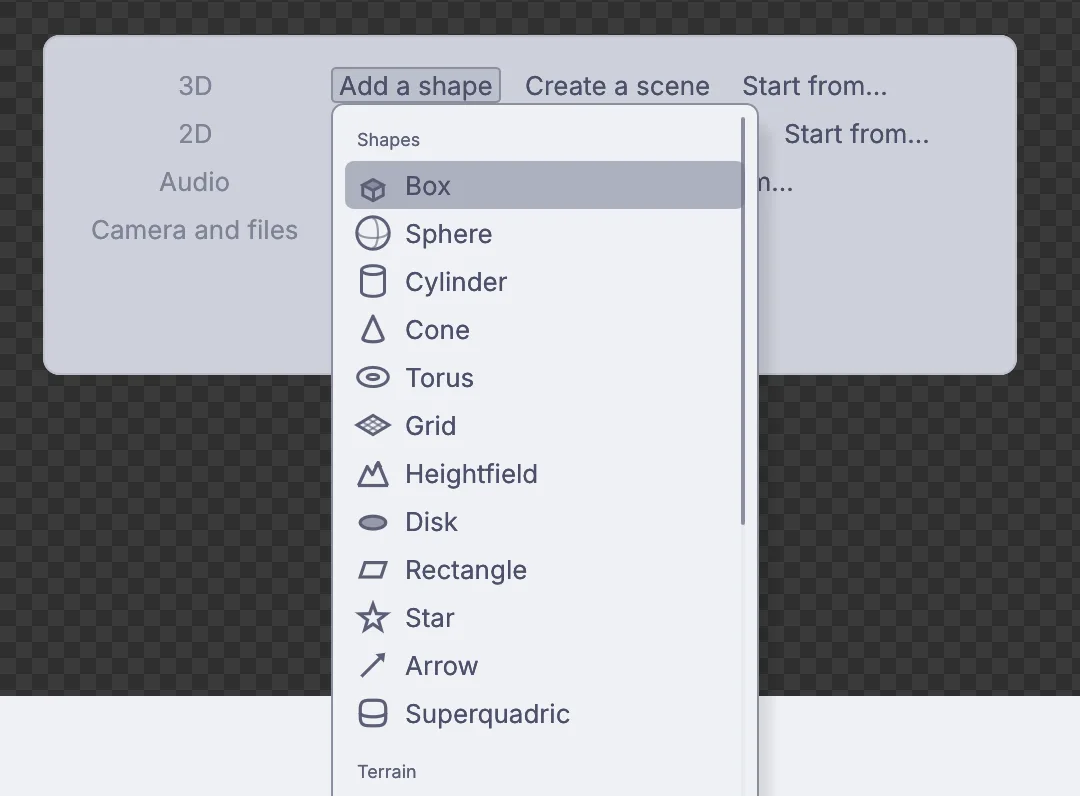
Add a shape on the start card, with Box at the top. Drag in the empty space around the box to turn the view until you can see its top and its front. Near the top left of the viewport sit four small pick buttons: Object, Points, Edges and Faces. Click Faces (the filled square), then click the top of the box. It turns orange: it is picked.
Open Shape and choose Poke. The top becomes four triangles that meet in the middle. It still looks flat.
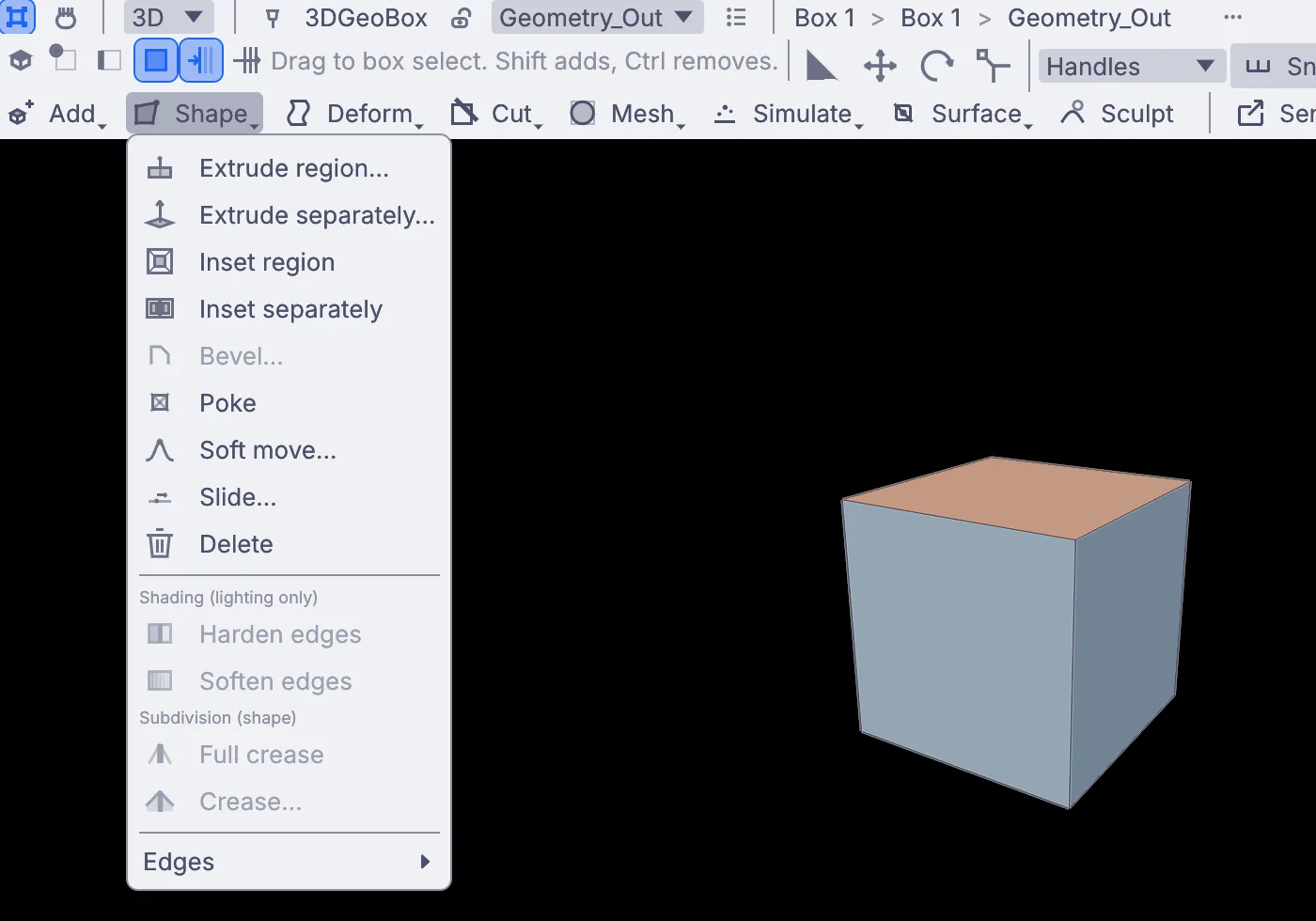
The top face picked, and the Shape menu with Poke. In the Properties panel on the right, click Offset, type
0.6and press Enter. The middle point rises and the top becomes a pointed roof.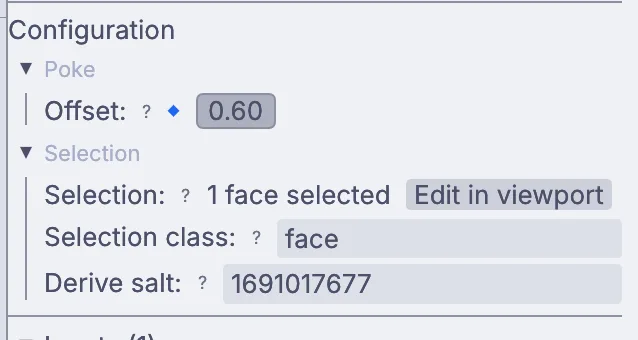
Offset on the Poke step, set to 0.6. 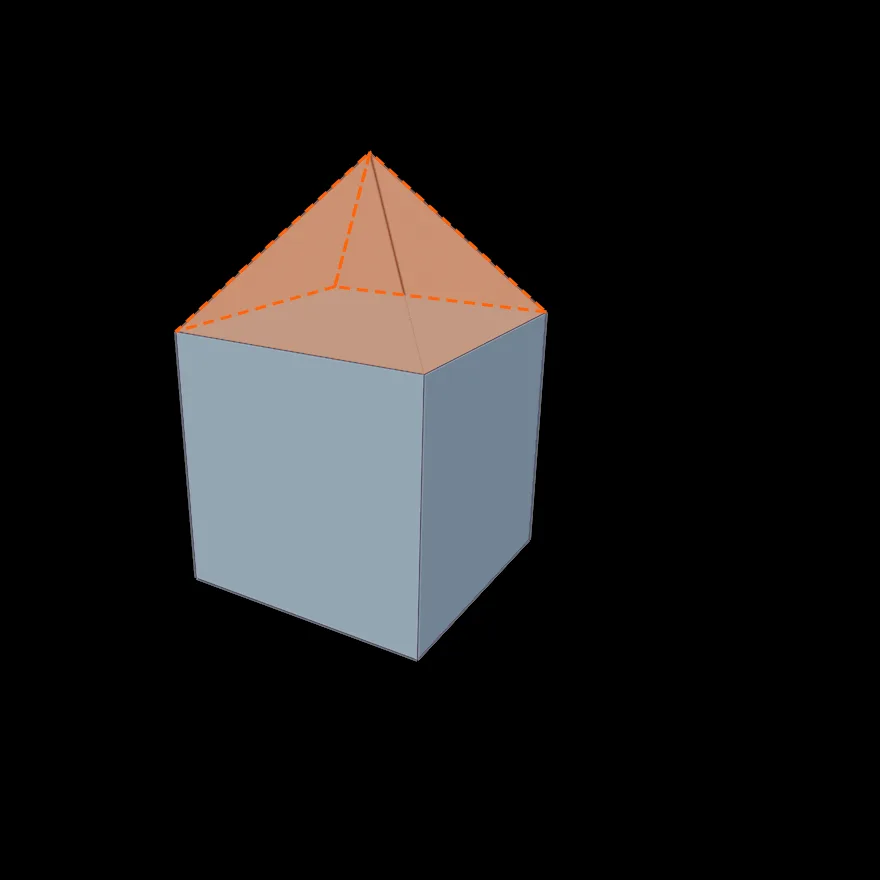
The roof, still picked. The door. Open Cut, choose Boolean... and drag a tall rectangle on the front wall, from near the bottom to about two thirds of the way up. A grid shows the wall it cuts into and a Depth arrow appears. Type
0.1and press Enter, and the door is cut into the wall.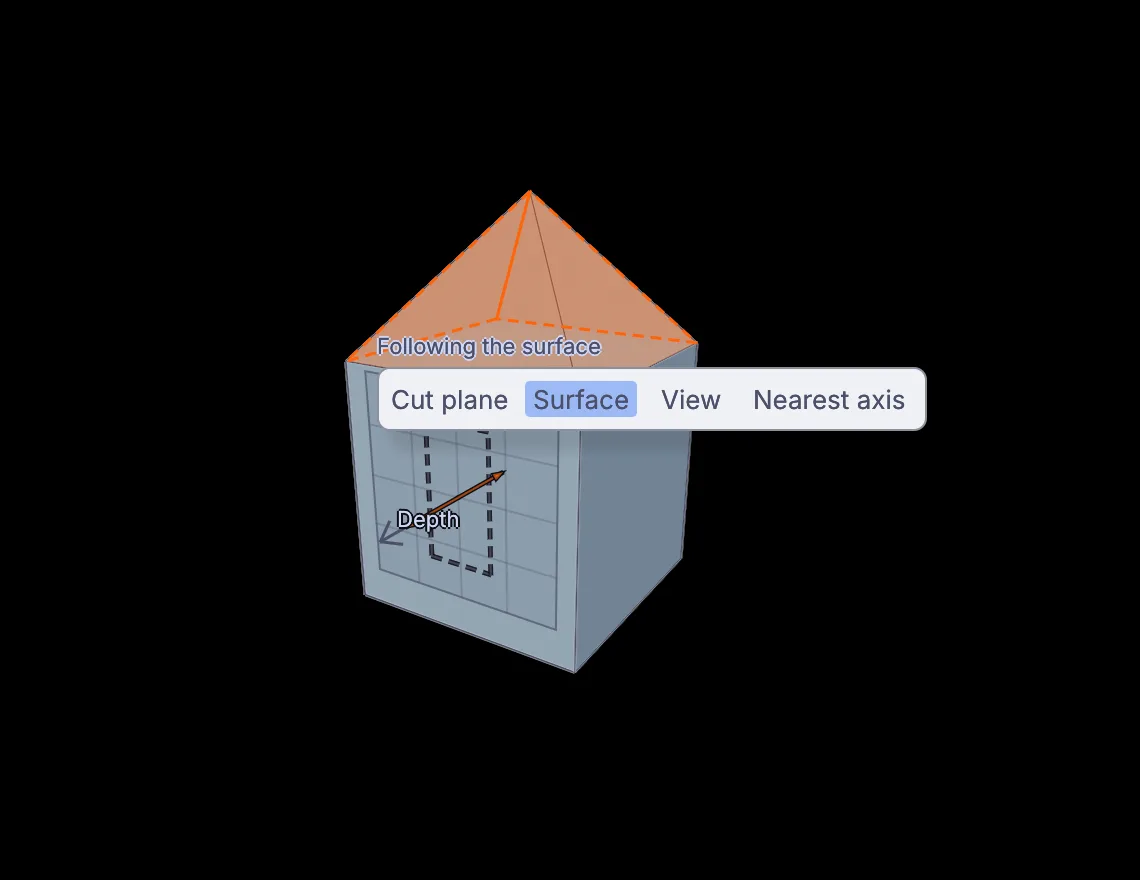
Drawing the door: the cut follows the wall. The window. Choose Cut > Boolean... again and drag a small square to the right of the door, type
0.1and press Enter.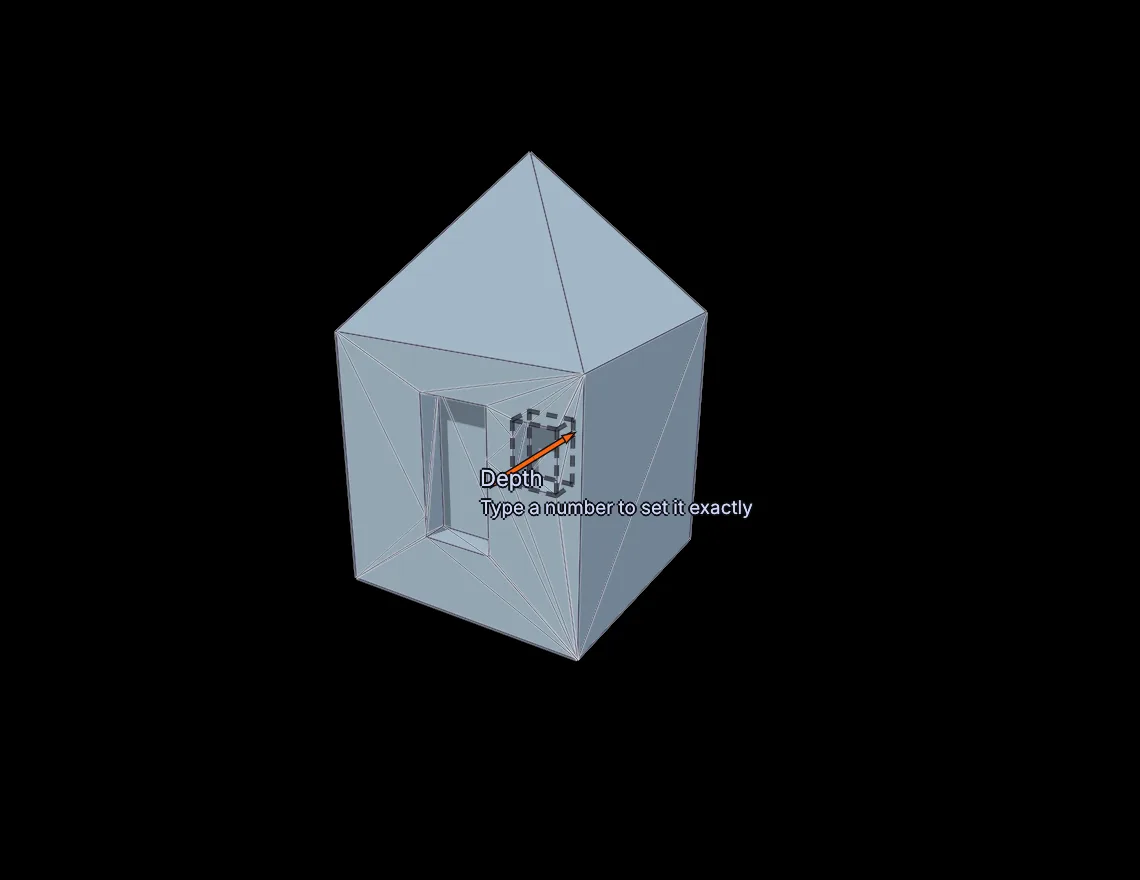
The window going in beside the door. Click Object, the first pick button, so the menus work on the whole hut. Then open Surface > Material > New PBR material. The hut turns a soft tan.
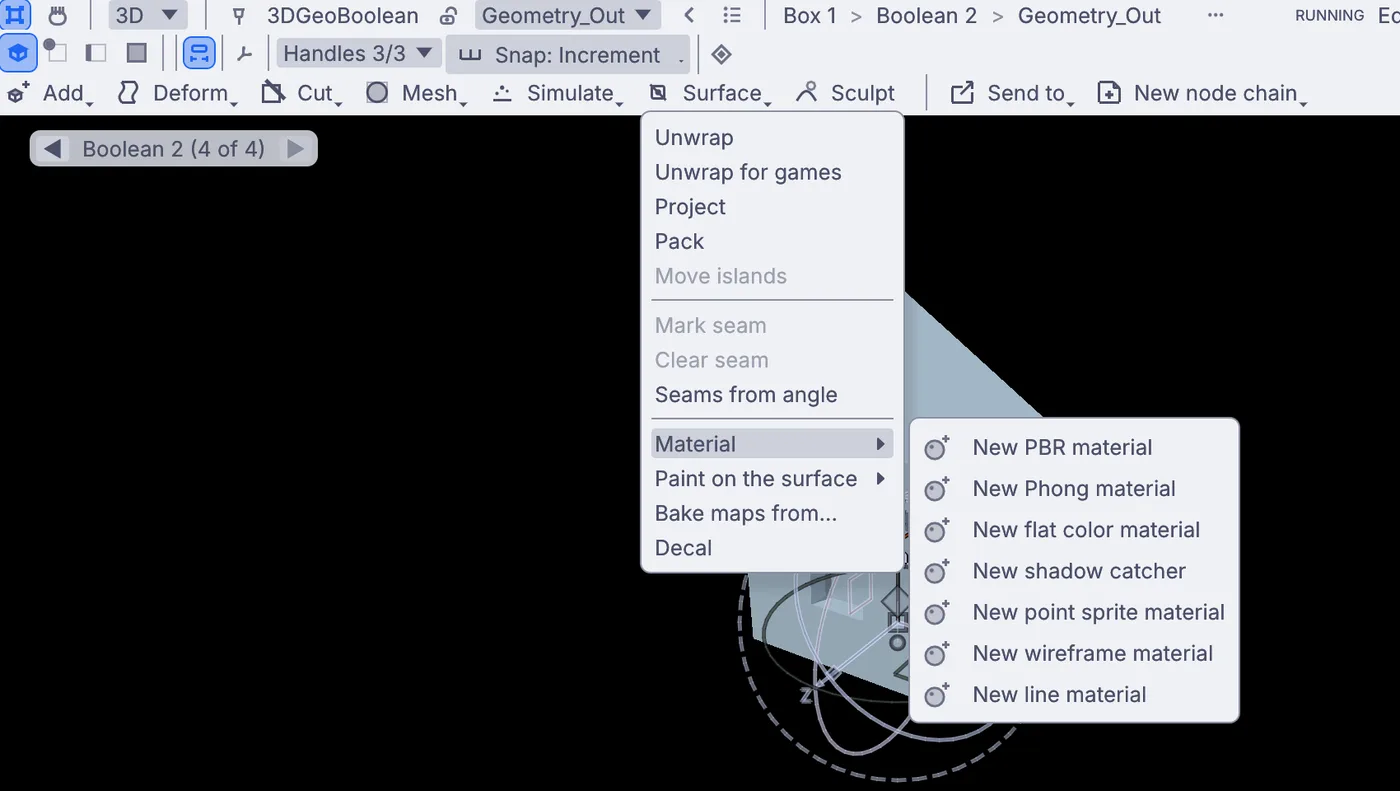
Surface > Material > New PBR material. In the Objects panel, under Materials, click Box 1 material. In Properties, click the hex box beside Base color, type
#C2703Fand press Enter. Turn the view to see your hut from its best side, and save it with File > Save.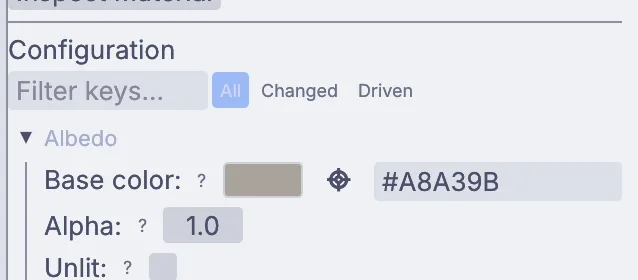
Base color on the hut's material, with its hex box.
On the canvas
The box runs through 3DGeoPoke for the roof, then through two 3DGeoBoolean steps, each with its own cutter box. At the end, 3DGeoSetMaterial puts the PbrMaterial on the finished hut.
Make it yours
- Before you pick the top, set Size x in Properties to
1.6for a longer hut. - Add more windows with Cut > Boolean..., on any wall.
- Raise the roof with a bigger Offset, or try a negative one for a hollow in the top.
- Set the hut on fire: Simulate > Fire from this.