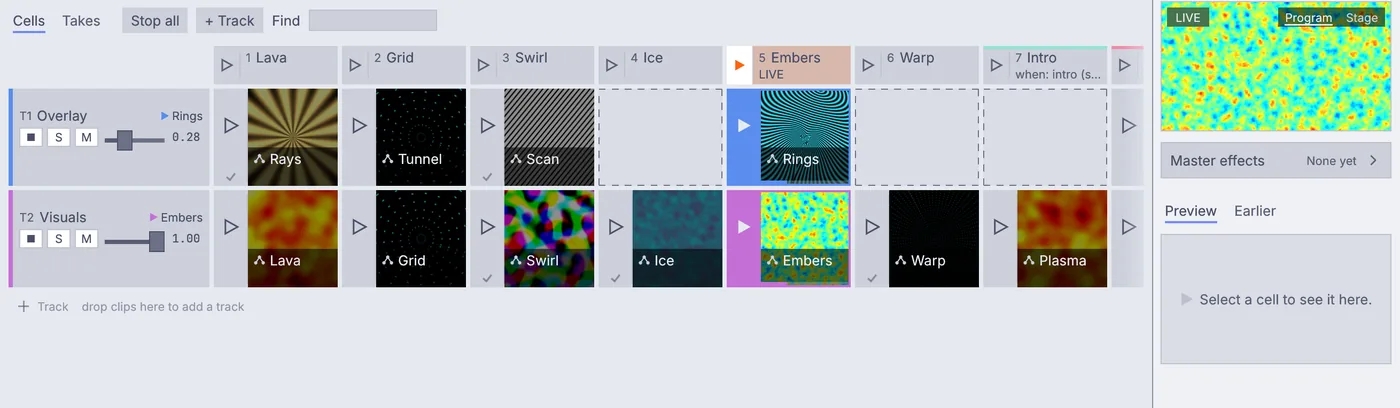
The Clip Launcher plays a show from a grid of moving clips. You press a cell or a whole column, and it starts on the next beat or bar of the music. The song and the clips here ship with the app, so you need only a mouse.
Steps
On the start screen, click New Project. The viewport shows a card: click Start a VJ set. A small window, Start a VJ set, asks for a song: click Use a default song. The set opens, and the Clip Launcher window opens beside the main window.
The Clip Launcher is a grid. Each track is a line of cells across it: T1 Overlay on top and T2 Visuals under it. The columns go from 1 Lava to 6 Warp, and each cell holds a moving look. If the button at the top left reads Play, press it. While the set runs it reads Playing, and the dots beside it count the beats of each bar.
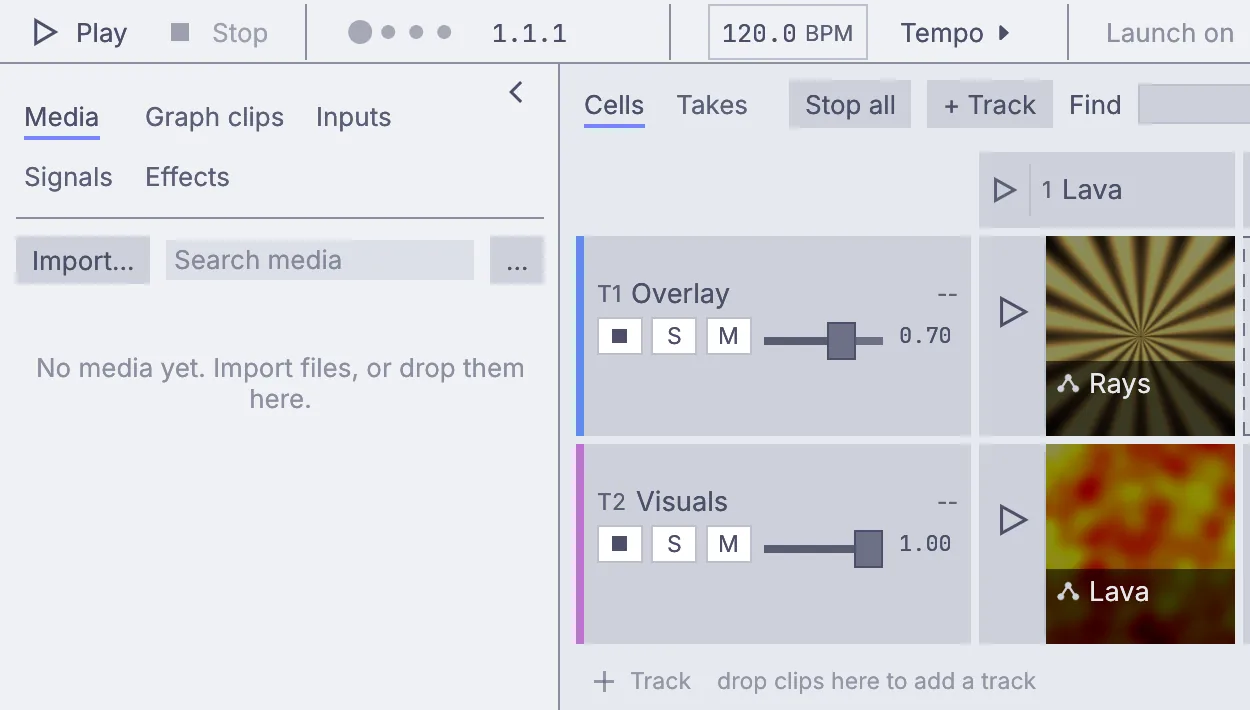
The left side of the Clip Launcher as the set opens: Play and the beat dots, the T1 Overlay and T2 Visuals tracks, and column 1 Lava. While the song plays, a song map listens to it. After a few seconds a panel, Make the set from the song, offers two new columns, Intro and High, filled with looks picked for those parts of the song. Click Make the set. Each new column follows the song and launches by itself when the song reaches its part, so 7 Intro starts at once.
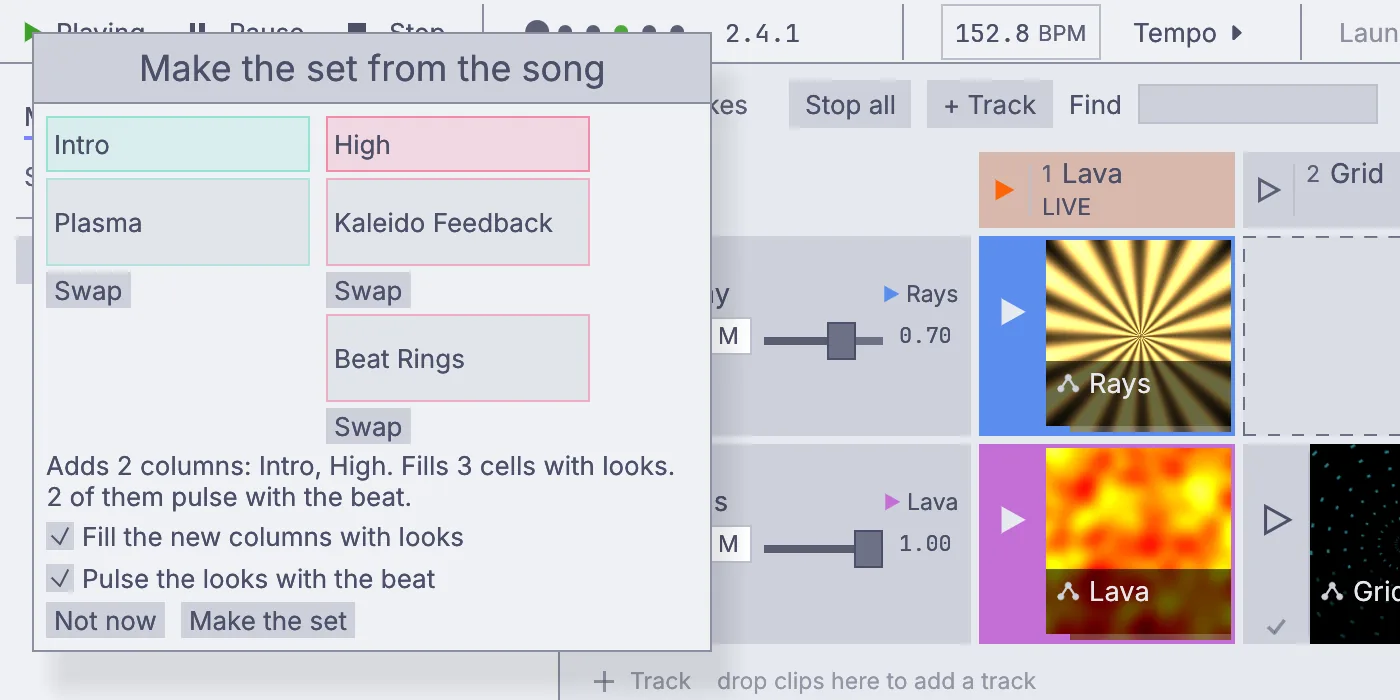
Make the set from the song: Intro and High with the looks picked for them, and Not now and Make the set at the bottom. Look at the tempo box in the header. It shows the tempo the song map heard, about
150BPM, and it follows the song as it plays. Every launch lands on that beat, so the pictures change in time with the music.Choose when a press lands. In the header, open Launch on, which reads Next bar, and pick Next beat. Now a cell you press starts on the very next beat.
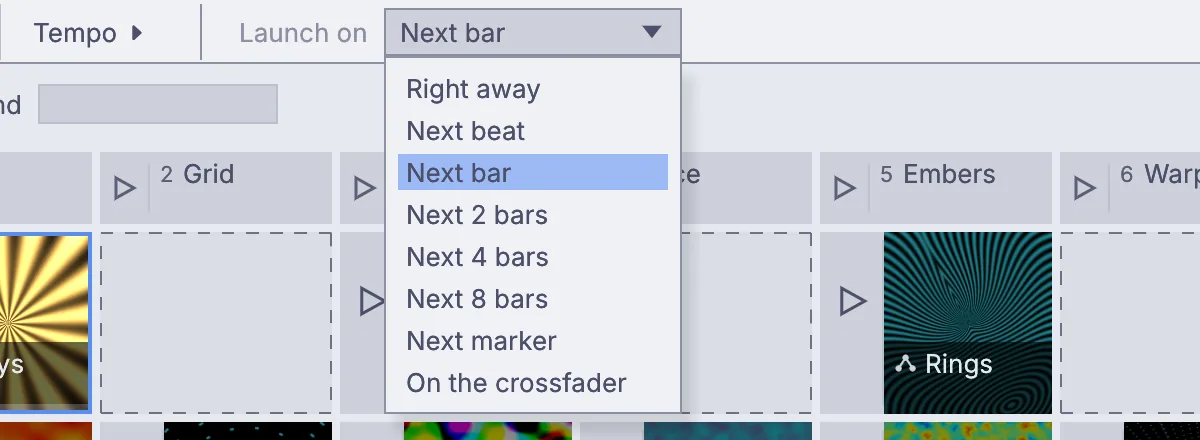
The Launch on list: Right away, Next beat, Next bar, Next 2 bars, Next 4 bars, Next 8 bars, Next marker and On the crossfader. Launch a cell. On the Visuals track, press the left edge of Swirl, the strip with the triangle, under 3 Swirl. The cell turns orange and waits, with a ring that counts down to the beat, then Swirl takes over the track.
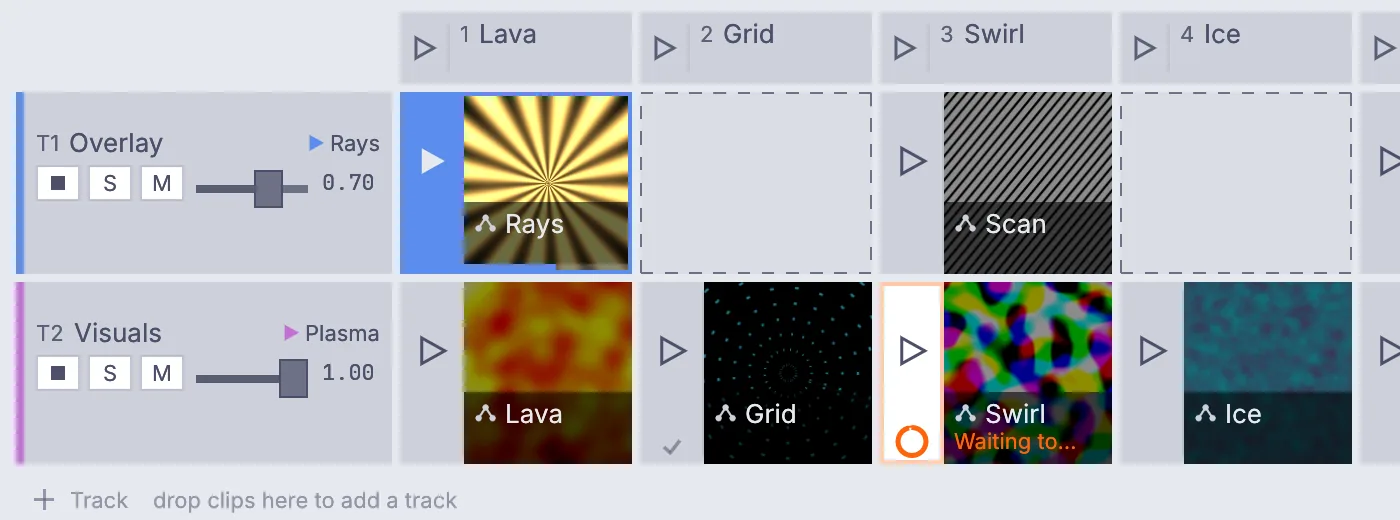
Swirl waiting for the next beat on the Visuals track, its ring counting down. Launch a whole column. Set Launch on back to Next bar, then press the triangle at the left of the 5 Embers head. Both tracks get ready and change together on the next bar: Rings on Overlay and Embers on Visuals. The head turns orange and reads LIVE.
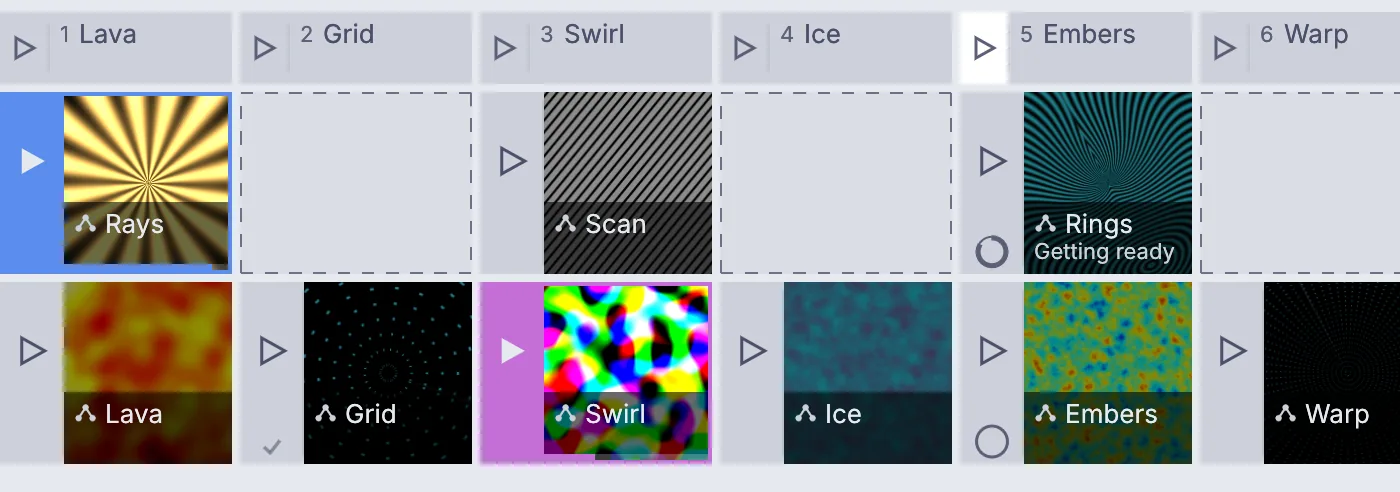
Column 5 pressed: Rings getting ready on Overlay and Embers on Visuals, both counting down to the bar. Add a clip of your own. At the top of the library on the left, click Graph clips. Drag Tunnel onto the empty Overlay cell under 2 Grid, then press the triangle on the 2 Grid head to play Tunnel over Grid.
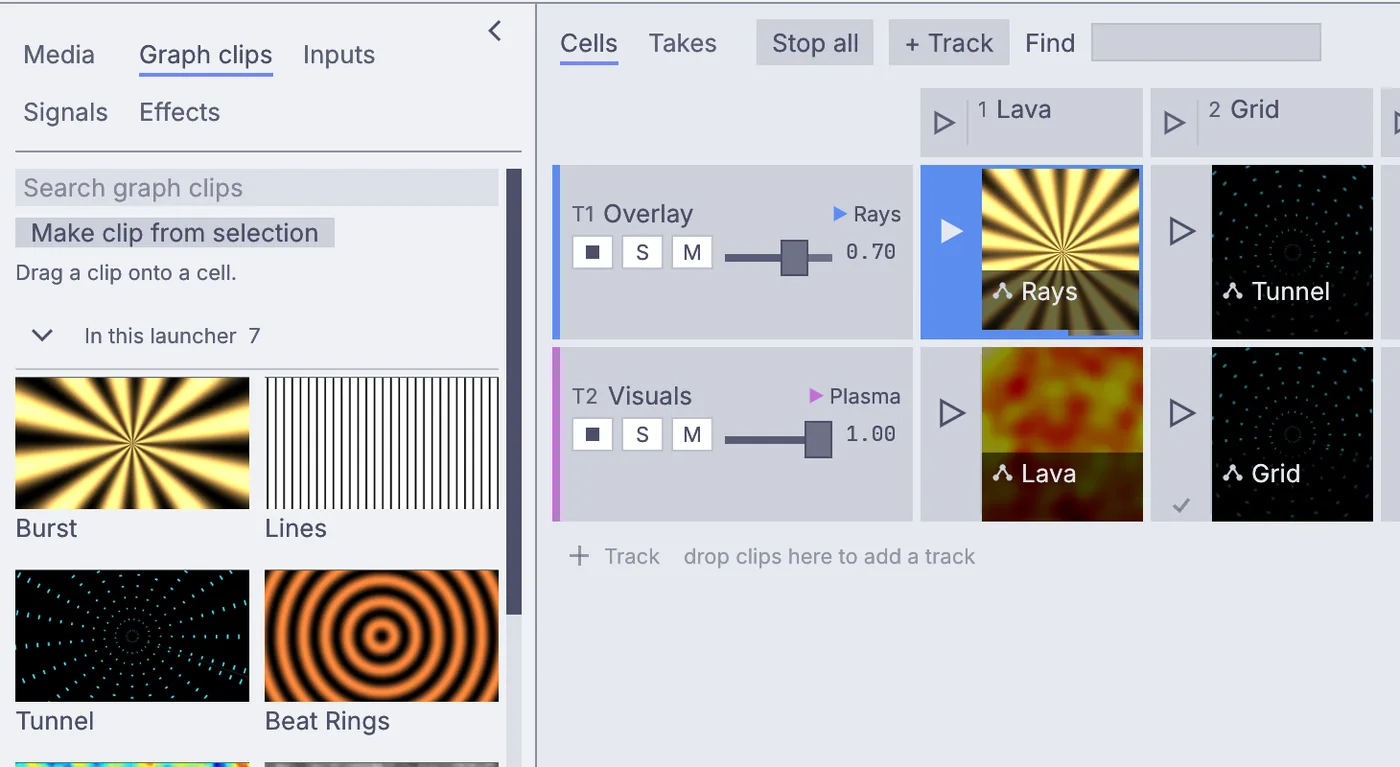
Graph clips open in the library, and Tunnel dropped into the Overlay cell under 2 Grid. Fade a track. Drag the Overlay fader, the slider in the track's header, down to about
0.3. The number beside it follows, and less of Overlay shows over Visuals.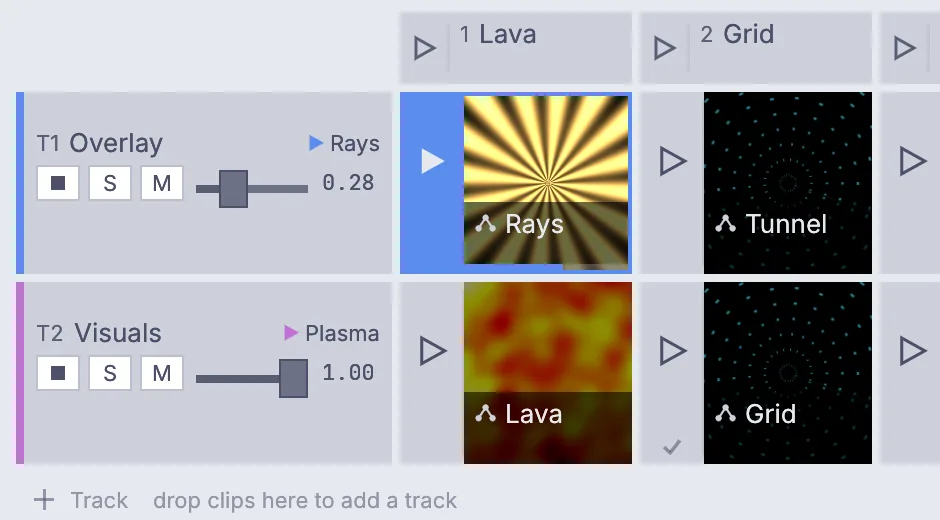
The Overlay fader pulled down to 0.28, with Visuals still at 1.00. Record a take. Press Record Take 1 at the top right. It turns red and counts the time, and an orange line under the header says SHOW ON and A take is recording. Press a few column heads, then press the red button again. The take is kept: the button now reads Record Take 2, and the time bar at the bottom of the main window has a new Launcher take: Take 1 line.
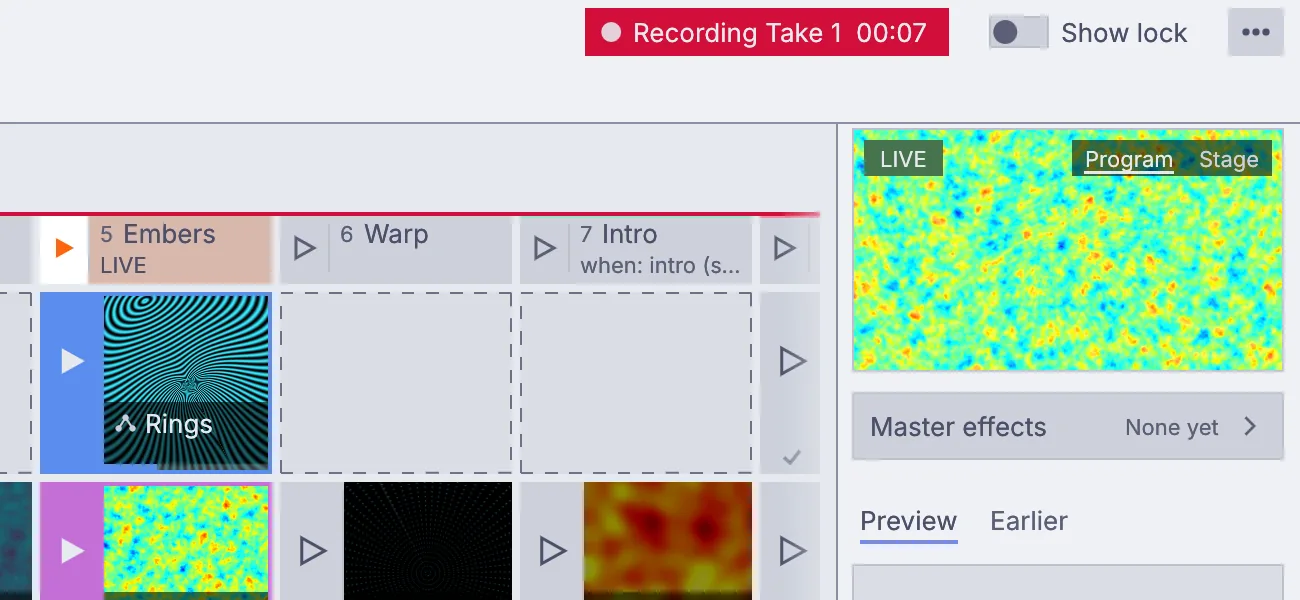
The red Recording Take 1 button at 00:07, with column 5 live below.
On the canvas
The VJ set is a ClipLauncher that drives two tracks. Each track is a LauncherTrack, which plays its cells on the beat, and a LauncherTrackBlend, which draws its picture. An ImageComposite named mix lays Overlay over Visuals for the output. Use a default song added the song twice, as Music for the speakers and as Song for the map, and a LocalAIAudioToSongMap that finds the song's tempo and its parts and tells the launcher when each part starts.
Make it yours
- Drag Beat Rings or Kaleido Feedback from Graph clips onto another empty cell.
- Pick Next 2 bars or Next 4 bars in Launch on for slower, bigger changes.
- Scroll down Graph clips to the 3D group for looks such as Terrain Fly and Orbiting Shapes.