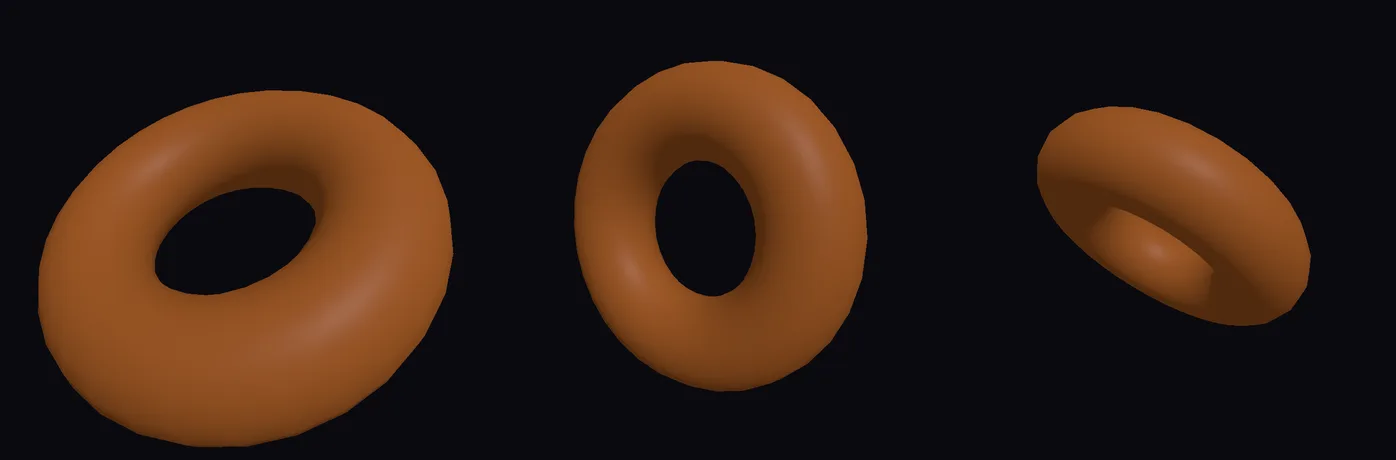
Any number in Properties can follow a line of Python instead of holding still. Kinematic runs the line again on every frame, and t is the time in seconds since the graph started playing.
Steps
Click New Project. On the start card, click Add a shape and pick Torus. A donut lands in the middle of the view.
Give it a color. Open Surface > Material > New PBR material. In the Objects panel, under Materials, click Torus 1 material. In Properties, click the hex box beside Base color, type
#E8833Aand press Enter.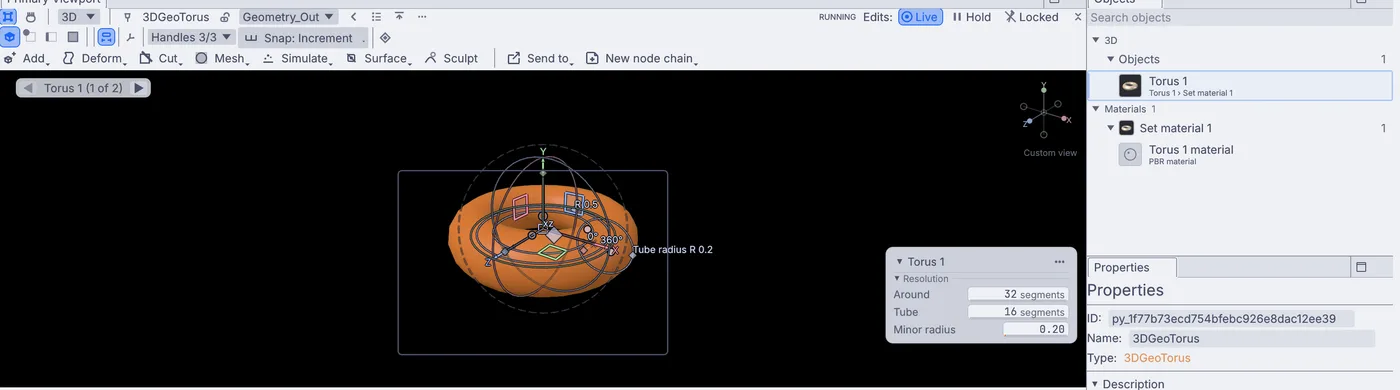
The donut with its new material, and Torus 1 material listed under Materials. Click Torus 1 in the Objects panel so Properties shows the donut. Under Configuration, type
turnin the filter box. Turn X, Turn Y and Turn Z are left.Right-click Turn X and choose Set Python Driver (@). The Driver Editor opens in Python mode, with
talready in the Expression box.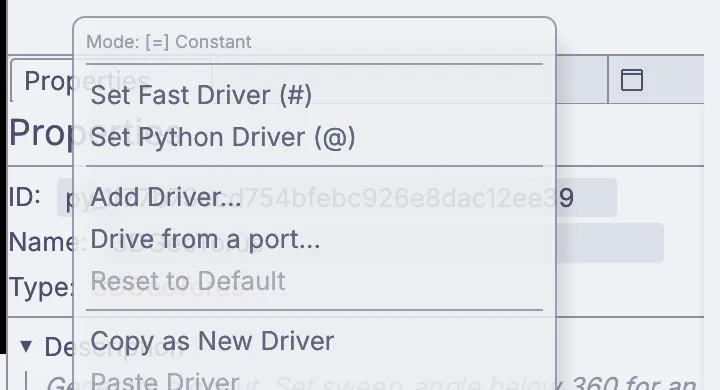
Right-click a setting for its driver choices. Set Python Driver (@) is the second one. Replace
twith this line and click OK:(t * 90) % 360
The donut tumbles a quarter turn every second. The
% 360wraps the angle back to 0 after a full turn, because Turn X takes values from -360 to 360.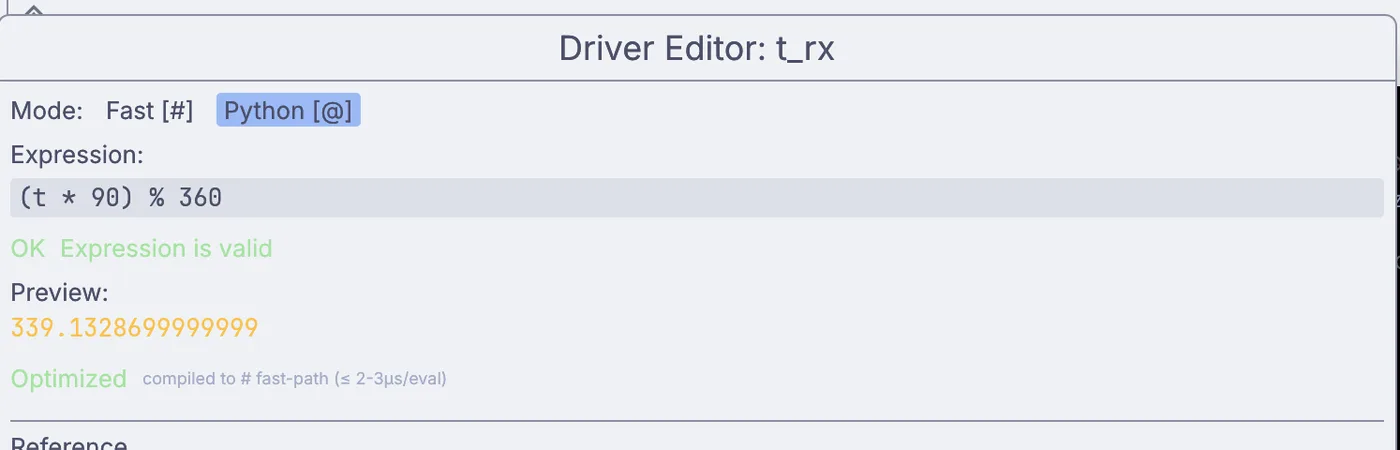
The Driver Editor in Python mode. It checks the line as you type and shows the value it gives right now. Look at Turn X in Properties. It now shows the value changing live, the line it follows, and a small graph of the last few seconds.
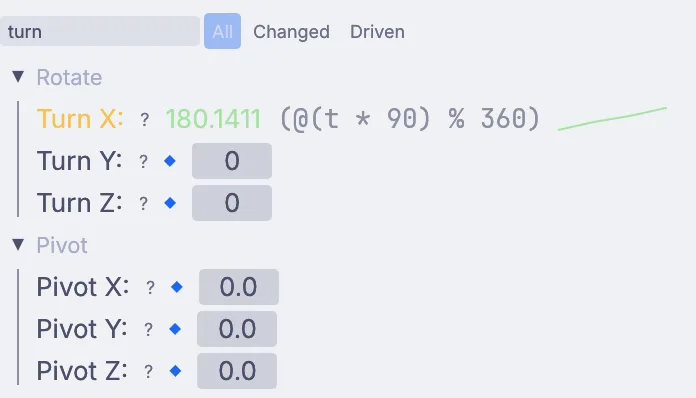
Turn X follows the Python line. Turn Y and Turn Z still hold plain numbers. Make it breathe. Type
uniformin the filter box, right-click Uniform scale, choose Set Python Driver (@), and replacetwith:1 + 0.2 * sin(t * 4)
Click OK. The donut swells and shrinks a little, about every second and a half.
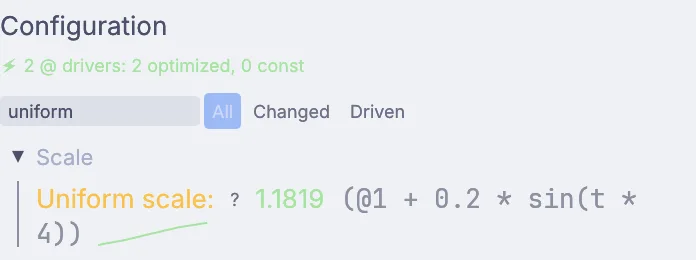
Uniform scale follows a sine wave between 0.8 and 1.2. Hover over the viewport and press Shift+H to hide the handles, then watch it move. Save with File > Save.
On the canvas
The steps added a 3DGeoTorus for the donut and a PbrMaterial that a 3DGeoSetMaterial puts on it. The two Python lines live on the torus itself, as the values of its turn and size settings.
Make it yours
- Bob it up and down: filter for
move, right-click Move Y and set its Python driver to0.5 * abs(sin(t * 3)). - Add a second turn with Turn Y set to
(t * 40) % 360, so it wobbles as it tumbles. - Slow it down:
(t * 30) % 360turns it once every twelve seconds. mathis ready to use in any line, somath.floor(t) * 45 % 360turns the donut in steps, once a second.
If it goes wrong
- The editor says the line is not valid: check the brackets, and use
t(nottime) for the seconds. - To go back to a plain number, right-click the setting and choose Set Constant Value.