
A logo is a few simple shapes in good colors. You click them out with the pen, then fill each one. Vector shapes stay sharp at any size.
Steps
Click New Project on the start screen. On the viewport's start card, under 2D, click Create an SVG. A blank white page appears, and the pen is ready to draw: Draw is lit beside Pen at the top of the view.

Pen with Draw lit, at the top of the view. The big peak. Click three points on the page: bottom left, the top in the middle, bottom right. Press Enter to finish the shape.
The small peak. Click three more points, overlapping the right side of the big one and a little lower, then press Enter.
The sun. Click a ring of about a dozen points in the top right corner, going around a circle, and press Enter. You now have three outlines.

Three outlines: two peaks and a sun. In the Objects panel, click SVG path 1. In Properties, under Style, click the hex box beside Fill, type
#2F4F46and press Enter. Then set Stroke tononethe same way, so the shape has no outline.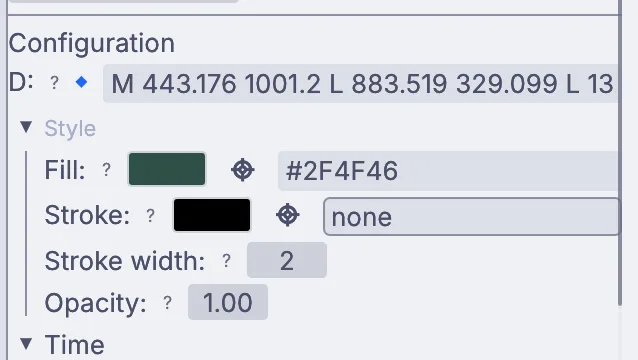
Fill and Stroke on the first path. Click SVG path 2 and give it Fill
#5E8C6Aand Strokenone. Click SVG path 3 and give it Fill#E8913Aand Strokenone.Click SVG merge 3 at the top of the list in Objects to see the whole page. Your logo is done.
On the canvas
SvgCanvas is the white page. Each shape you drew is an SvgPath, and an SvgMerge stacks each new path on top of what came before, so the last shape you drew sits in front.
Make it yours
- Click a fourth shape along the bottom for a lake, in a pale blue.
- Drag on the page while you click a point to bend that corner into a curve.
- Try other color sets: a night logo in navy with a pale yellow moon.
- Choose SVG > Effects for a shadow or a blur on the whole logo.