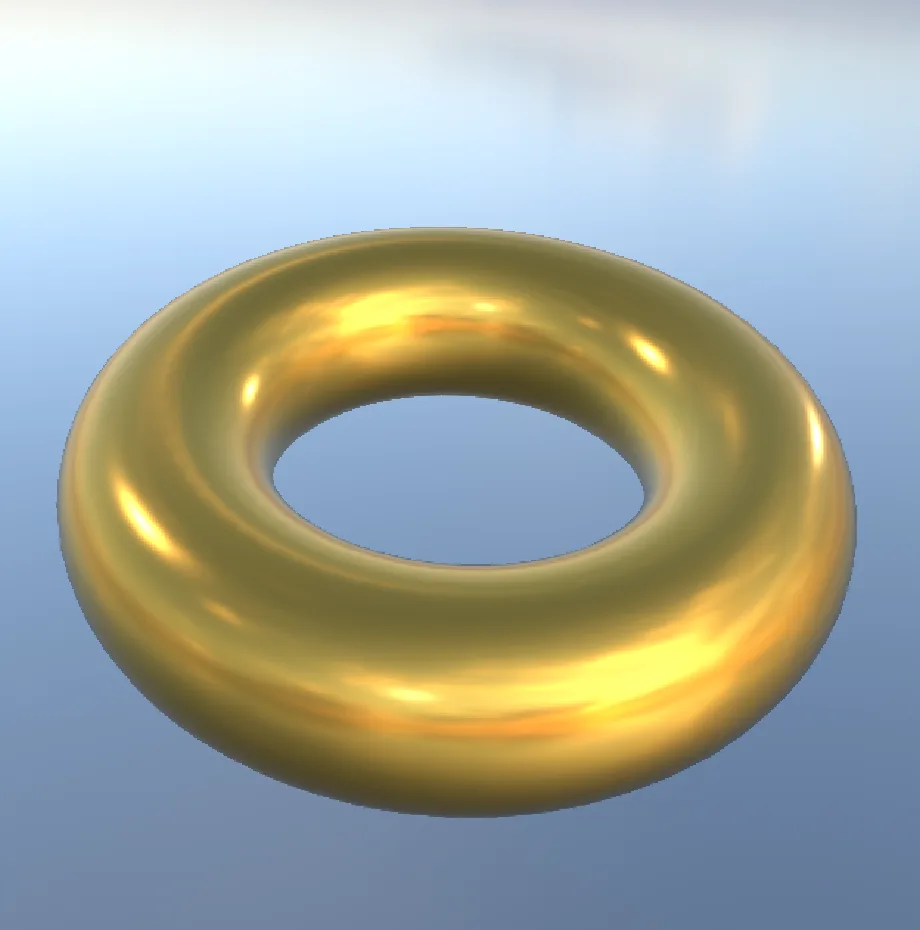
This demo lights a chrome ring with a photo of a real sky, so the ring reflects clouds and sun. You change what it is made of, turn the sky until the light looks right, then raise the camera.
Steps
Open Help > Browse Demos... and open Torus Hdr Ibl. A chrome ring turns slowly in front of a bright sky, and its surface mirrors the clouds.
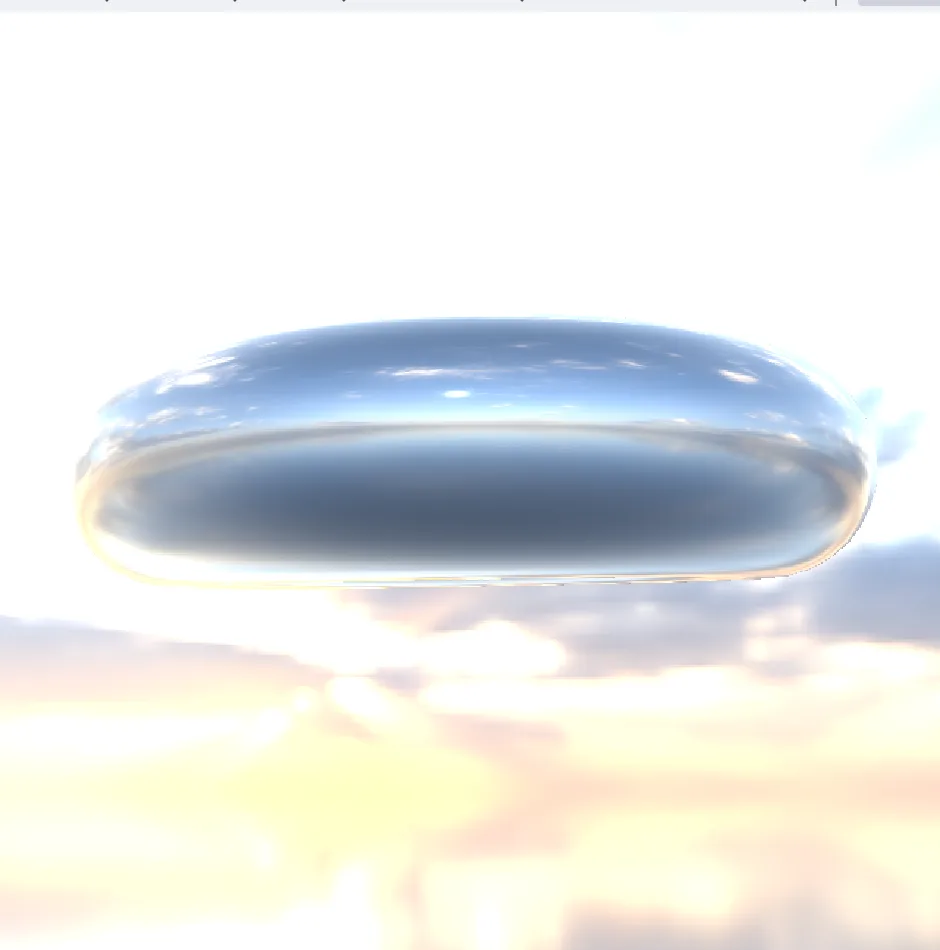
The demo as it opens: a chrome ring in a bright sky. In the Objects panel, under Materials, click material. Its settings fill the Properties panel.
Under Color, click the hex box beside Base color, type
#E8B04Aand press Enter. The metal turns gold.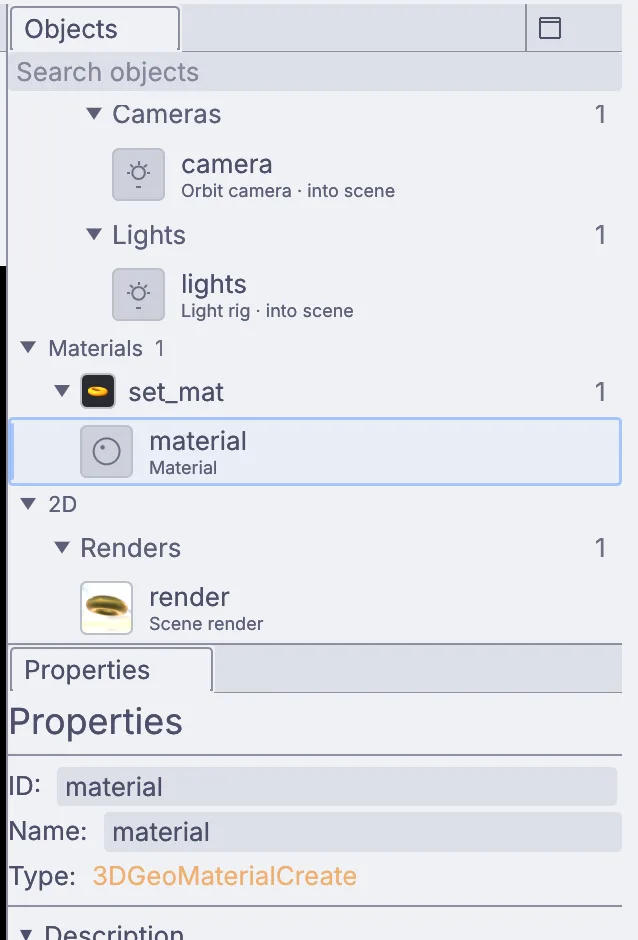
Base color on the ring's material, set to a warm gold. Scroll down to Roughness and set it to
0.22. The mirror finish softens into polished gold, and the highlights spread a little.In Objects, under Renders, click render to see the shot again. The ring is gold now.
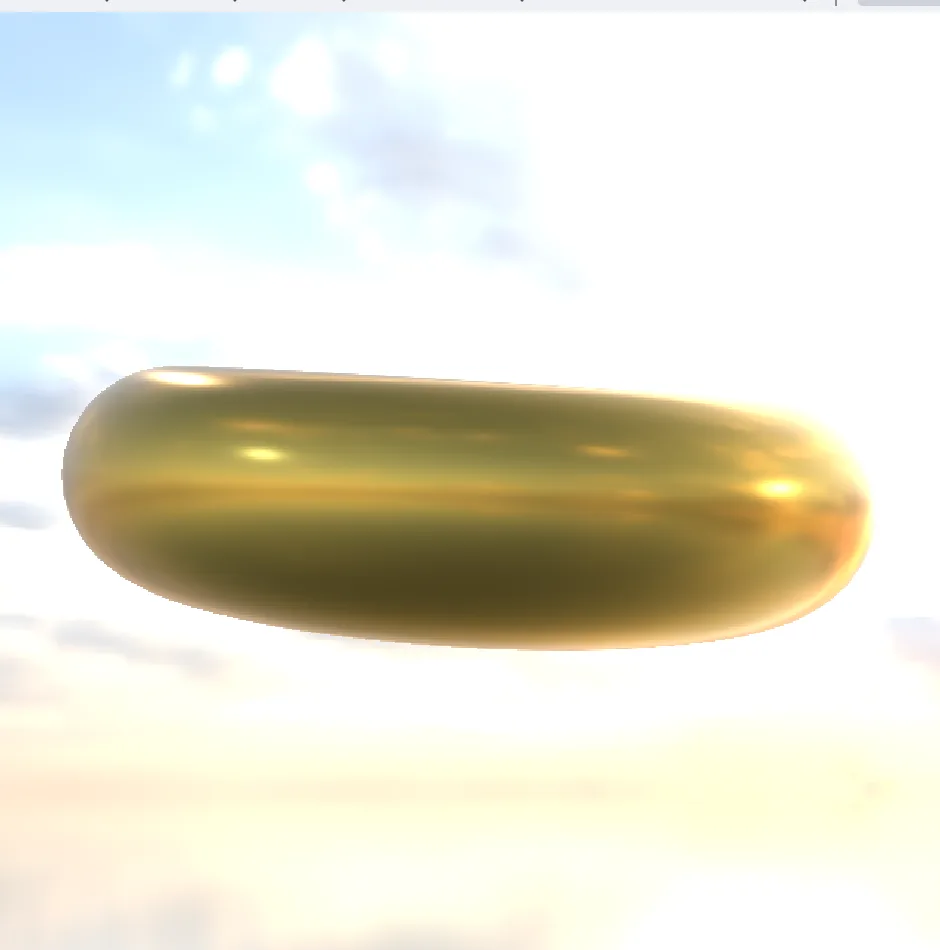
The gold ring, still in the bright part of the sky. With render picked, find the IBL settings in Properties and set
ibl_rotationto150. The sky swings around behind the ring, blue sky comes into view, and the reflections turn with it.In Objects, under Cameras, click camera. In Properties, under Orbit, set Elevation to
25. The camera rises and looks down at the ring, so you see through its hole and the gold catches more of the sky.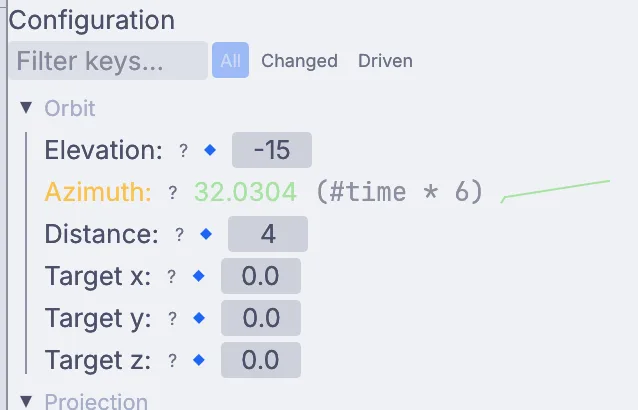
The camera's Orbit settings, with Elevation.
On the canvas
You changed three nodes the demo already had. 3DGeoMaterialCreate sets what the ring is made of, 3DGeoSceneRenderToImage lights the scene with the sky photo and turns it with ibl_rotation, and 3DGeoCameraOrbit places the camera.
Make it yours
- Set Metallic to
0and Base color to a deep red for a glossy plastic ring. - Try
ibl_rotationat60or270to put the sun's glint somewhere else. - Make it copper with
#C8714A, or silver again with#F0F0F0. - Raise Roughness to
0.6for brushed metal. - Set the camera's Elevation to
60to look almost straight down through the ring.