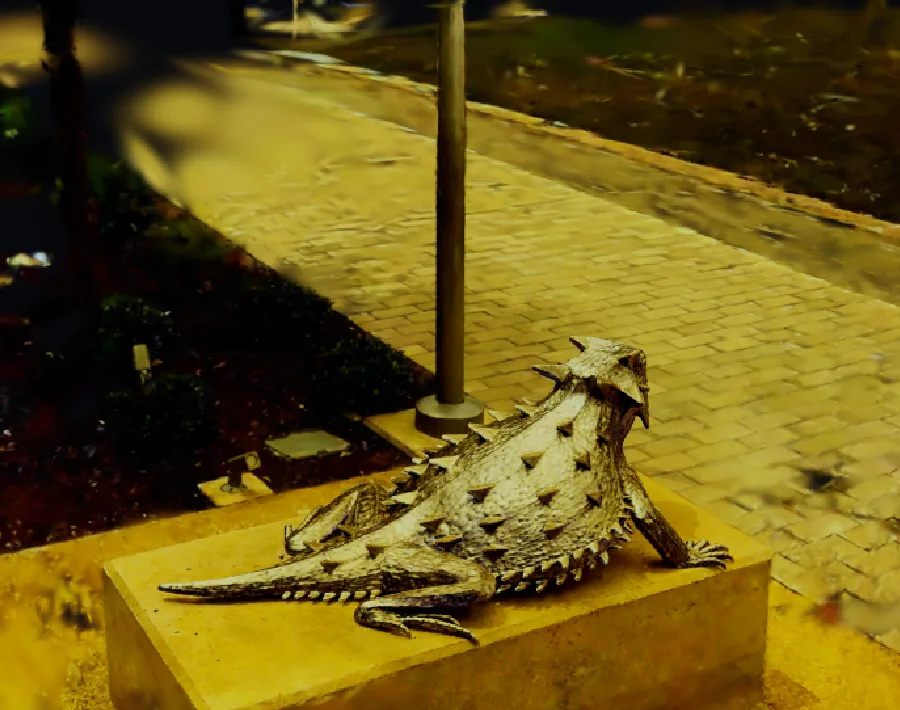
This demo is a real place: a carved horned lizard on a plinth, captured from photos as a cloud of tiny soft splats. You grade its color the way you would grade a photo, and every angle keeps the change.
Steps
Open Help > Browse Demos... and open Object Turntable. The statue turns slowly on its plinth, with the brick path and shrubs around it, under cool gray daylight.
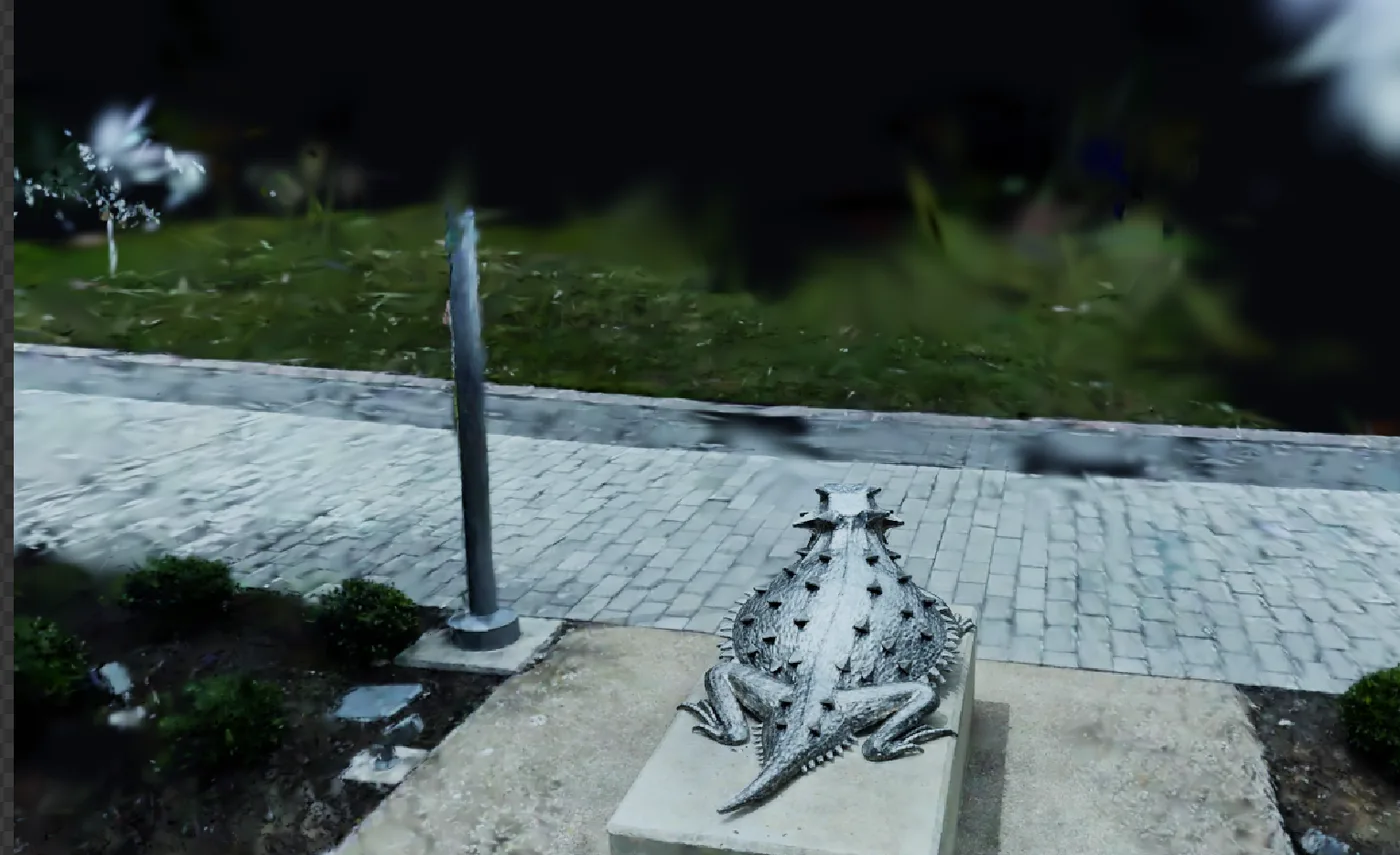
The scan as it opens, in cool daylight. In the Objects panel, under the scene's Objects, click import. The viewport shows the capture itself, and a Splat menu joins the tools along the top of the viewport.
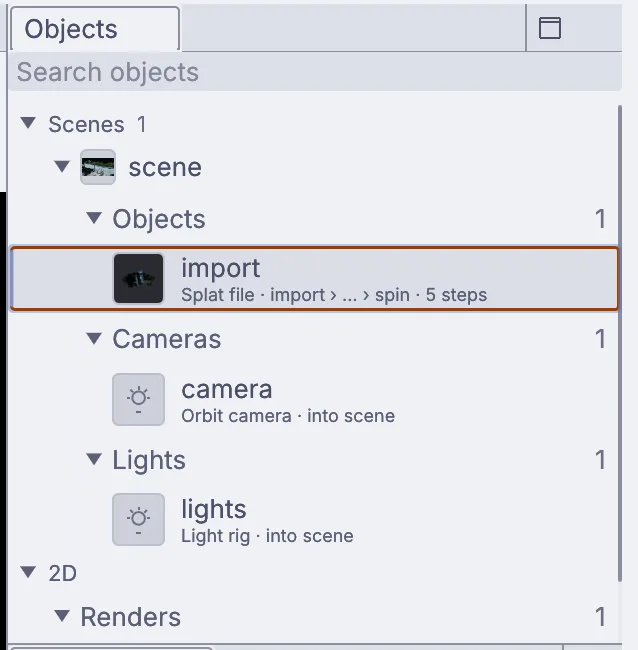
The capture, listed as import in the Objects panel. Open Splat > Color and choose Splat color correct. A card with the grade's settings appears on the right of the viewport.
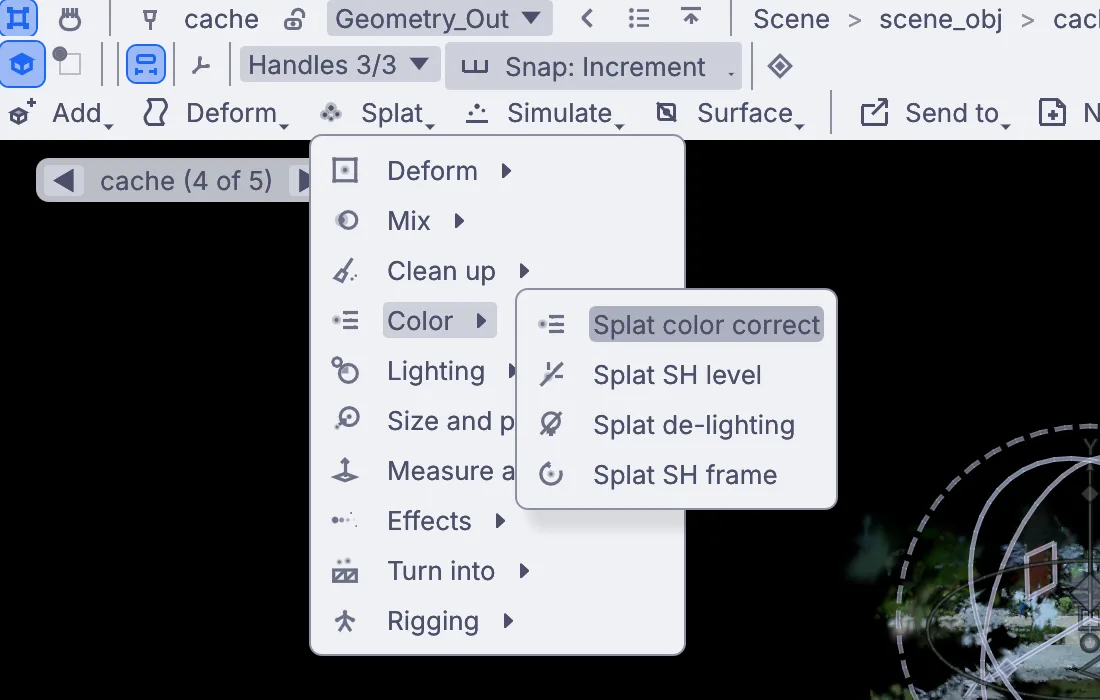
Splat > Color > Splat color correct. On the card, click Warmth, type
3600and press Enter. Lower numbers are warmer, so the whole scan turns gold.Set Saturation to
1.35for richer color, Black point to0.03for deeper shadows, and Brightness to1.2.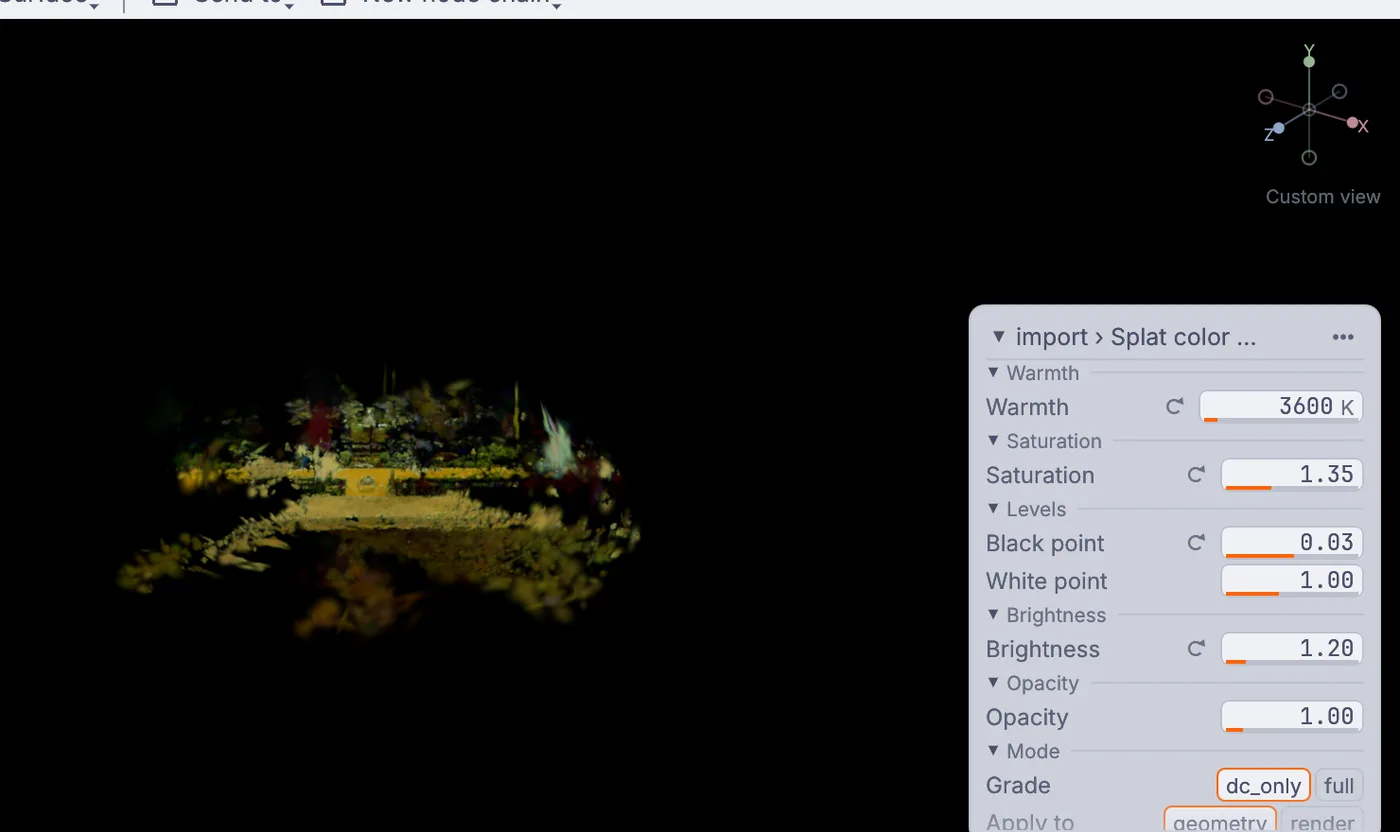
The grade's card: Warmth 3600, Saturation 1.35, Black point 0.03, Brightness 1.2. In Objects, under Renders, click render to see the finished shot. Watch it turn: the warm light holds from every side, because the grade changed the scan itself.
On the canvas
The demo loads the scan with 3DGeoImportSPZ and shows it through 3DGeoSceneRenderToImage. Your grade is one new node, 3DGeoSplatColor, placed in the capture's steps, so everything after it sees the warmer scan.
Make it yours
- Set Warmth to
9000and Brightness to0.7for a cold moonlit night. - Drop Saturation to
0for a black and white statue. - Squash the whole scan: Splat > Deform > Deform with a cage, then drag a handle.
- Lower Opacity a little for a ghostly, see-through look.